Colors tab
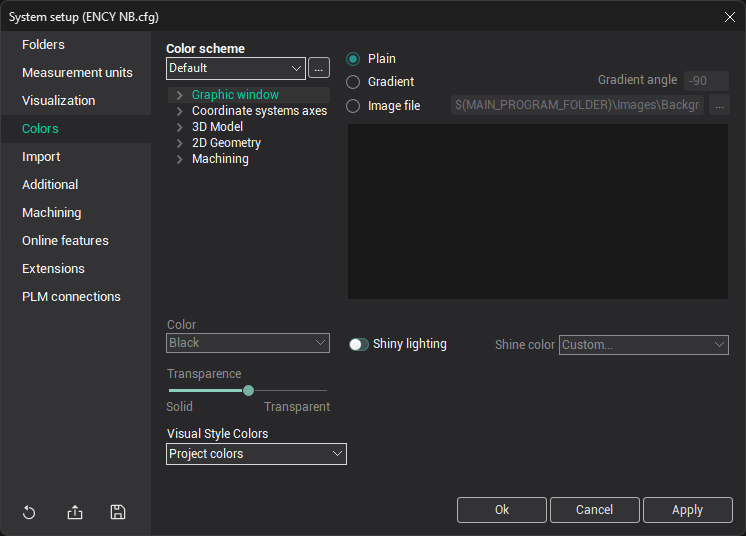
In the Color scheme field, it is possible to select one of the predefined color schemes. By pressing the  button, it is possible to restore the default color values or, if the Another color scheme is selected, to load values from another color scheme.
Below the color scheme, a tree-like structure shows the color values for individual elements. These elements are grouped as follows: Graphic window, Coordinate systems axes, 3D Model, 2D Geometry, Machining. By expanding the necessary group, you can edit the color values for any element. The color of a selected element is set in the Color field by choosing the desired value from the drop-down list. The Transparence slider allows you to adjust the transparency of the selected element.
You can also choose the background of the graphic window:
- Plain: A solid background. The color is set in Graphic window -> First background color.
- Gradient: A gradient background. The colors are set in Graphic window -> First background color and Second background color. The Gradient angle field allows you to set the angle of the gradient relative to the vertical axis.
- Image file: Use a graphic image as the background. Supported formats are BMP and JPEG.
- Shiny lighting: Enables an additional light source for enhanced visuals.