Component libraries
Application area:
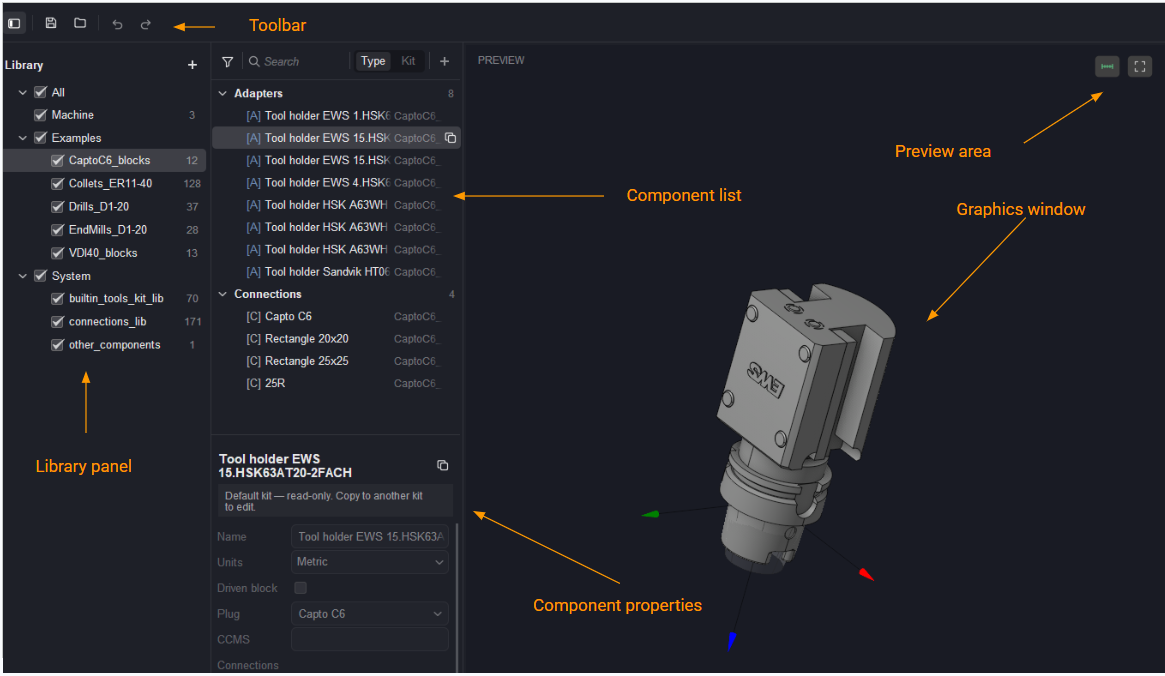
The Component libraries window is the editor for component libraries — the storage where the building blocks of tool assemblies are kept: cutting tools, adapters, machine magazines, and the connections that join them. Each component has a visual representation, is defined by its dimensions, and carries a shank (Plug) and, for adapters and magazines, one or more seats (Sockets) of a specific connection type.
The window is used to prepare and maintain the tooling data that makes automatic tool selection and tool-assembly formation possible.
The component library window is opened by the corresponding toolbar button (in advanced mode).

Component libraries consist of the following components:
Toolbar (top-left).
Toggle panel. Shows or hides the left Library panel.
Save. Saves changes to the library file on disk.
Open. Opens a library file from disk.
Undo. Cancels the last change.
Redo. Repeats the previously cancelled change.
Library panel.
Add (+). Adds a new (user) library to the panel.
Category / library checkboxes. Toggle the visibility of a category (All, Machine, Examples, System) or an individual library in the component list.
A library is stored on disk as a file. Component libraries fall into the following categories:
All. The top-level node that shows all libraries at once — every category and its libraries are displayed together.
Machine. Formed during adaptation of a machine scheme for work in advanced tools mode. A machine library file always resides next to the machine scheme file. Such a library contains a special component type called a magazine. A machine magazine is a component that has sockets with a specified connection type and has no plug. When a machine scheme is activated, the library located next to it is activated automatically.
Examples. Reference libraries supplied with the software.
System. Libraries supplied and maintained by the CAM system.
Component list (central panel).
- Filter. Opens filtering options for the component list (funnel icon).
- Search. Filters the list by the entered component name.
- Type. Switches the list grouping to view by component type (Magazines, Connections, Tools, …).
- Kit. Switches the list grouping to view by kit (source library).
- Add (+). Creates a new component in the current library.
Component properties (lower panel): (fields, not buttons) Name, Units, Plug, CCMS, and the Connections list (Support (Z), …).
Preview area.
Show dimensions. Toggles the display of component dimensions in the 3D preview.
Zoom to fit. The model is rotated by dragging and zoomed with the scroll wheel (drag to orbit · scroll to zoom).
Forming libraries.
Filling a component library covers the following activities.
Creating built-in parameterized components. The Plug and Sockets must be filled in, preferably with standard connections.
Creating objects from 3D models. The fields used by filters must be filled in.
Working with filters. Filter fields drive the search for suitable components.