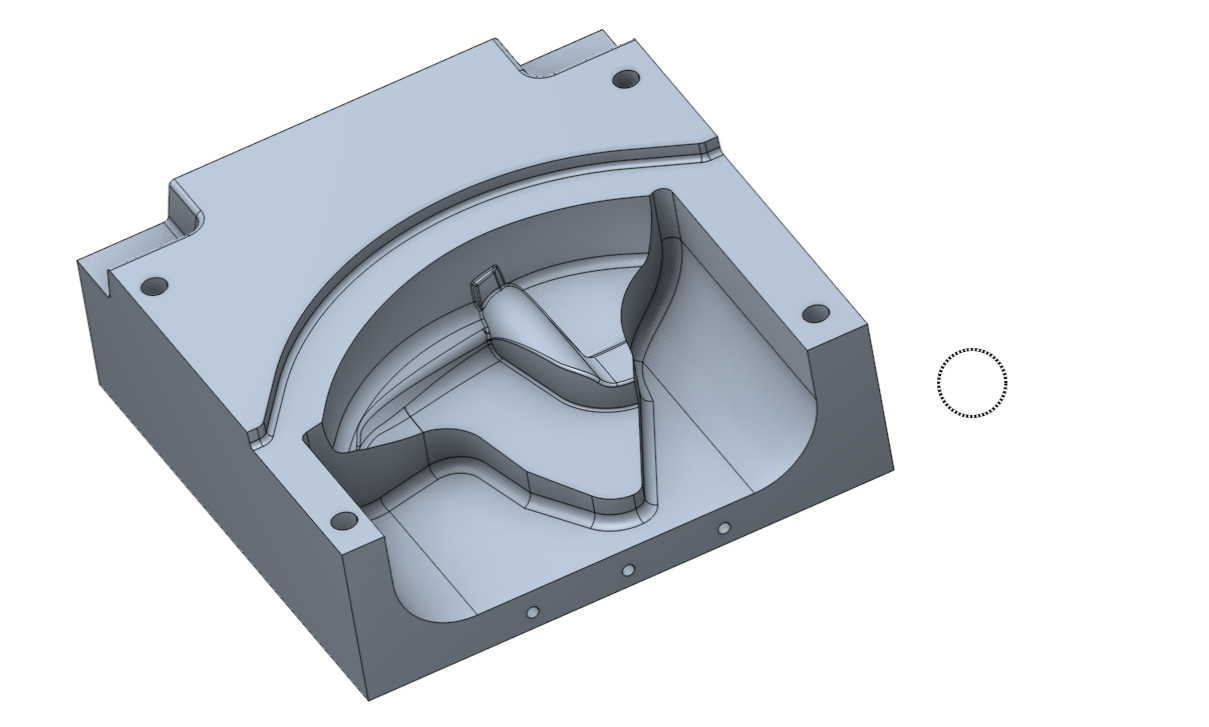
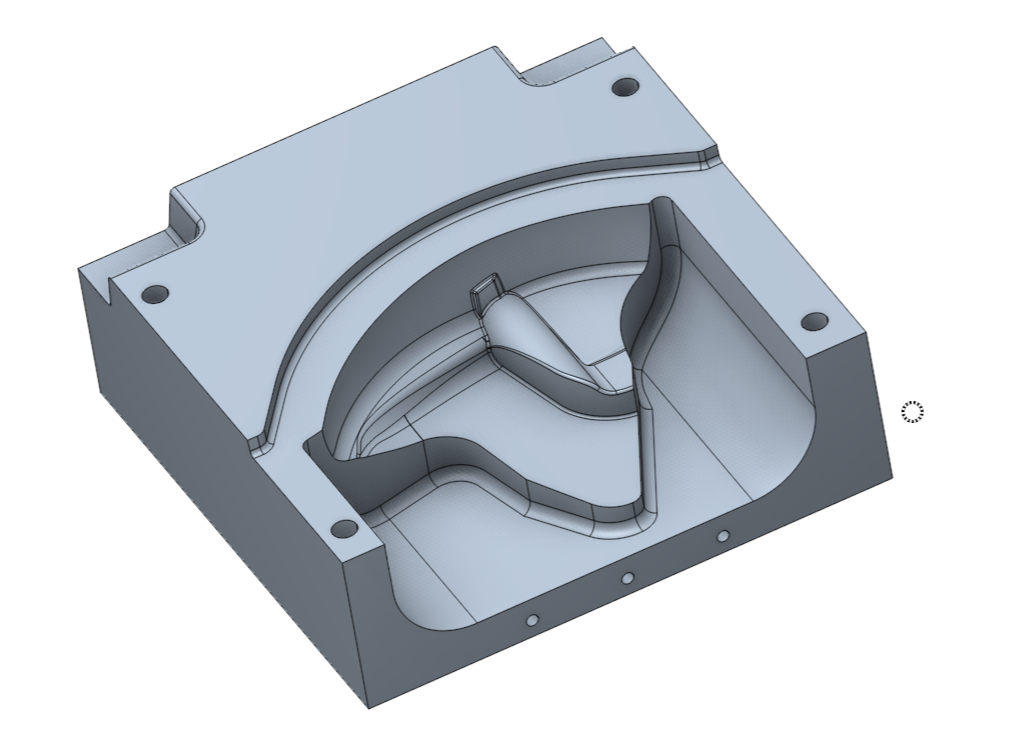
Intellectual object selection
Application area:
The functionality allows you to save time when selecting various parts elements due to certain rules.
To activate a particular algorithm, you need to use different hot keys:
Double click on a 3d model entity.
Click here to expand..
- Double click on a 3d edge automatically selects all tangent edges.
- Double click on a circle selects all the circles with the same diameter.

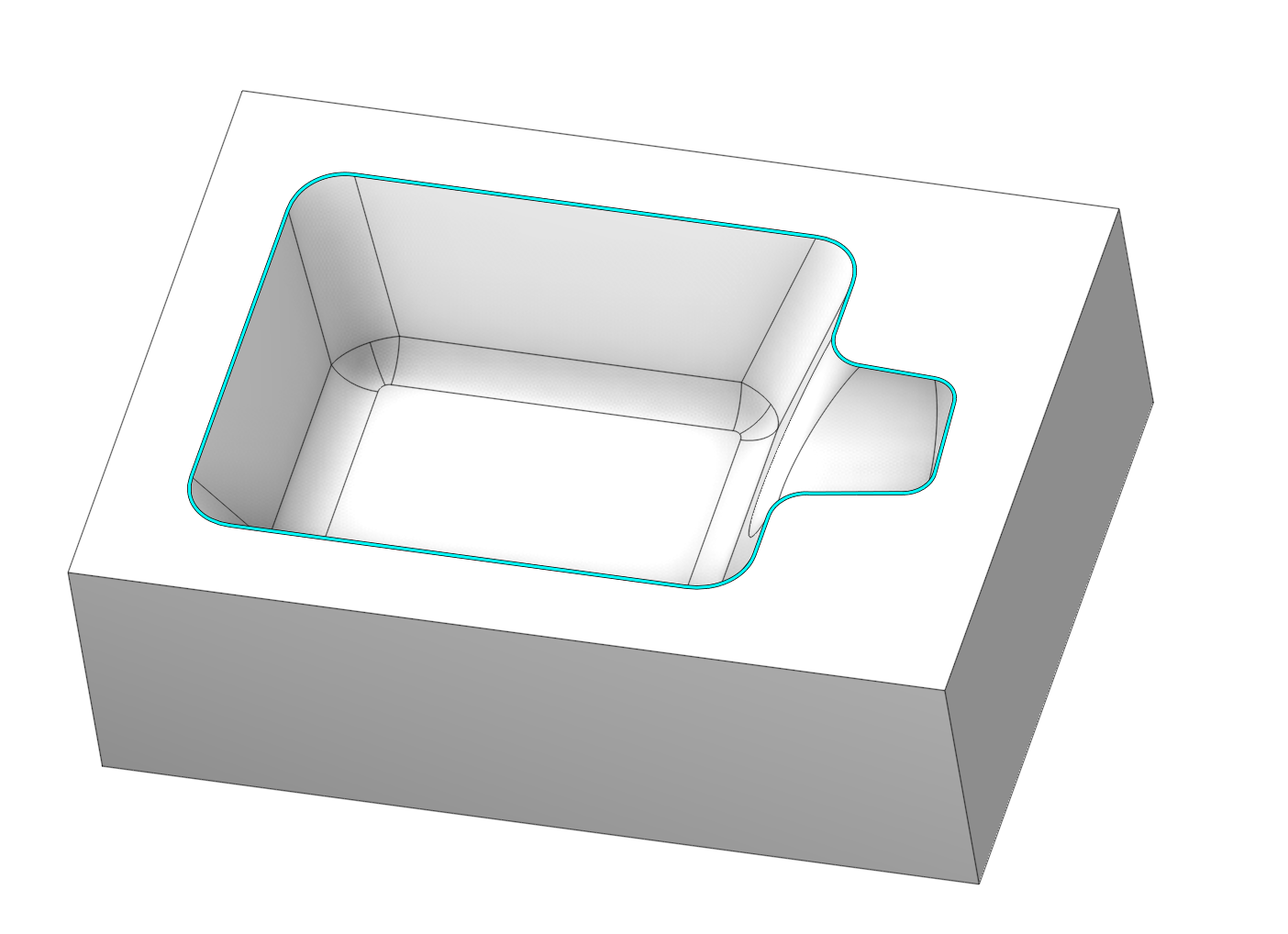
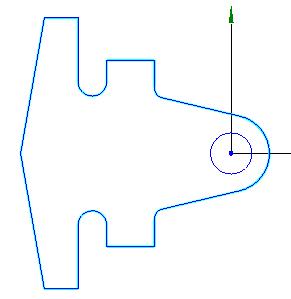
- Double click on a segment of a contour automatically selects all segments of the contour.
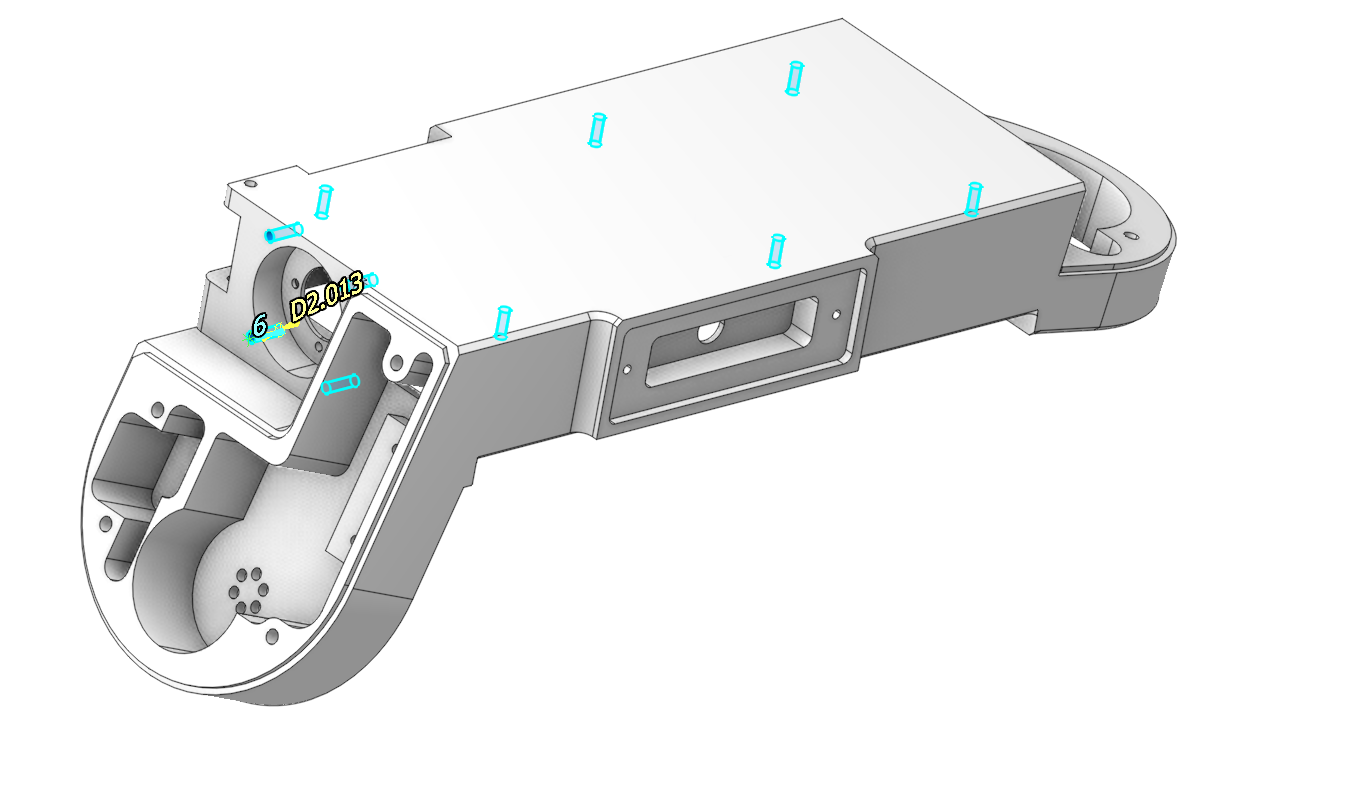
- Double click on an internal cylindrical face or hole automatically selects all the inner cylinders with the same diameter.
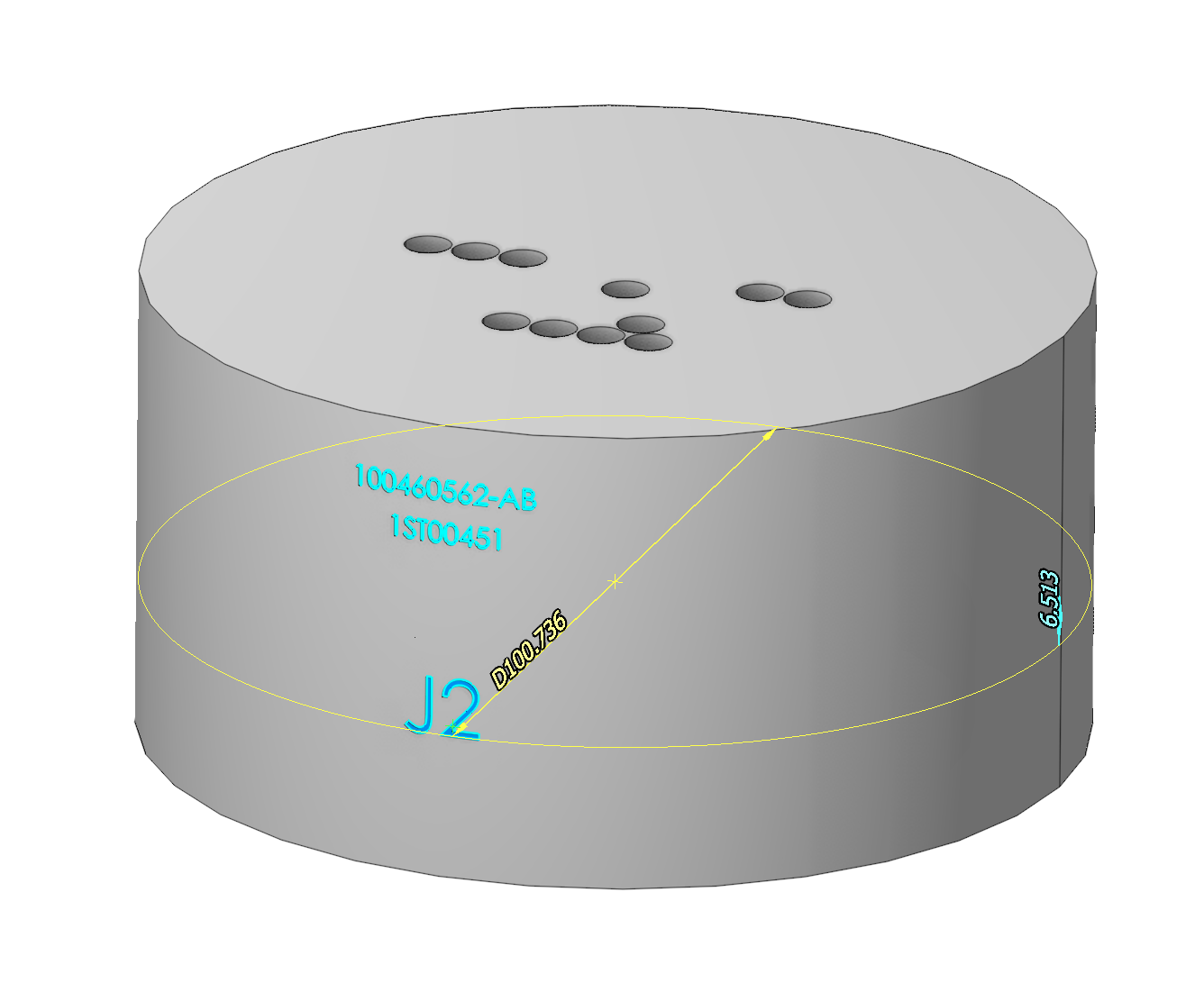
- Double click on an external cylindrical face automatically selects all cylindrical faces with the same diameter and same axis.
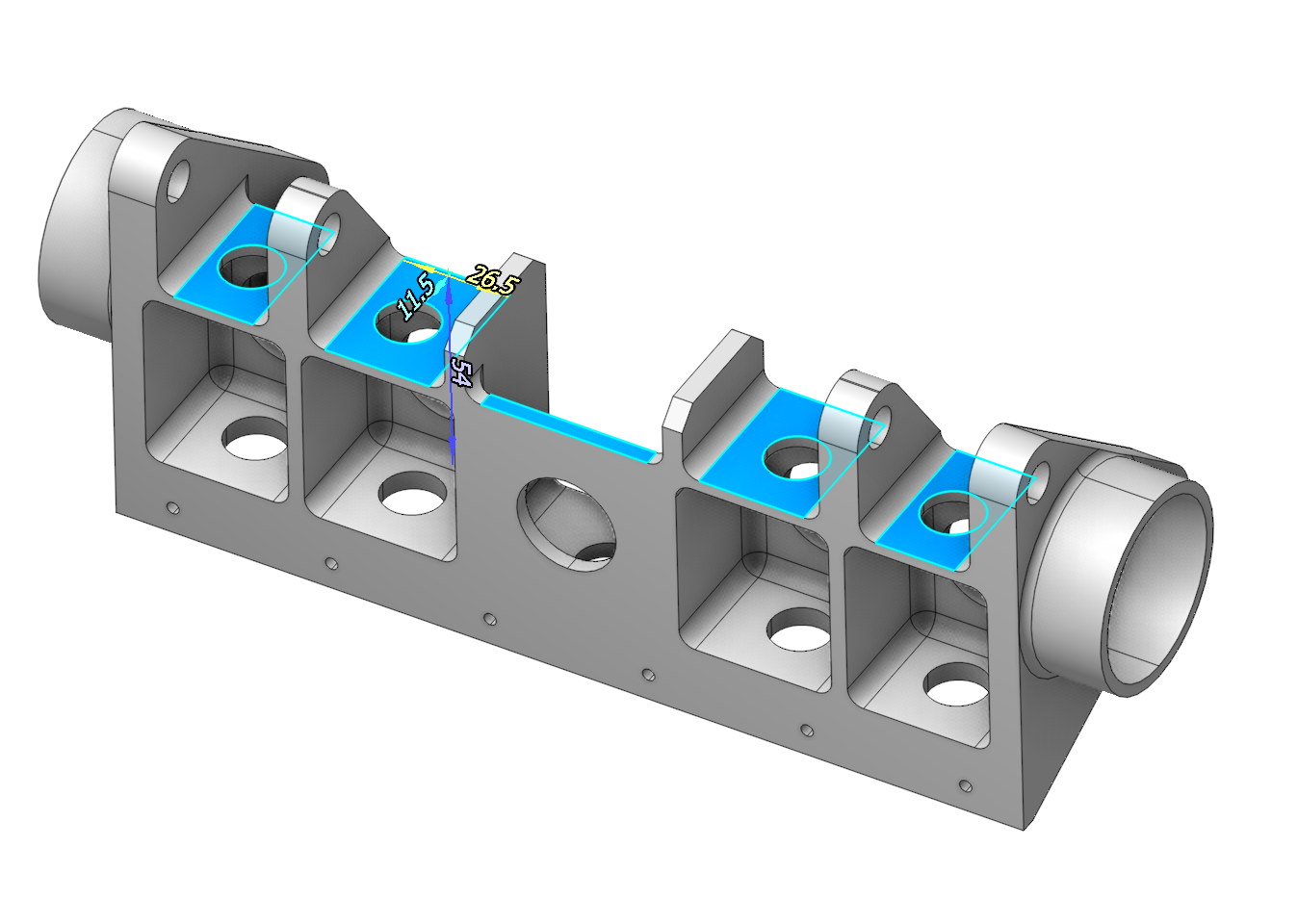
- Double click on a planar face automatically selects all coplanar faces.
Double click + shift on 3D model object.
Click here to expand..
- Selects all internal cylinders with the same diameter in a given plane.
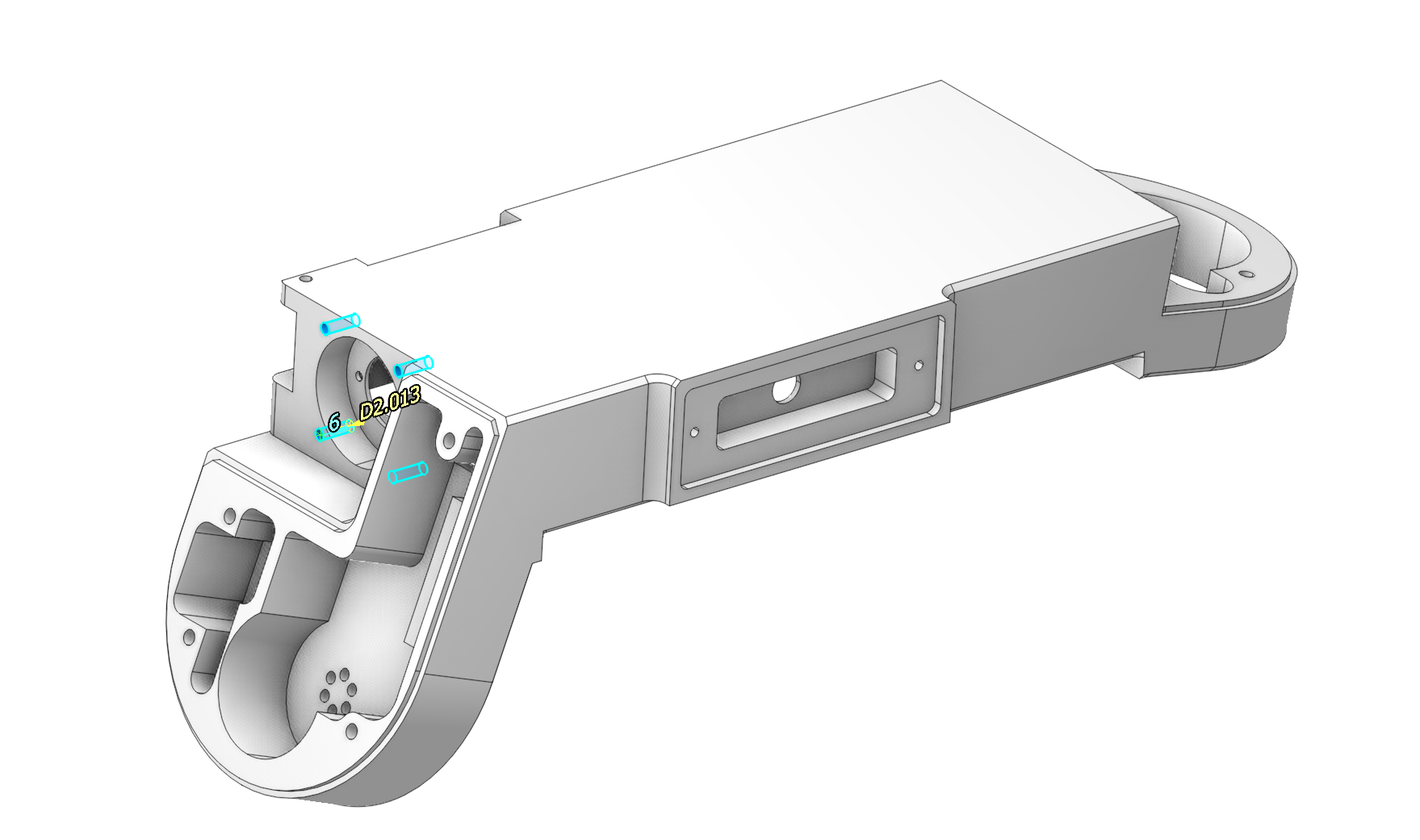
- In the Job assignment 6D contour allows you to select edges similar in size
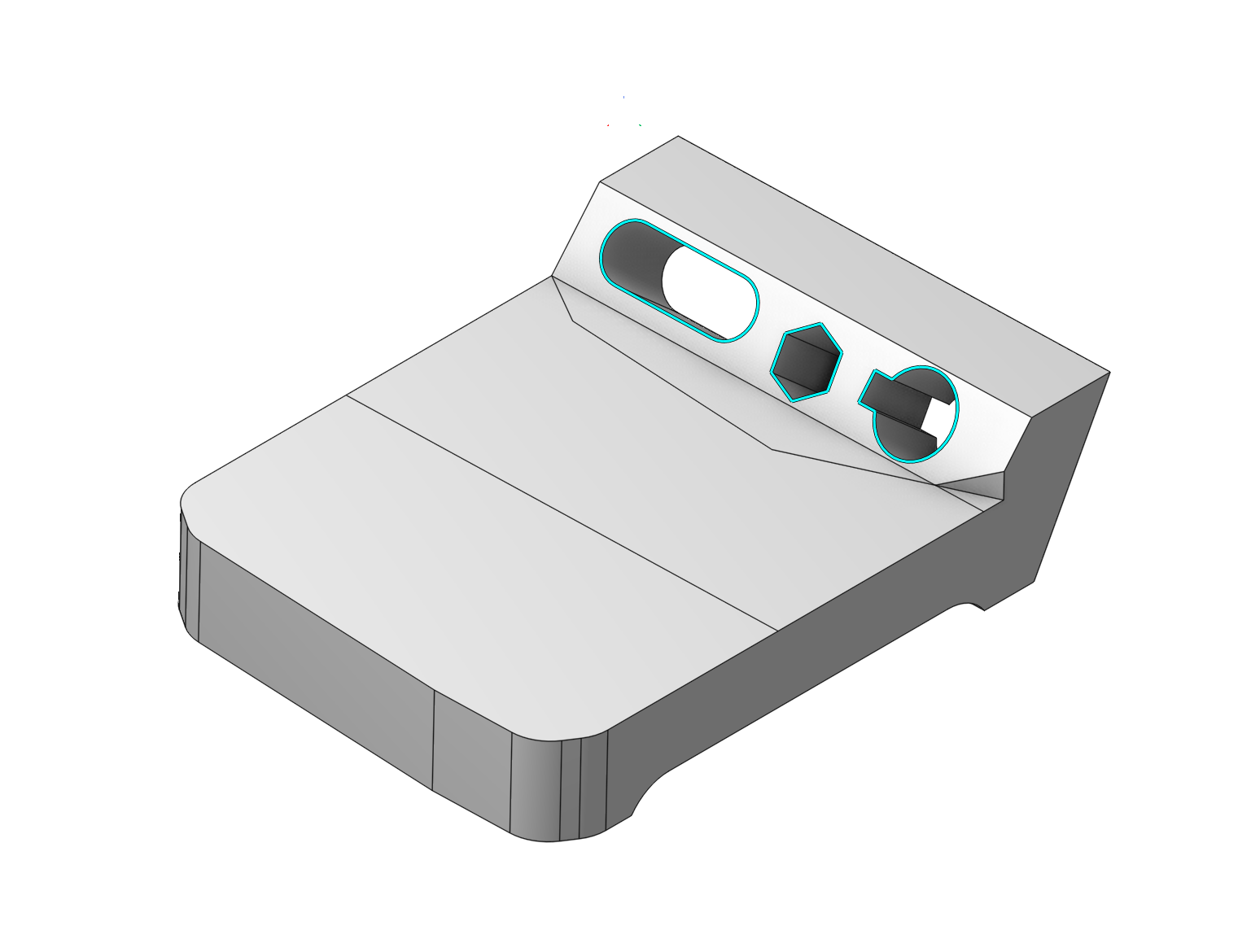
- Allows you to select non-tangential edges (edges are selected depending on the position of the part in the graphics window)
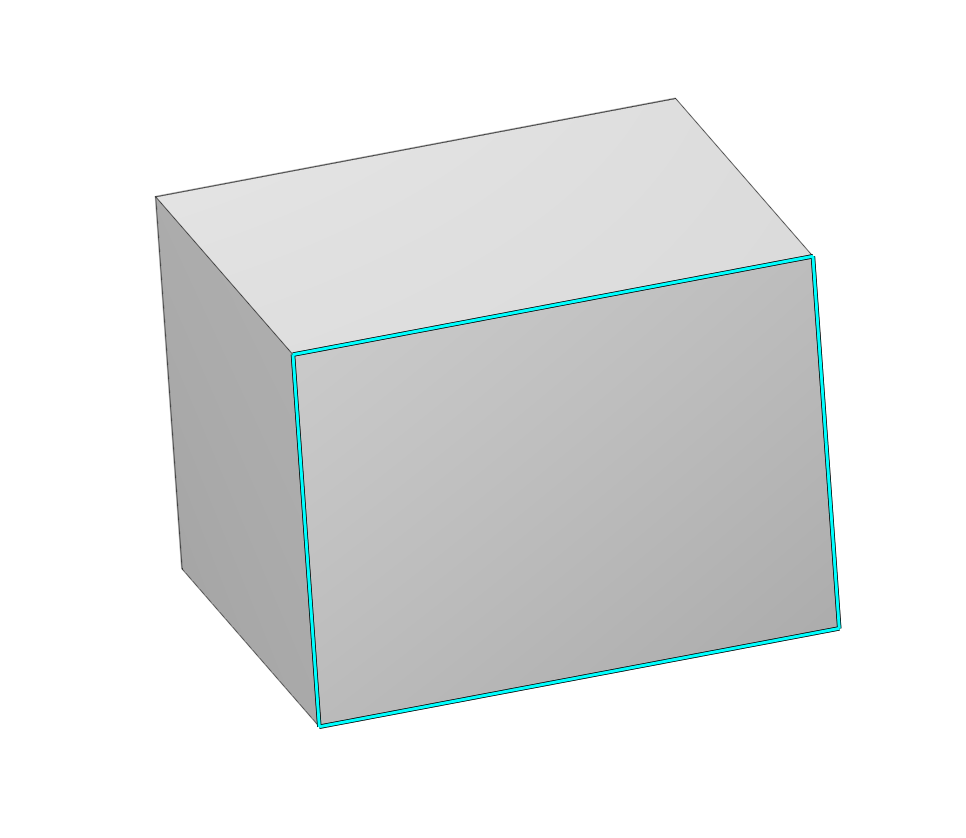
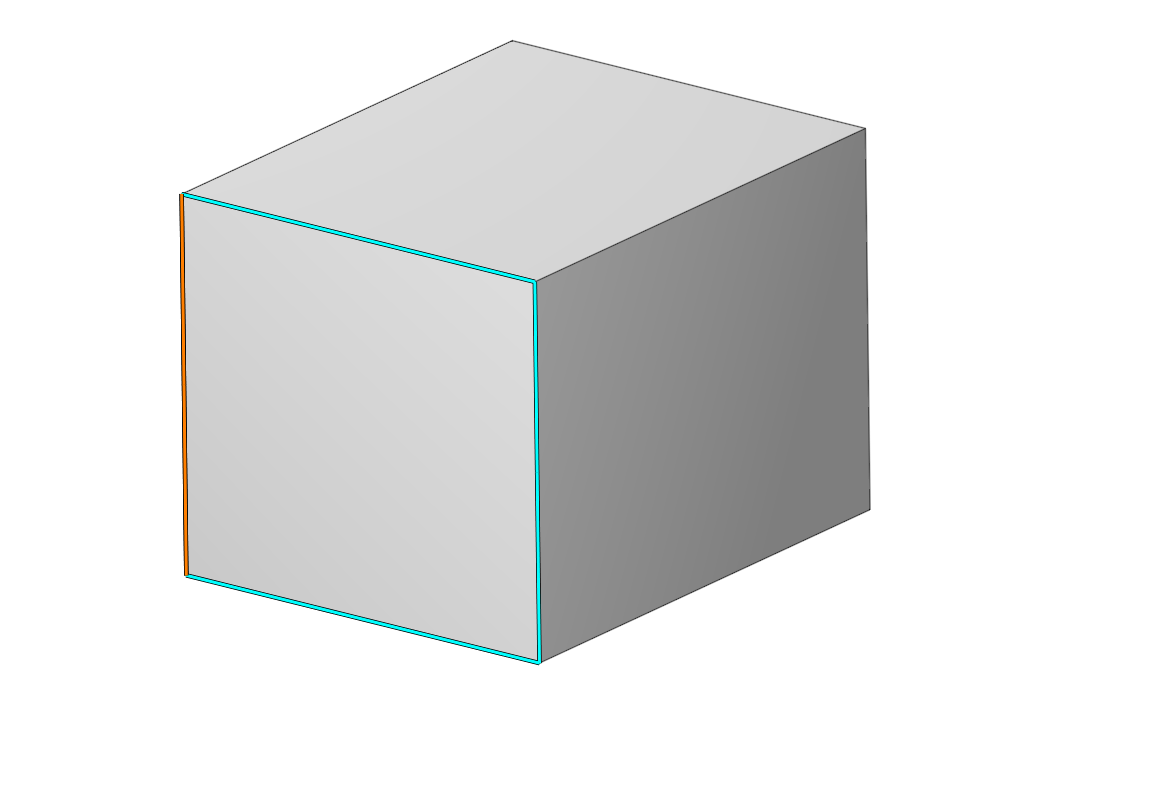
Double click + shift + ctr on 3D model object.
Click here to expand..
Allows you to select smoothed surfaces.
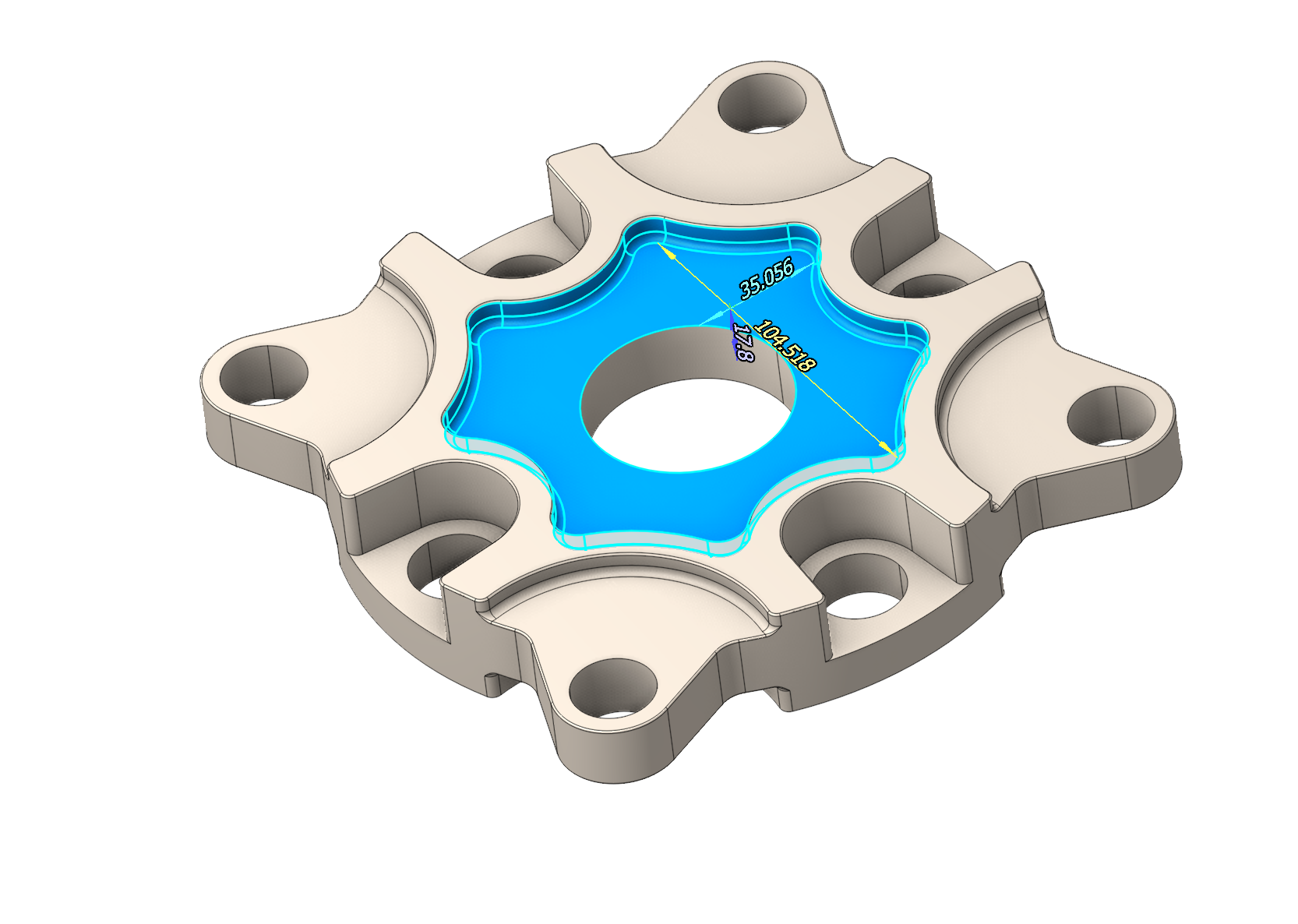
Right-click the surface to activate the mode (Propagation)
Click here to expand..
In addition to the selected elements, a set of context filters is available for more flexible use of the functionality.
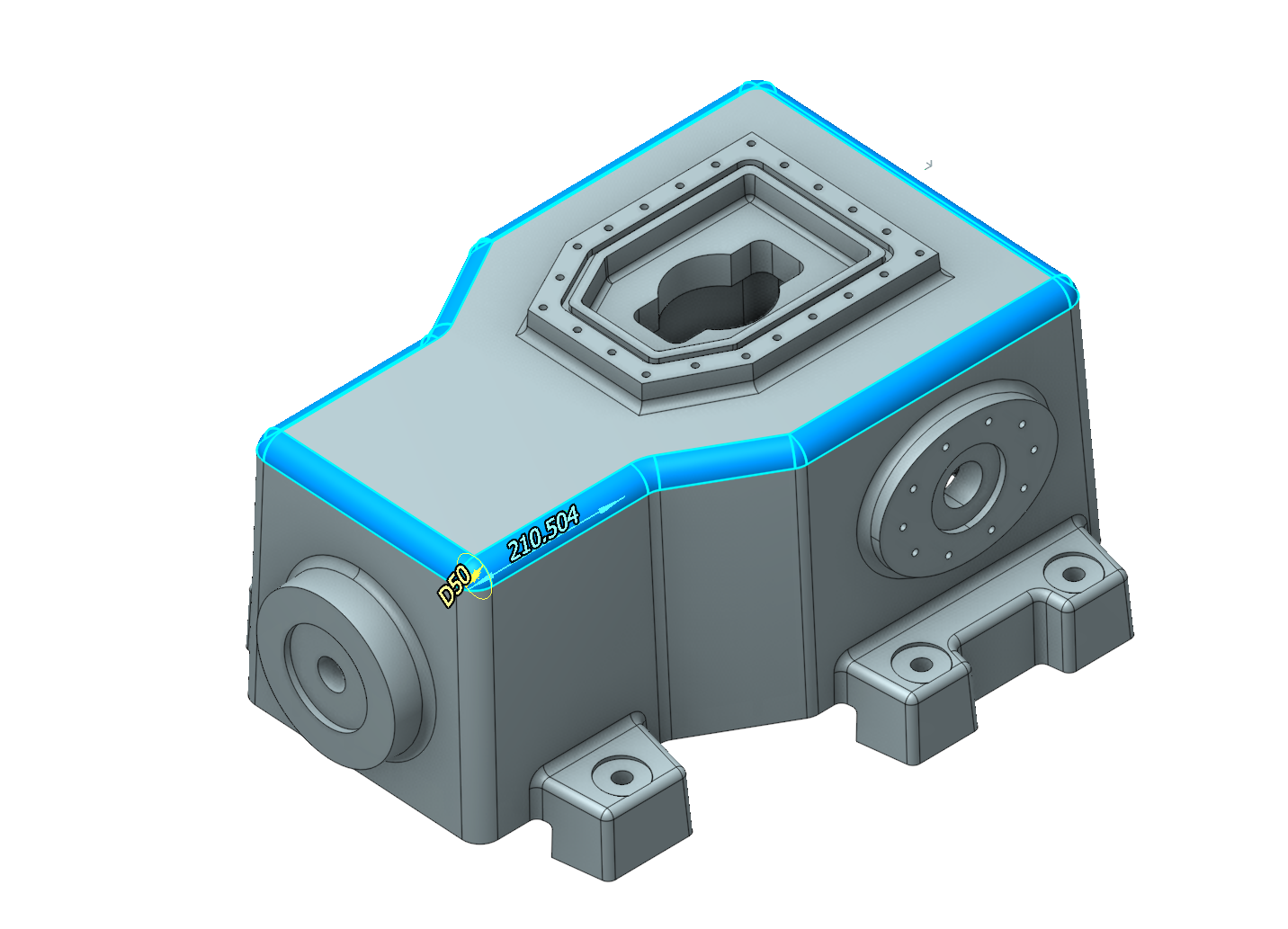
Basic geometric elements of selection:
- Fillet
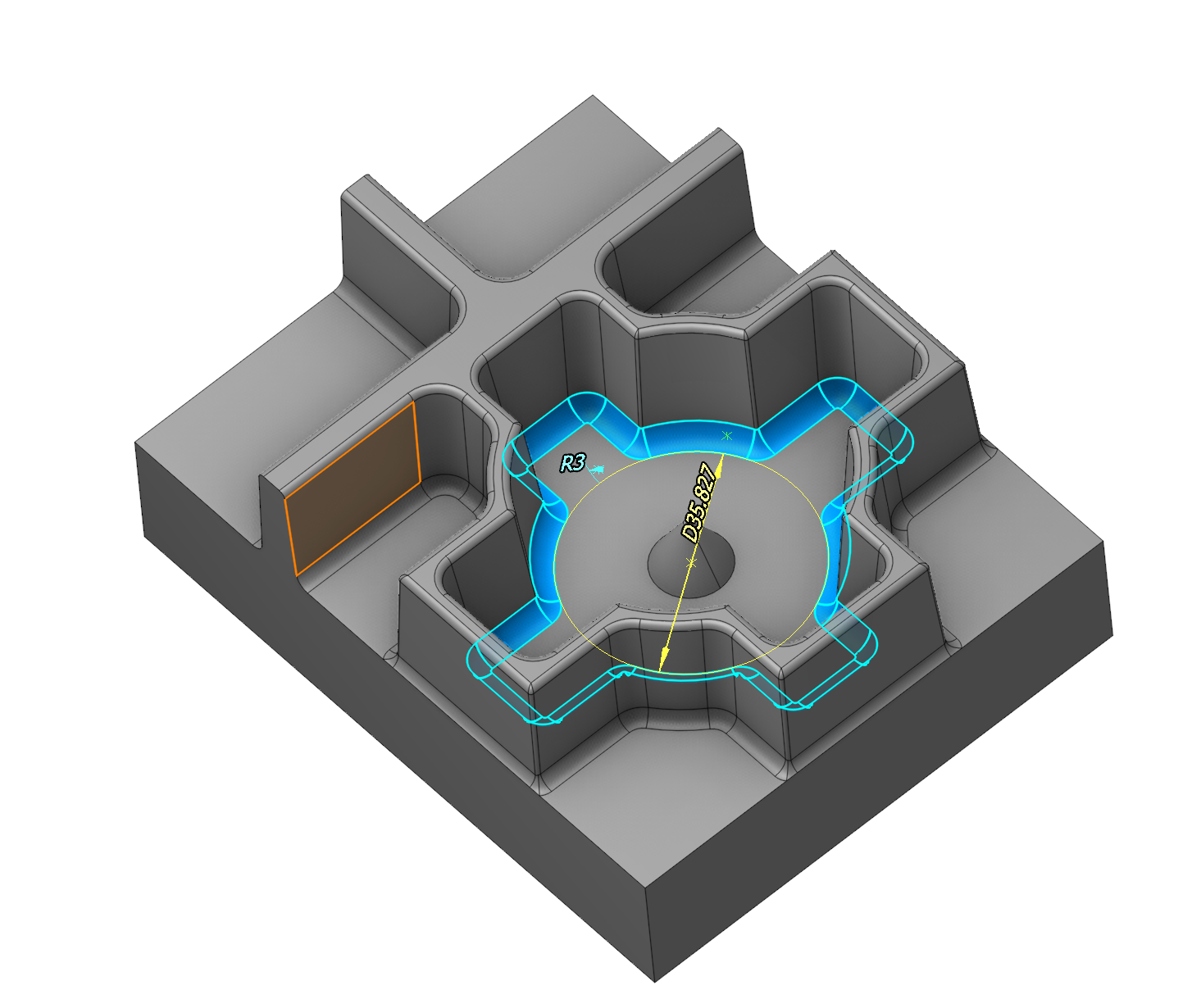
- Chamfer
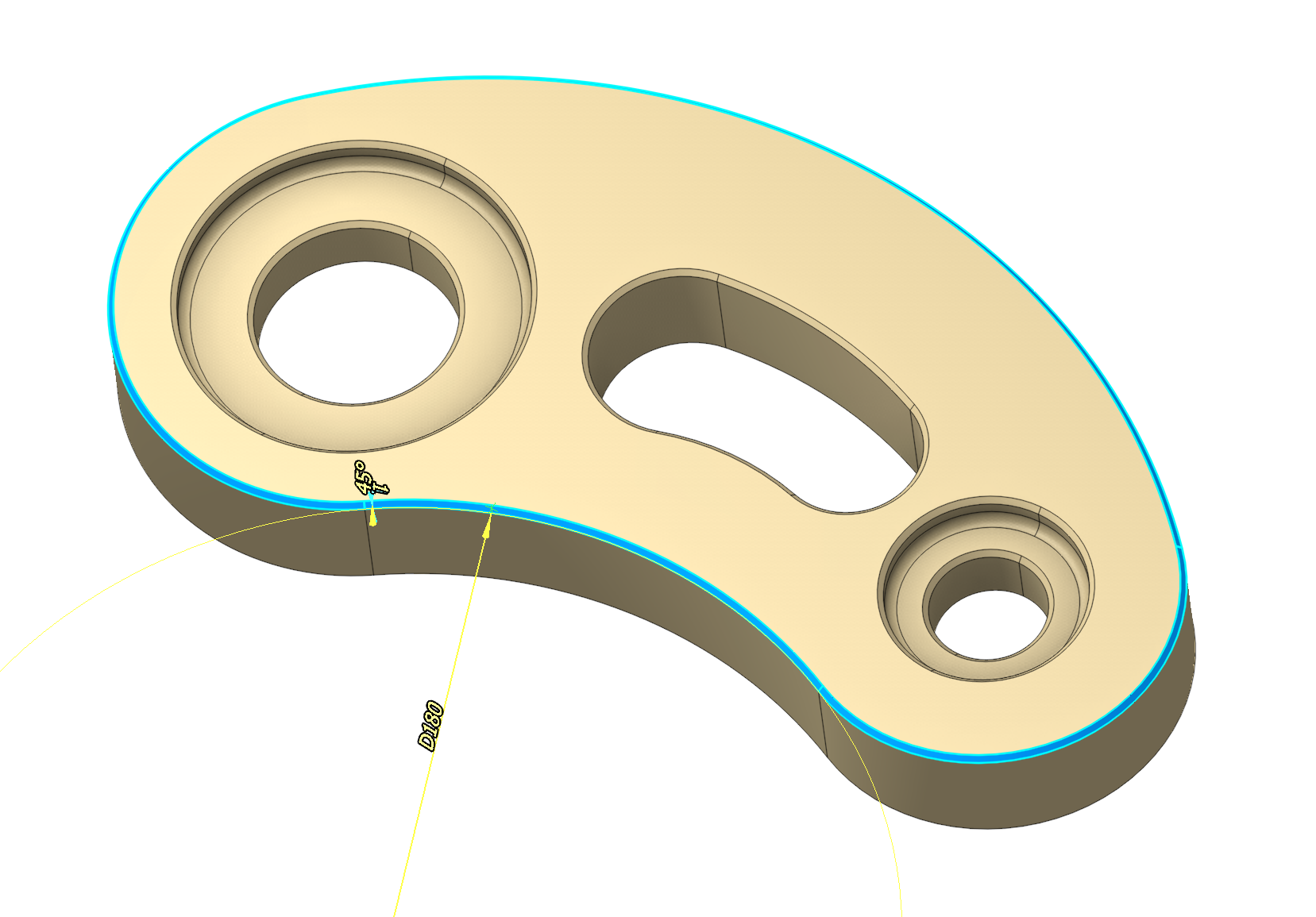
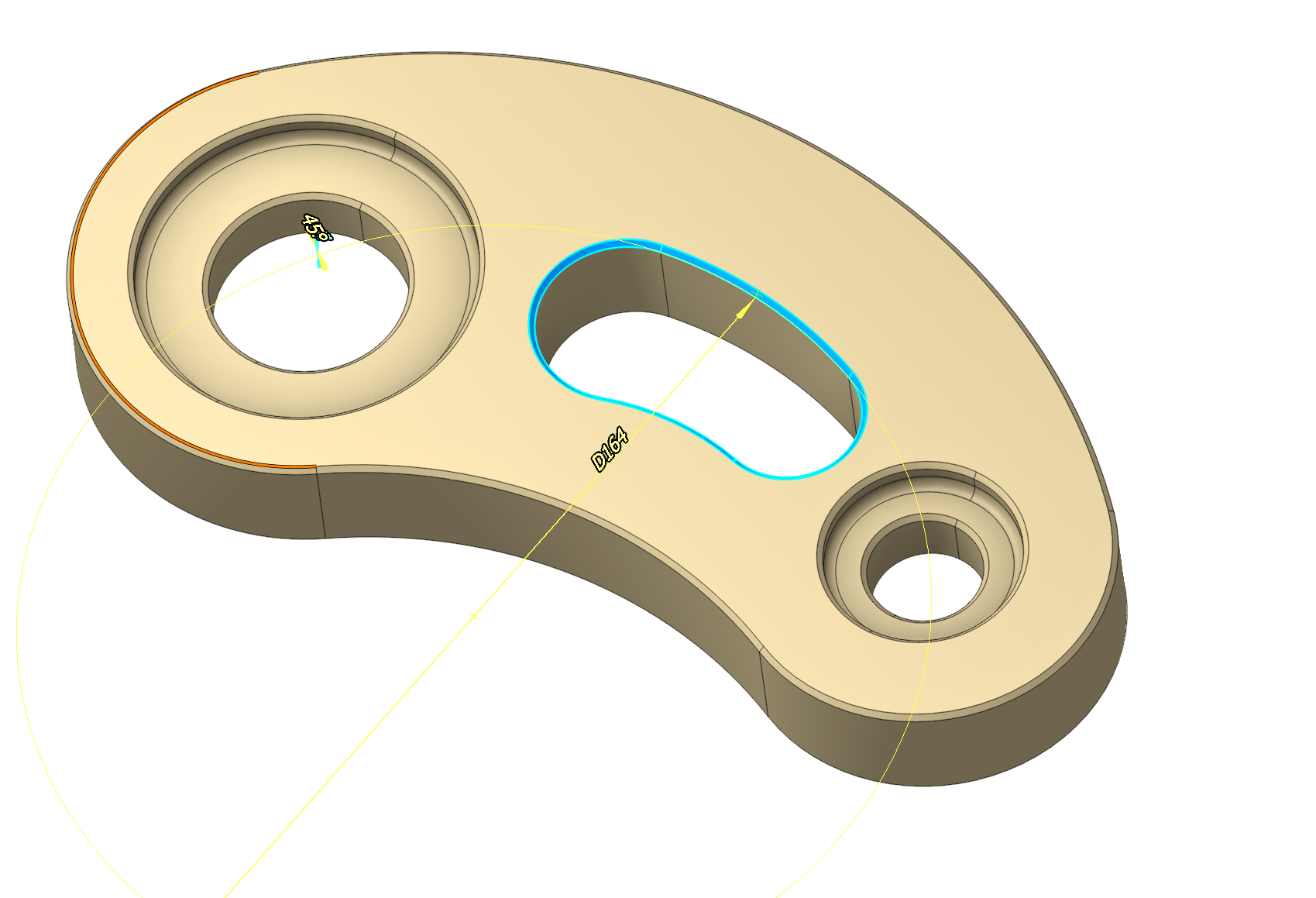
- Pocket (You need to select the bottom of the pocket)
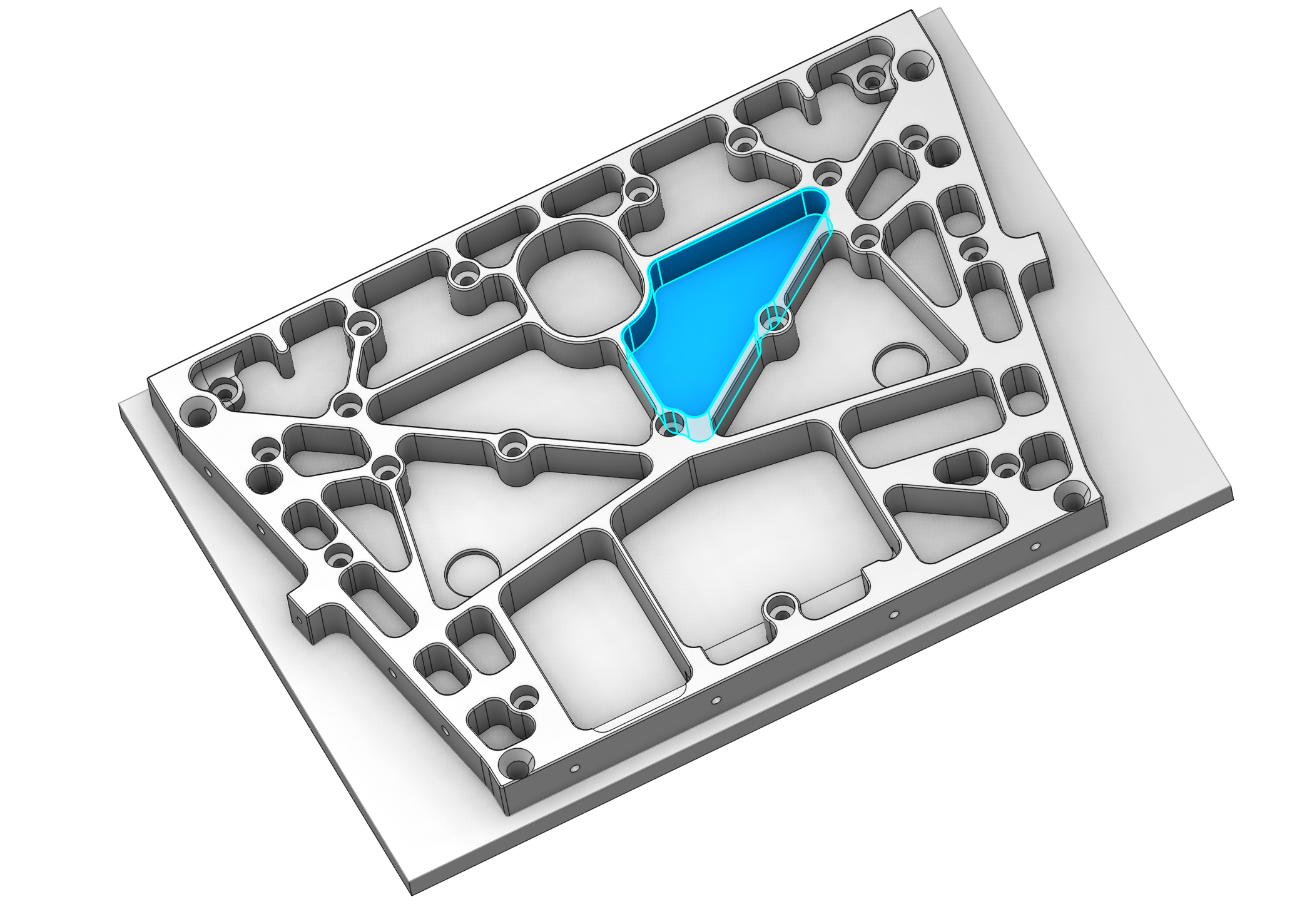
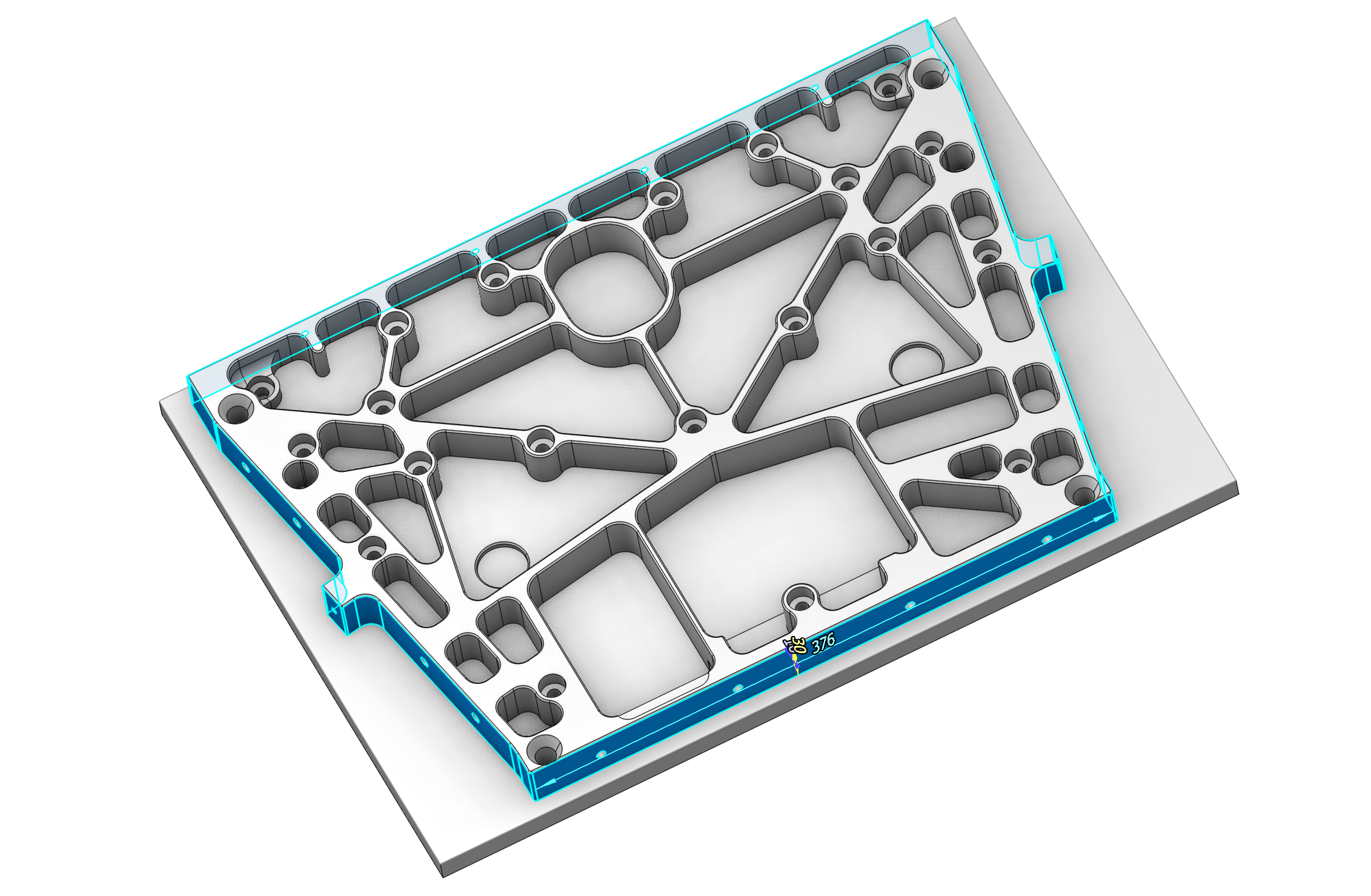
- Side
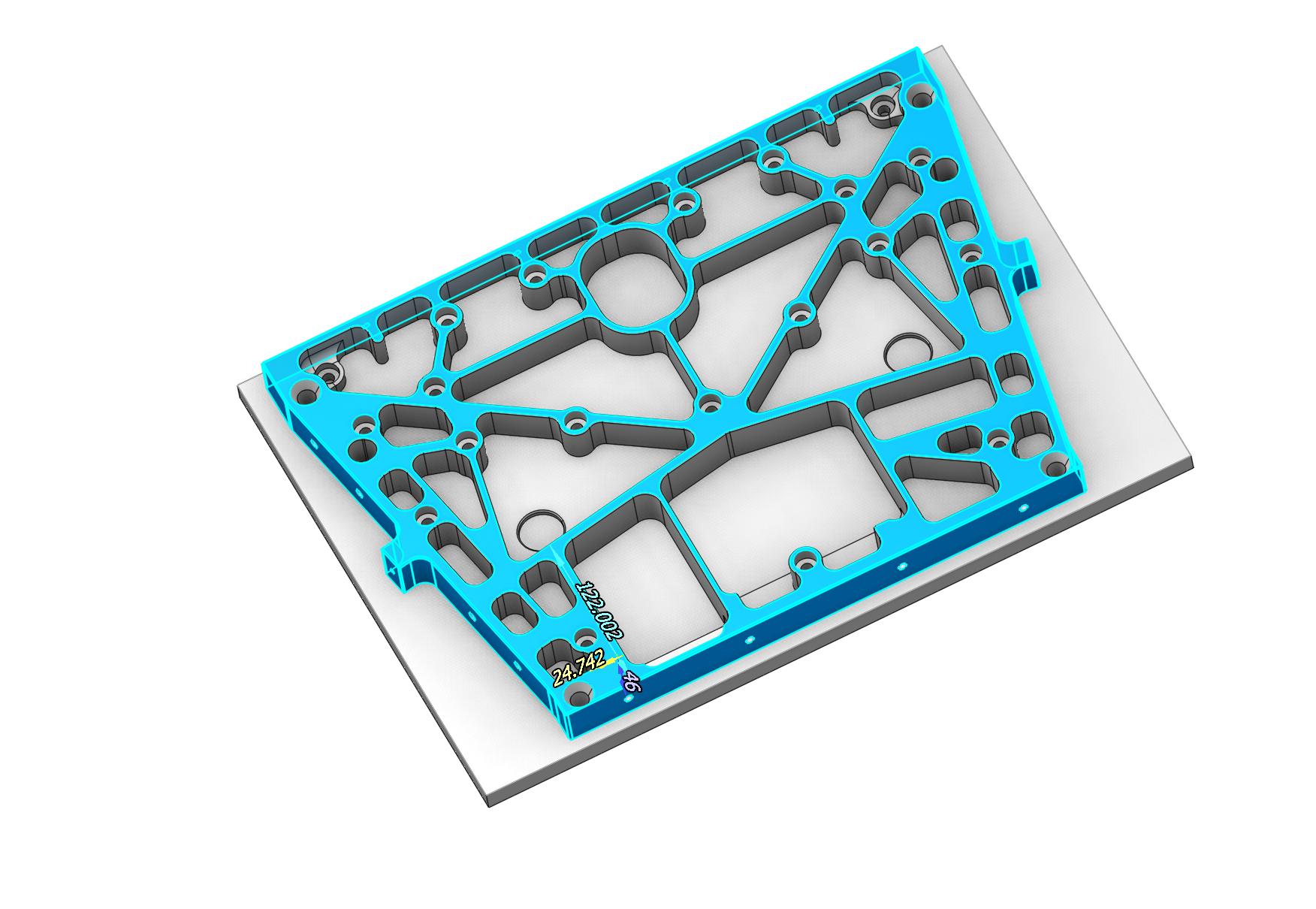
- Boss (You need to select the top plane of the boss)
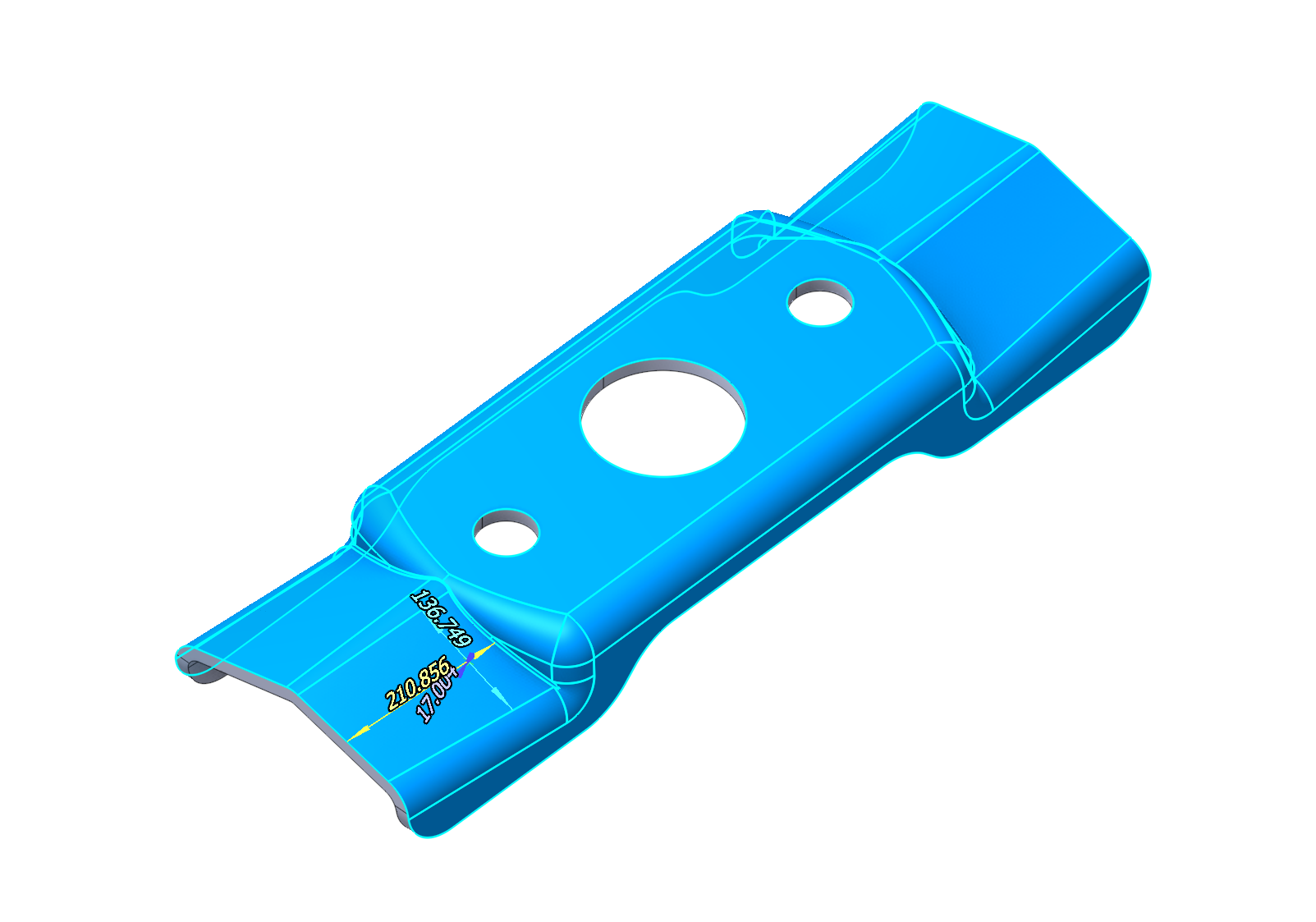
- Smooth (Smoothly mating surfaces)
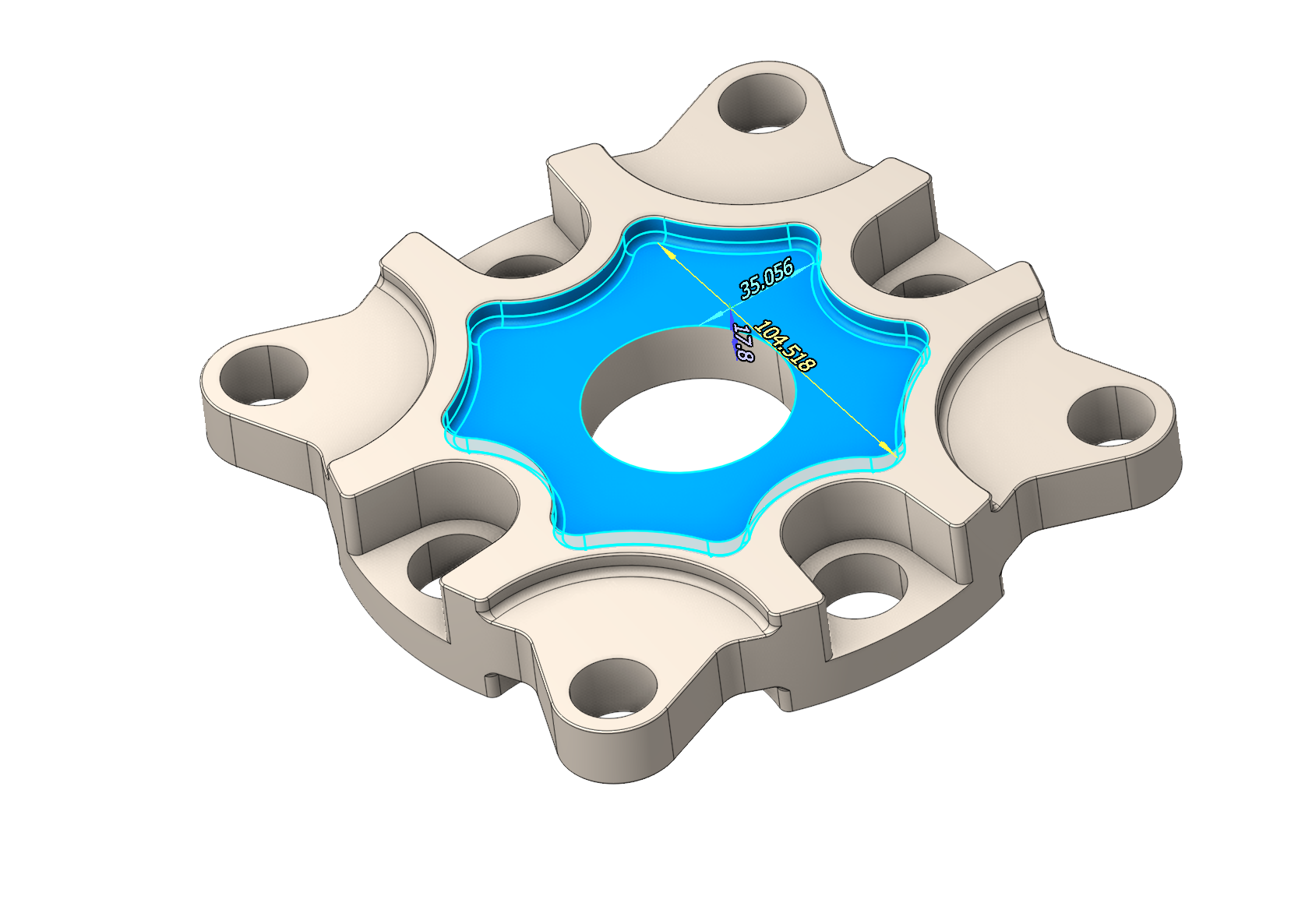
- Hole
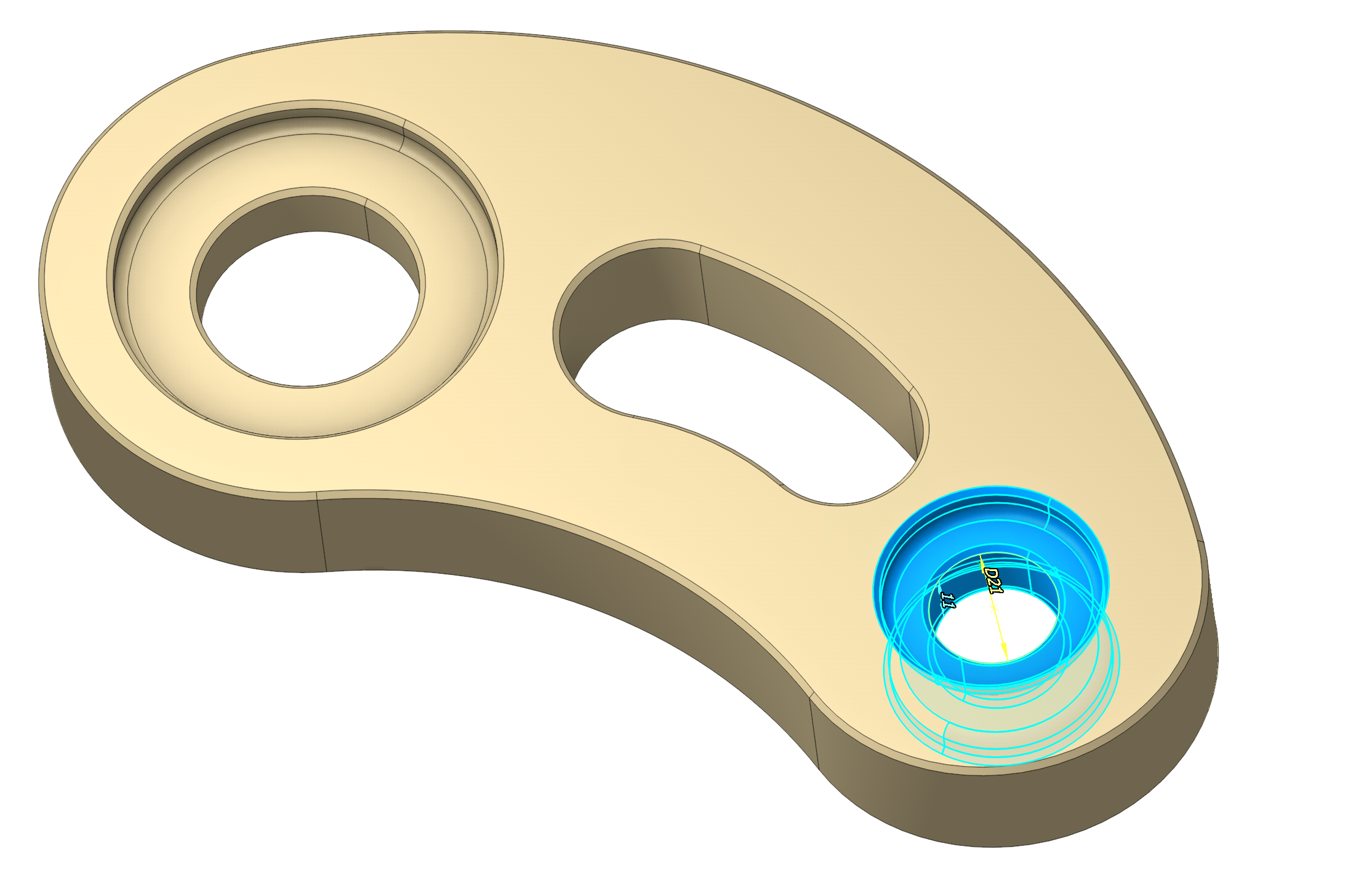
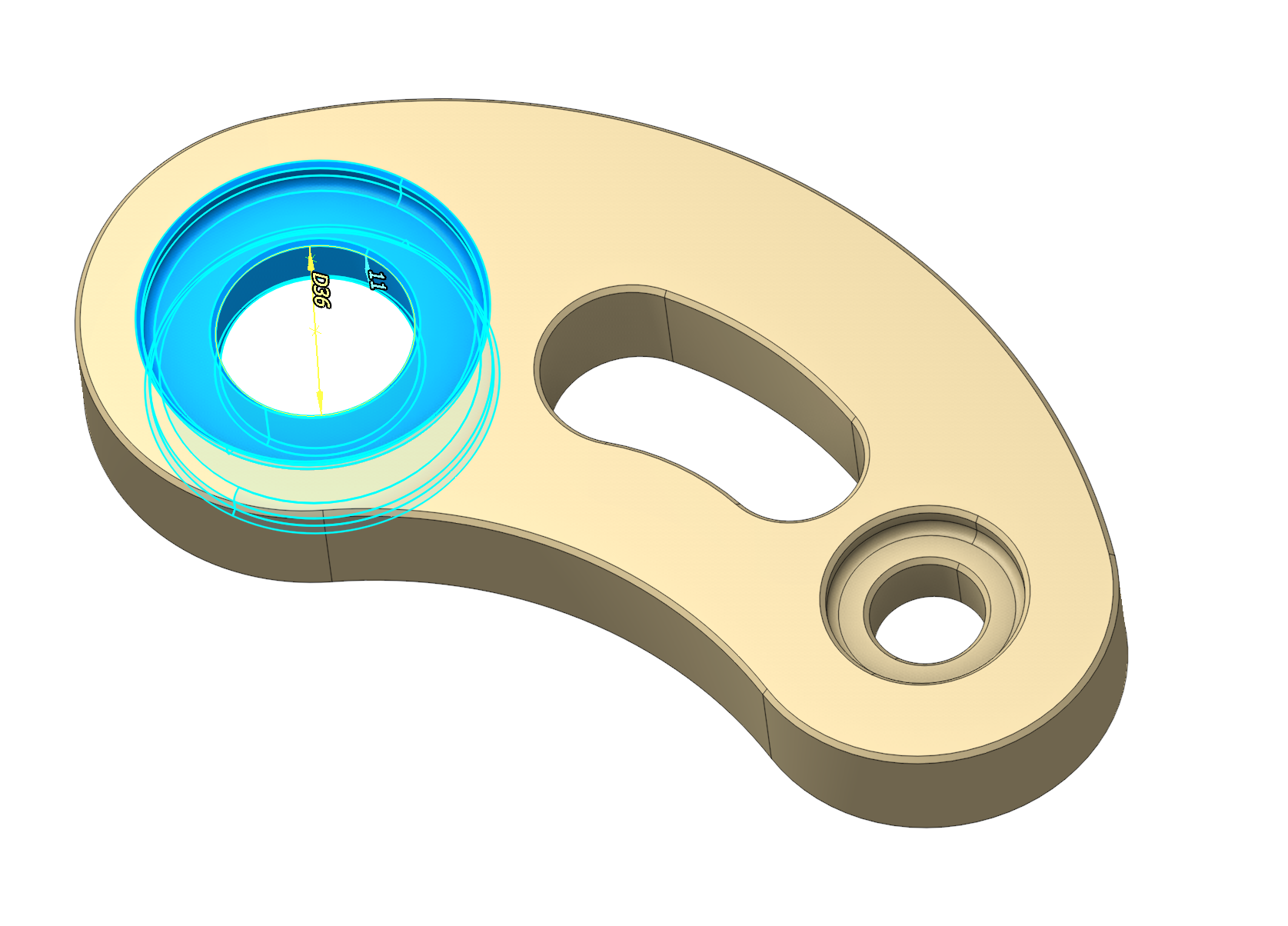
When choosing holes, there are several filters:
- By shape.
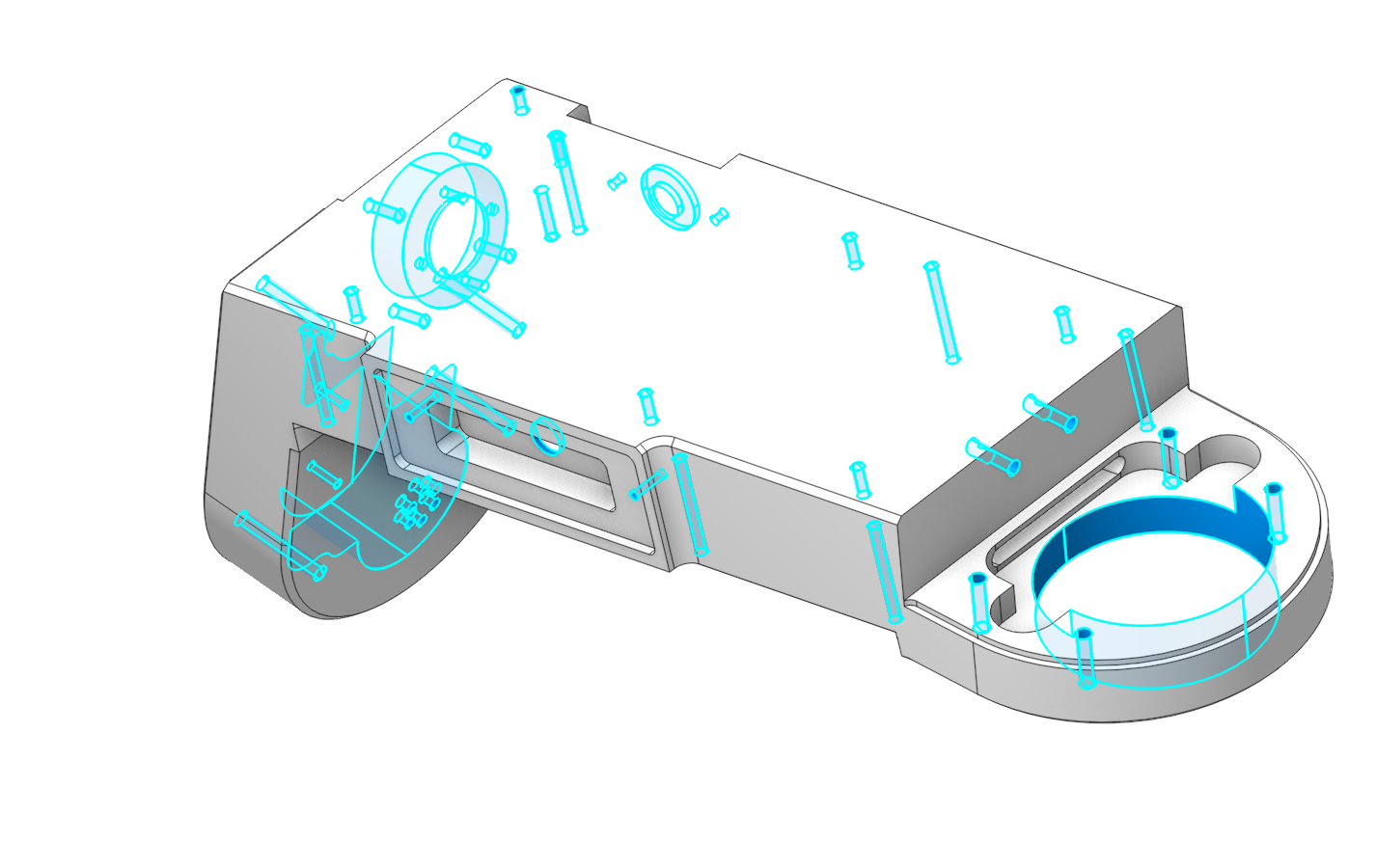
- Plane and shape.
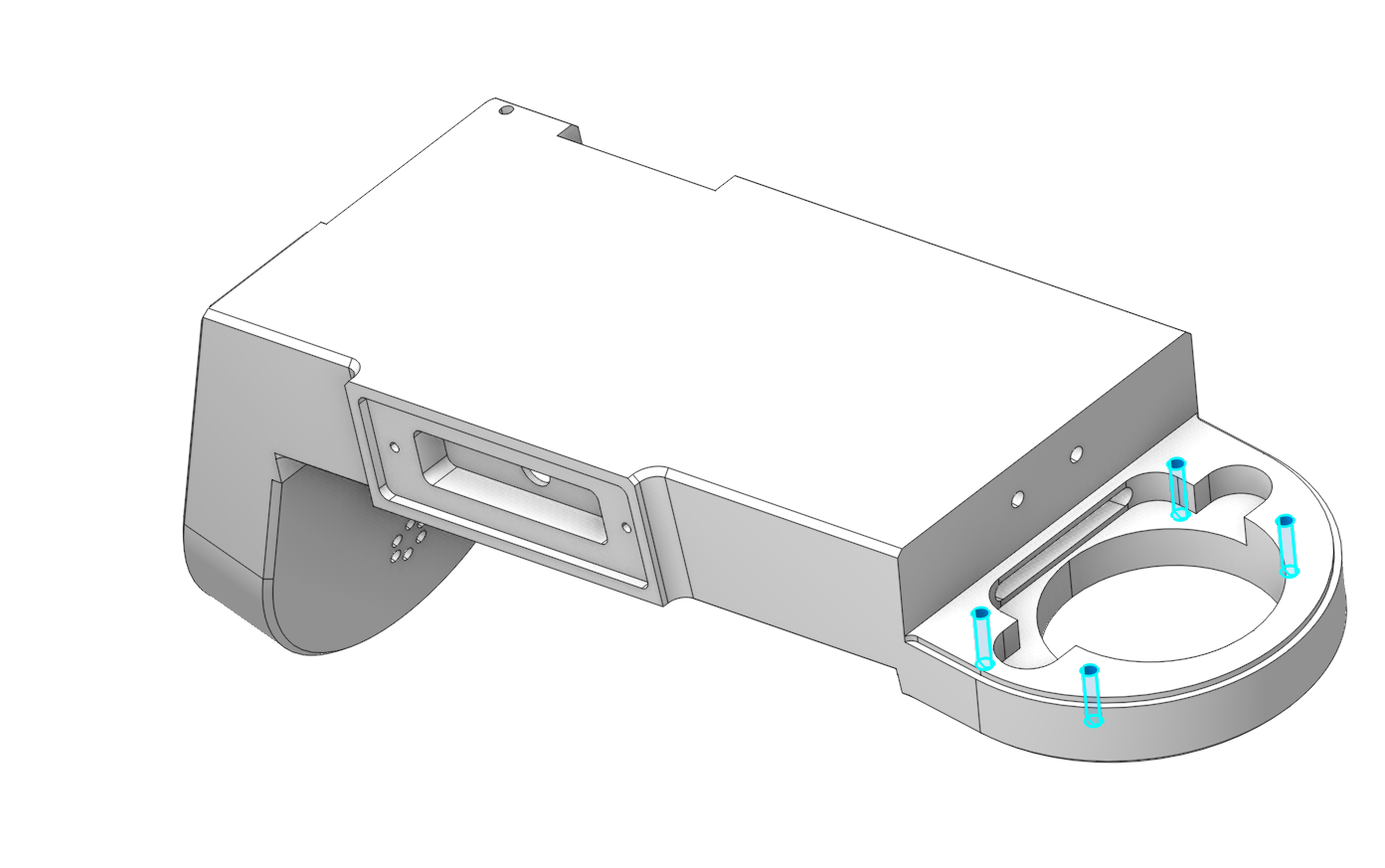
When selecting surfaces, you can use the following filter:
- By Color. Select a surface, click Propagate, and enable By Color. The system selects all surfaces in the 3D model with the same color.
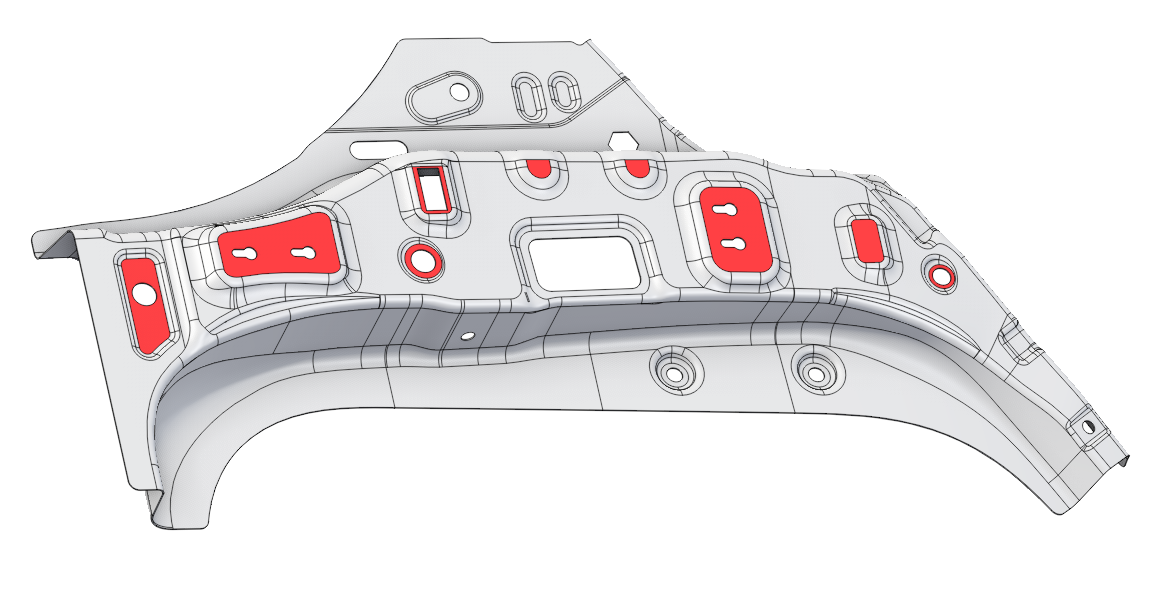
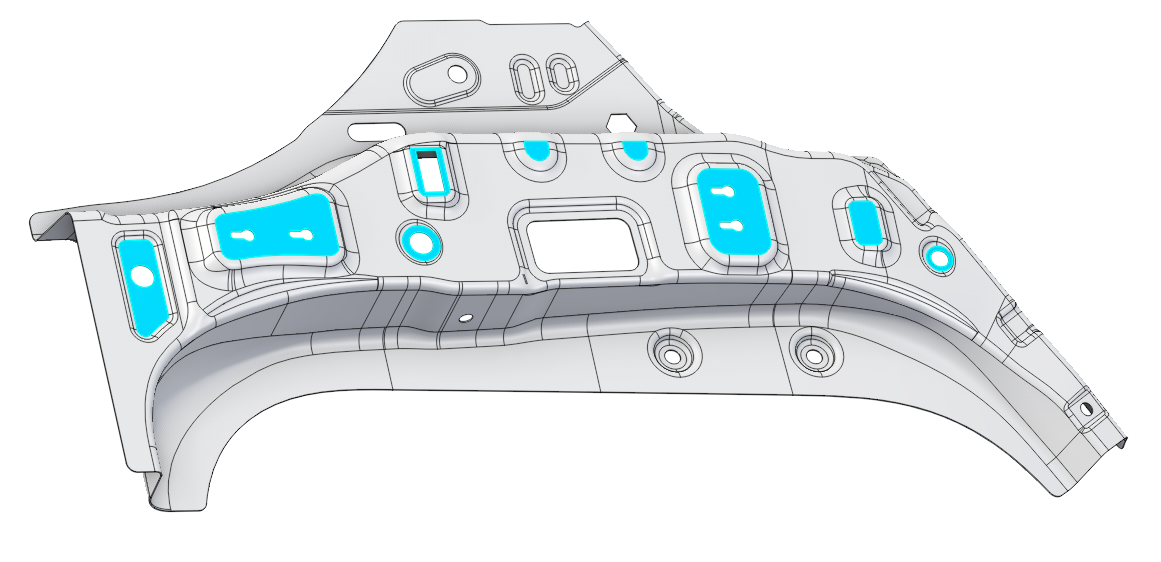
- Outer loop. This is a function that allows for the automatic selection of external edges belonging to a chosen surface.
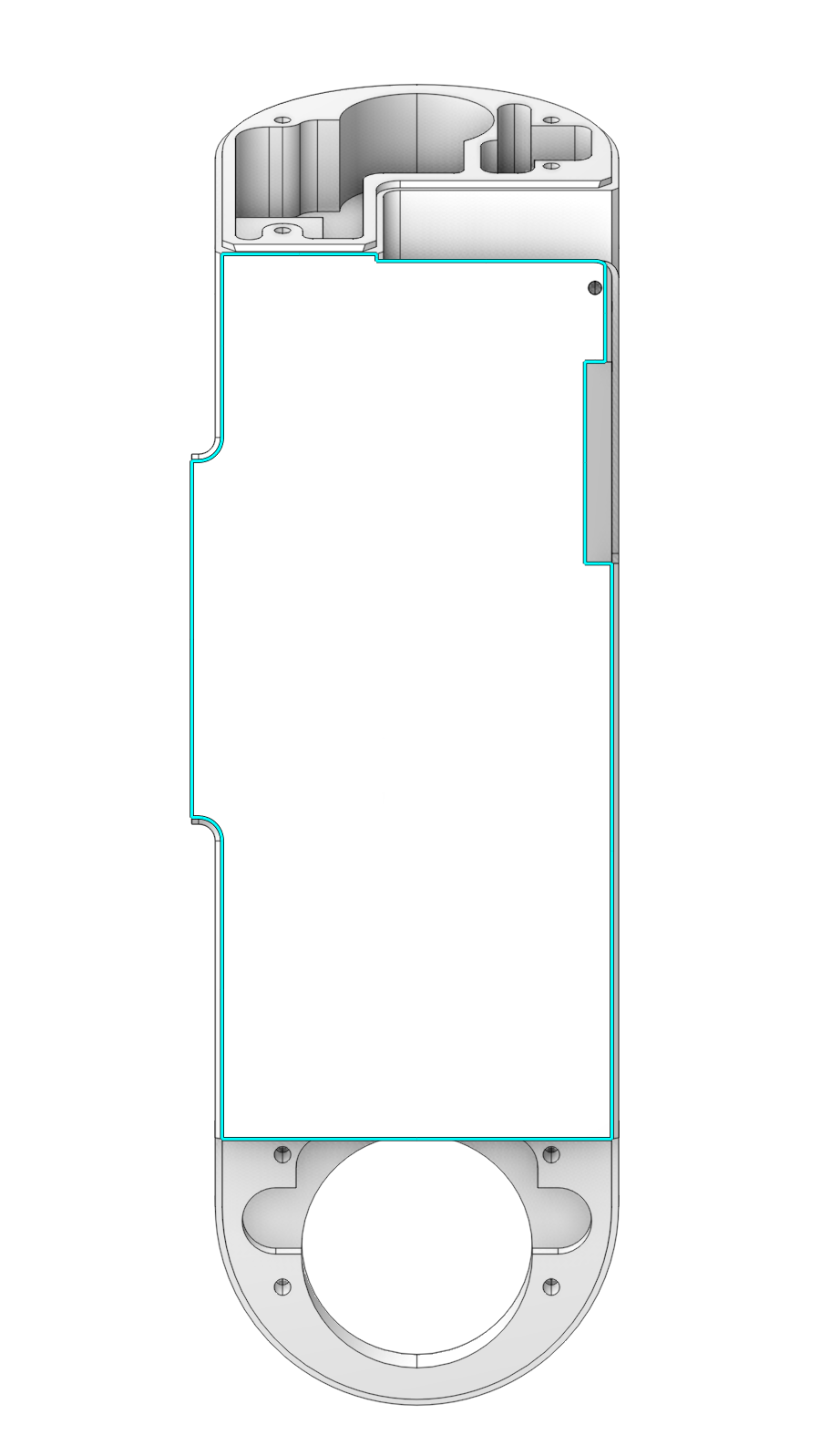
- Custom Loop. It lets the operator control, edge by edge, the direction the loop takes at every branch point (fork) it meets while propagating along the model, using the ◀ / ▶ keys.
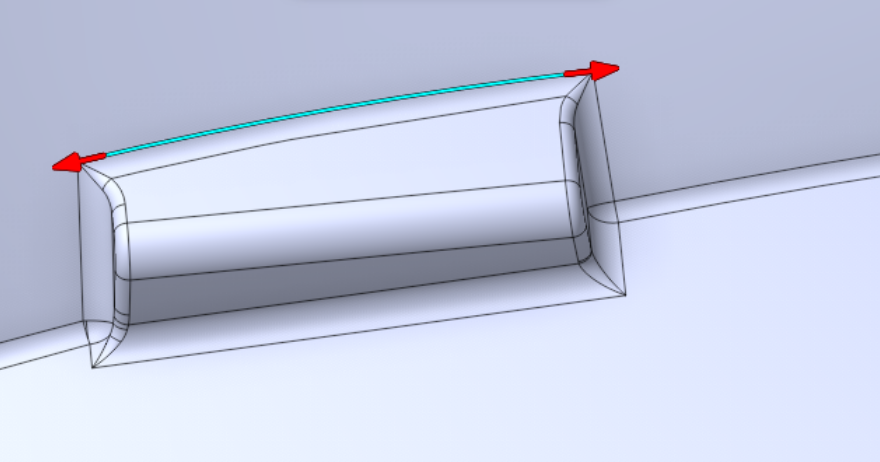
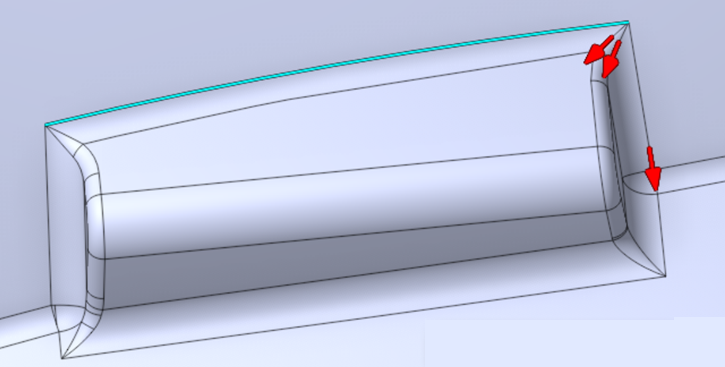
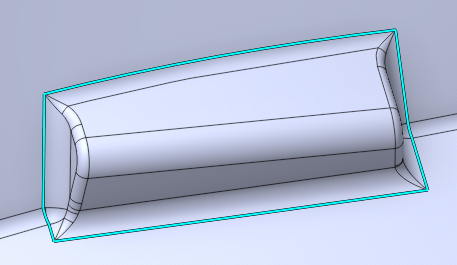
Right-click on the edge to activate the mode (Propagation)
Click here to expand..
In addition to the selected elements, a set of context filters is available for more flexible use of the functionality.
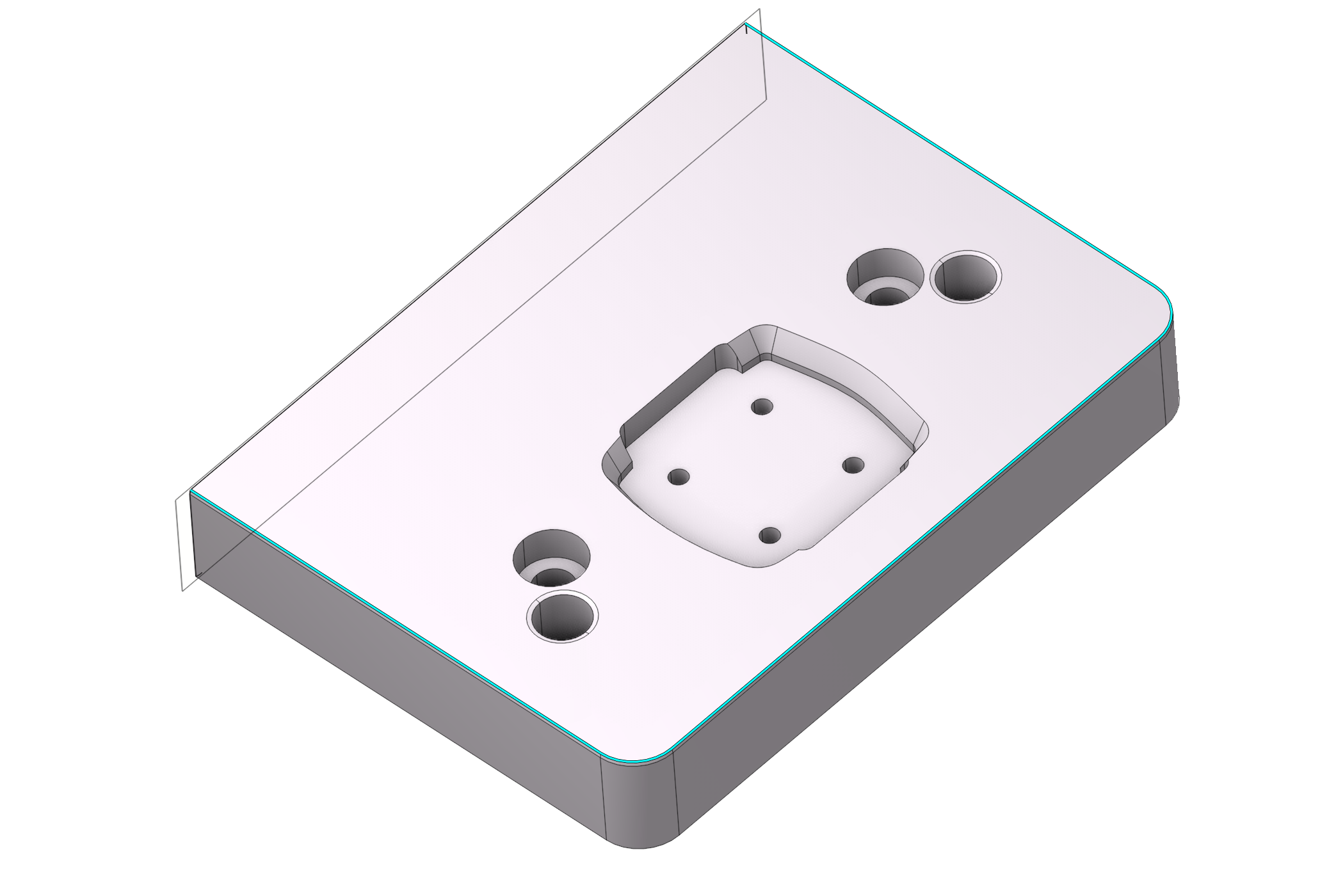
Basic geometric elements of selection:
Tangent Edges. Feature designed to automatically identify and select edges that are in tangential contact with each other in a 3D model.
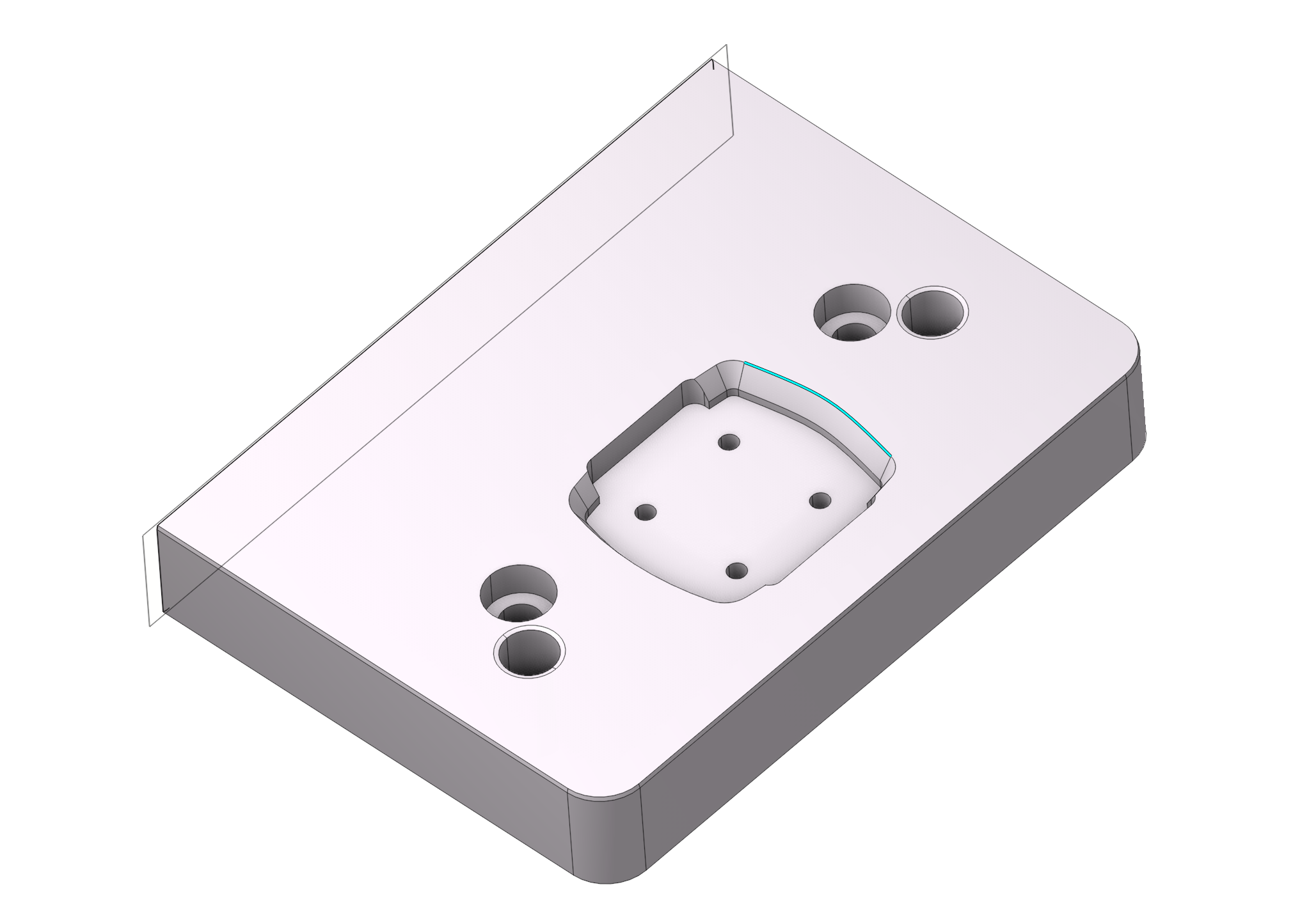
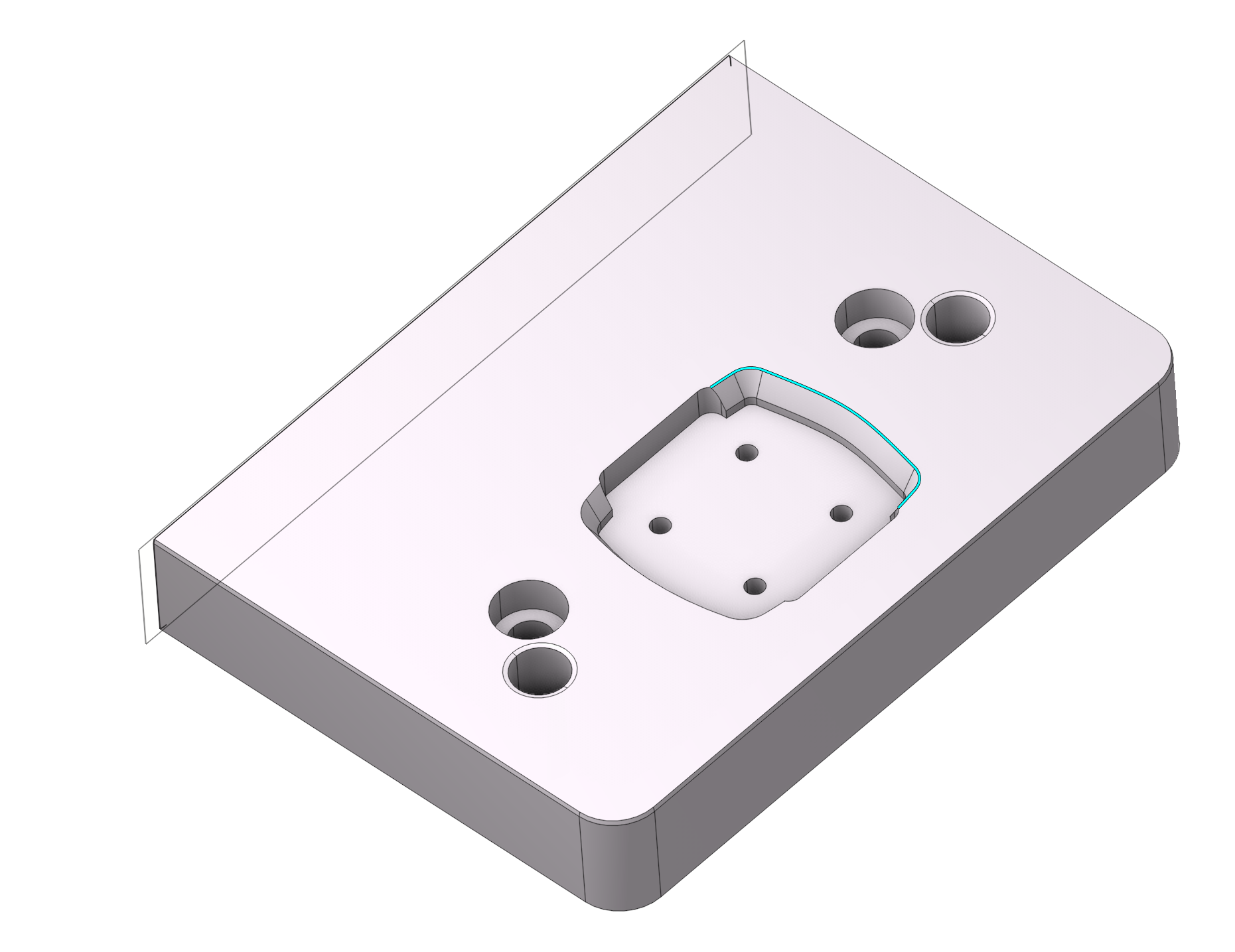
Loop1. Function for selecting consecutive (closed) chains of edges. It works according to the first option
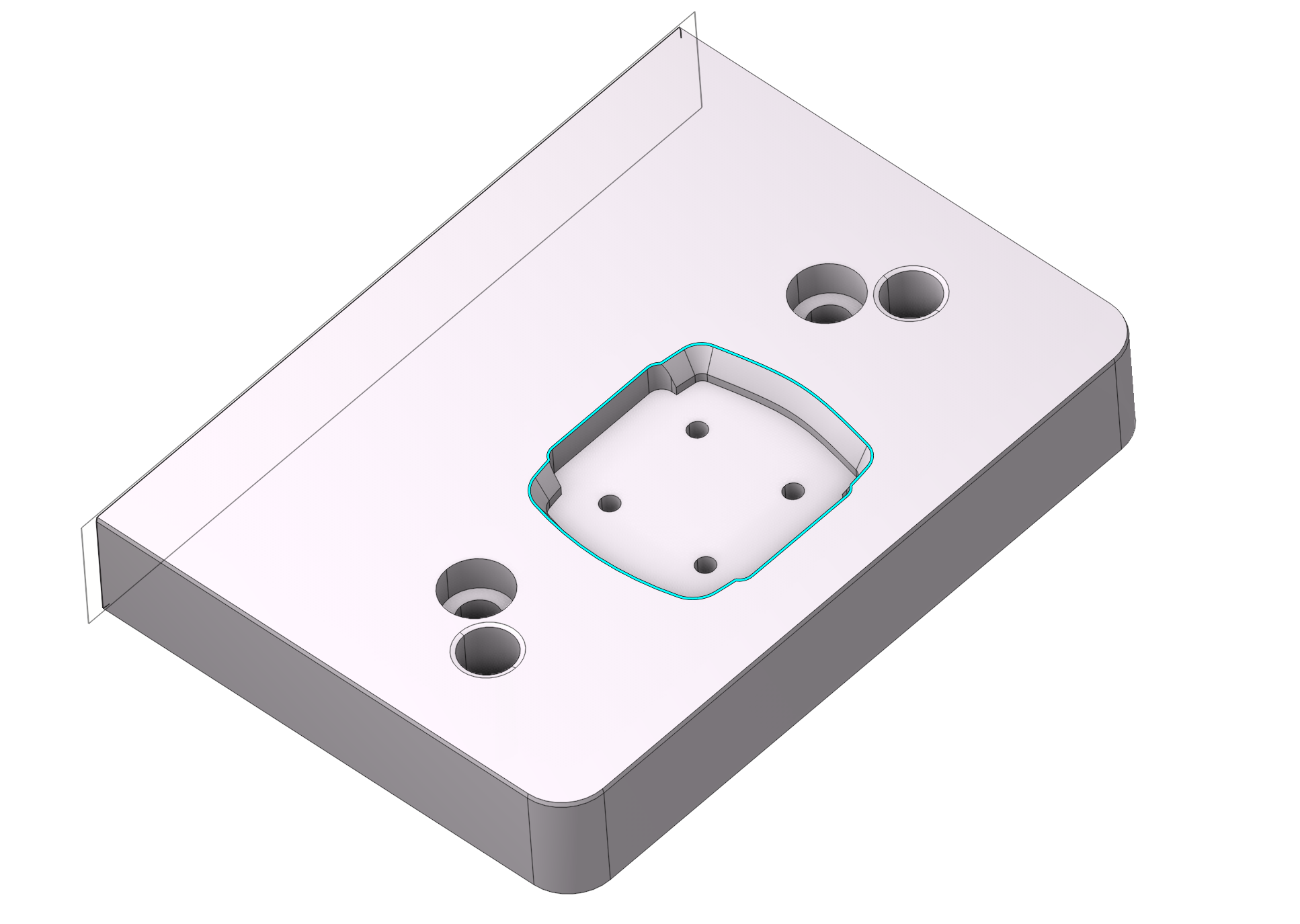
Loop2. Function for selecting consecutive (closed) chains of edges. It works according to the second option
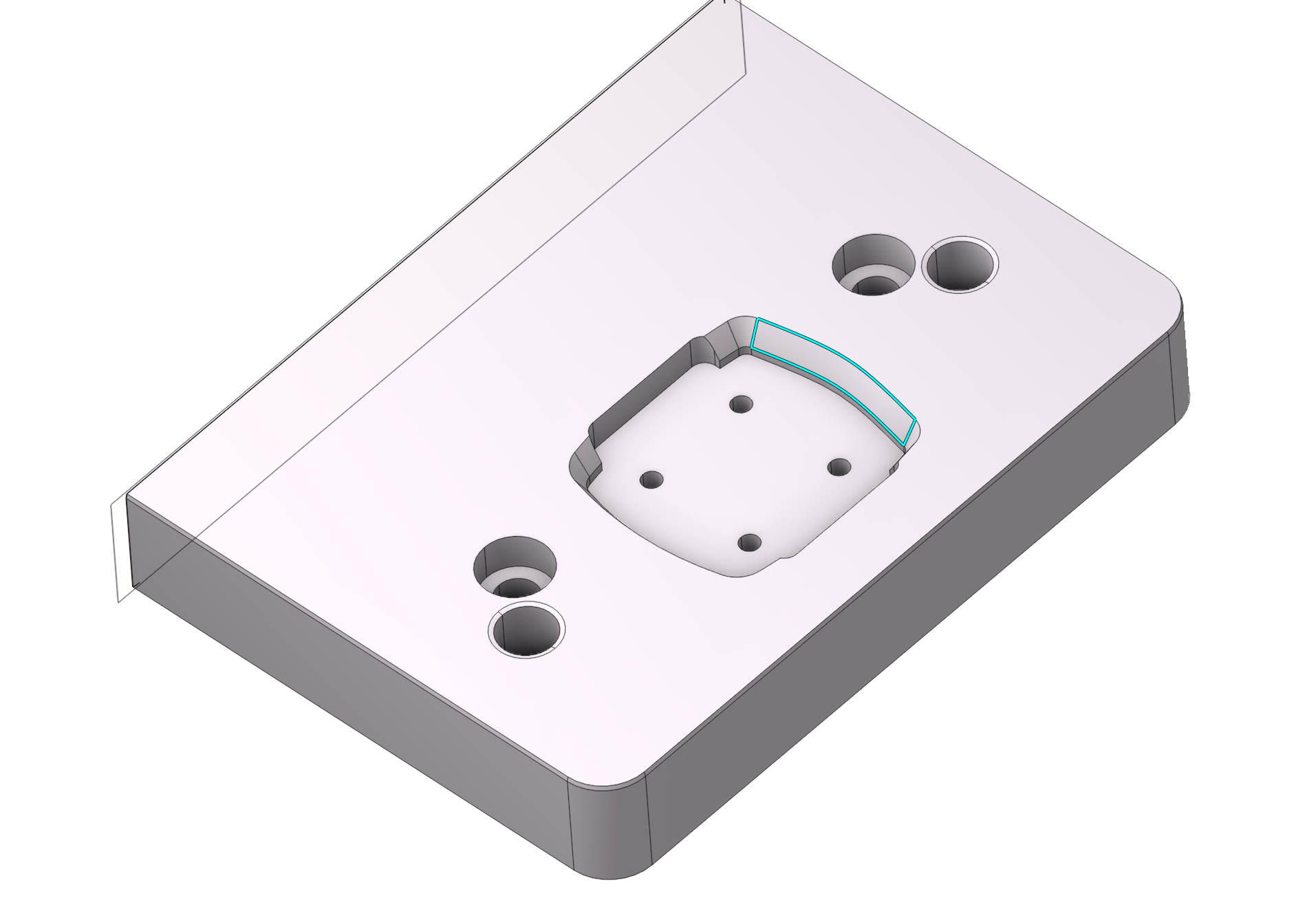
Enclosed Faces. Allows selecting surfaces within a closed contour
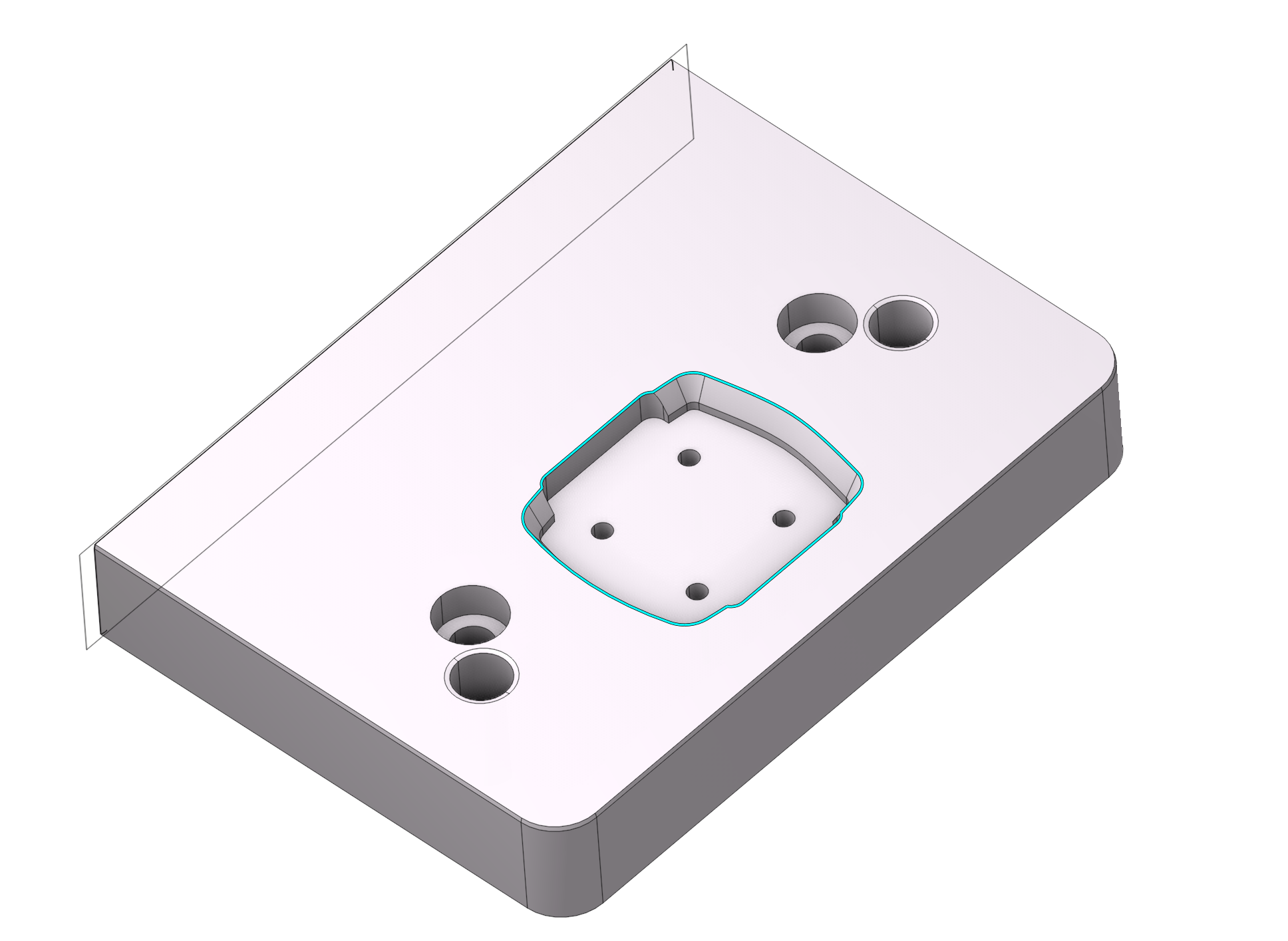
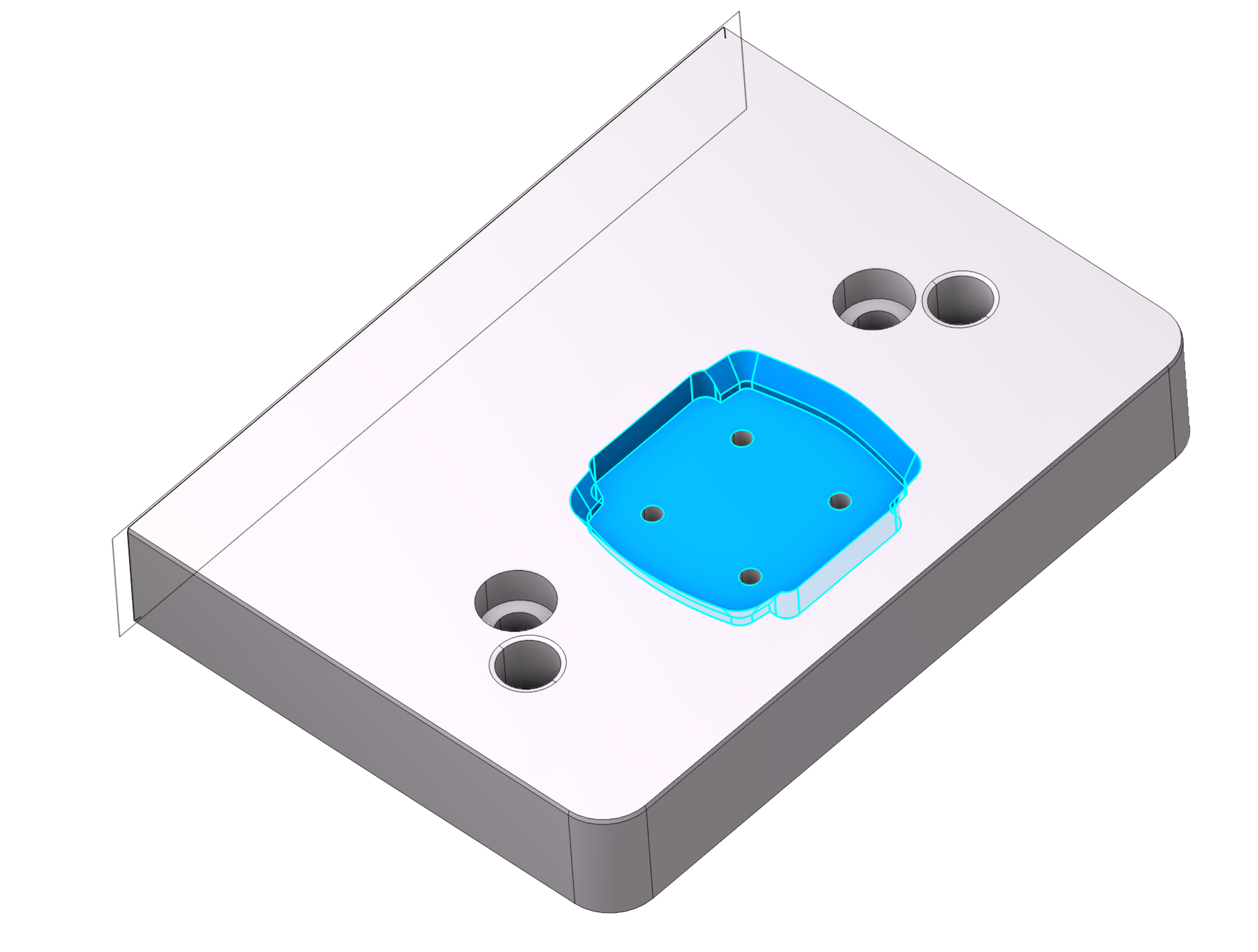
Outer Adjacent Faces. Allows you to select surfaces from outside a closed contour.
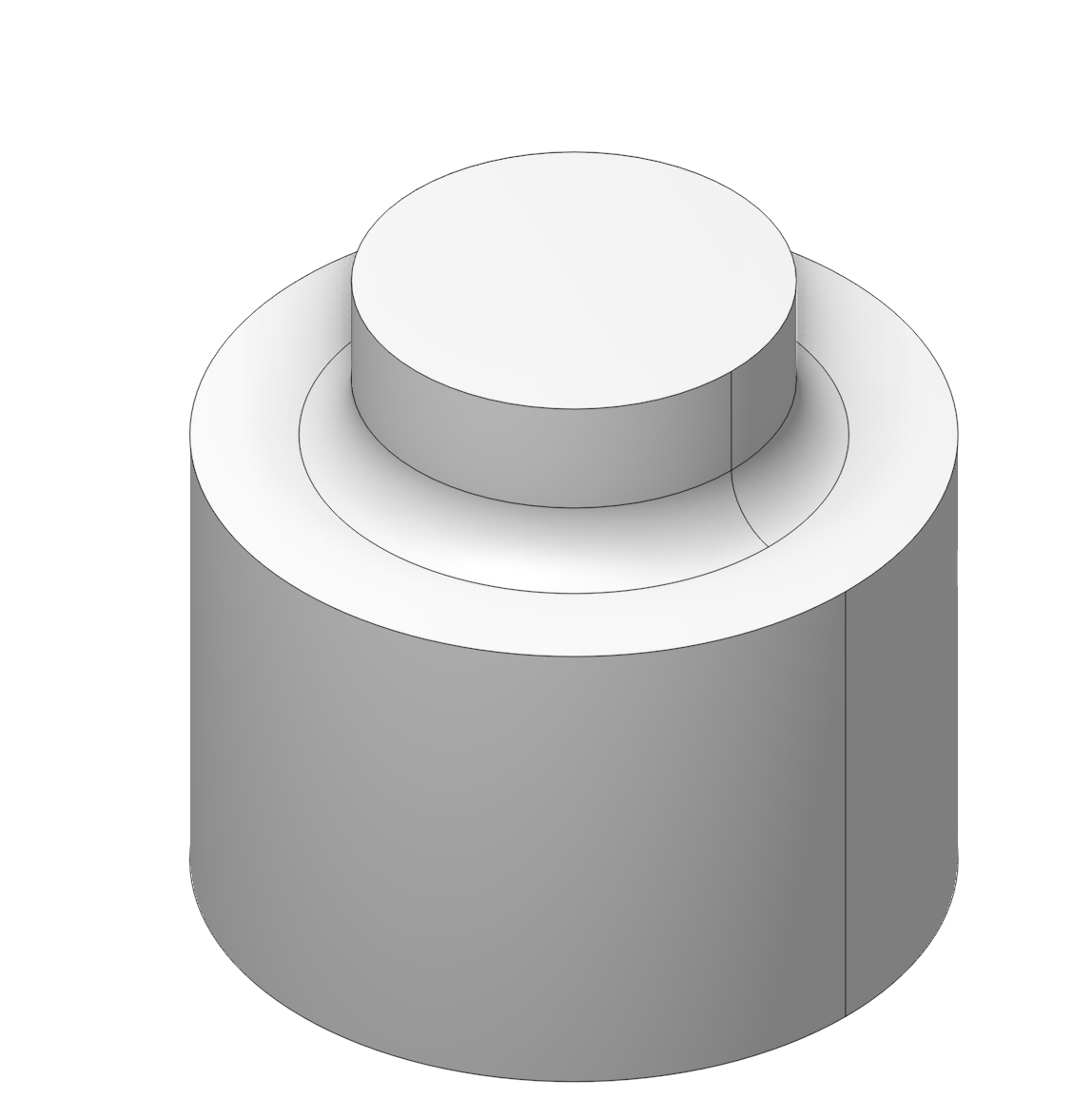

Left-click + Ctrl+Alt the surface to activate the mode (Surface selection via painting).
Click here to expand..
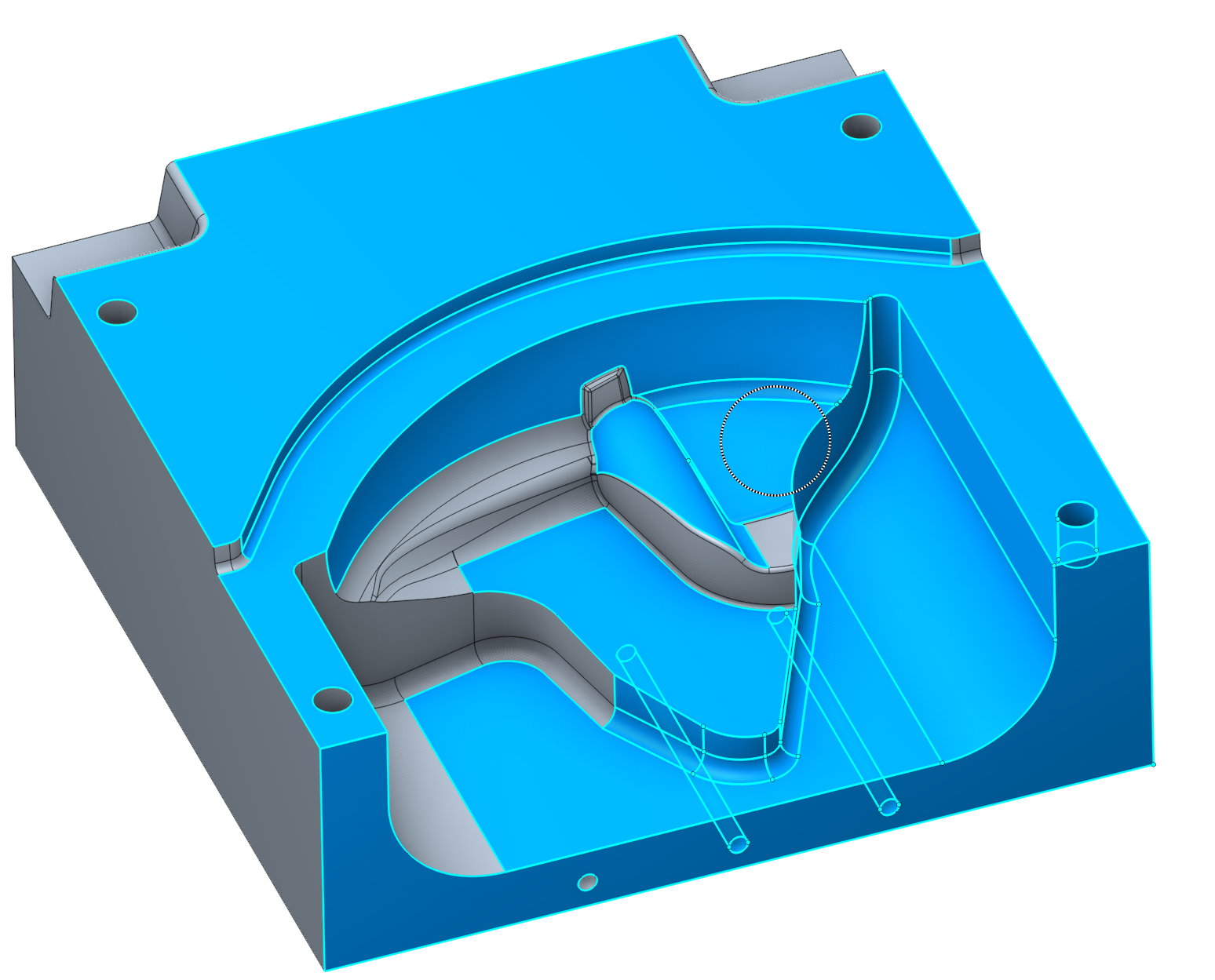
To disperse the surfaces, hold Ctrl+Alt + Left-click.
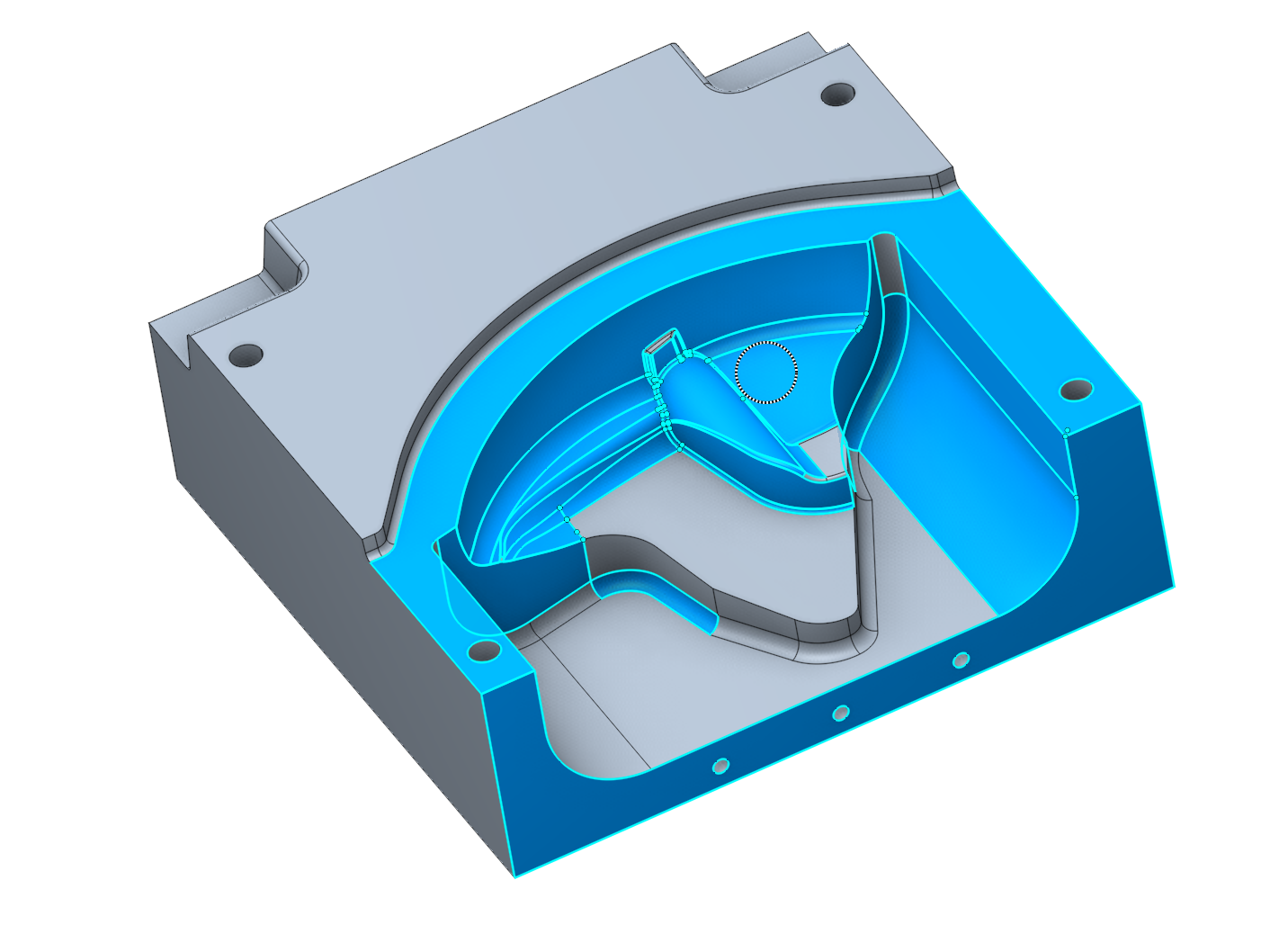
You can change the brush radius. To do this, hold down Shift + Alt and rotate the mouse wheel up or down.