Creating text
The text creation window can be opened either by pressing the  button on the Model panel, or by using the pop up menu in the graphic window or on the geometrical structure window.
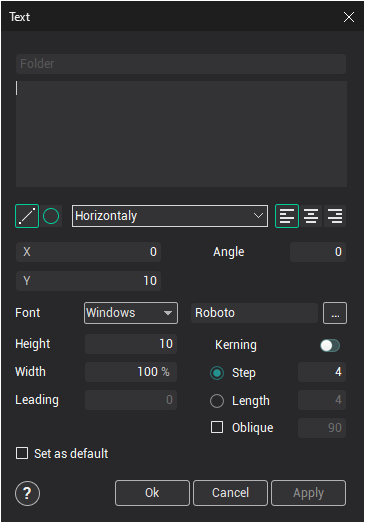
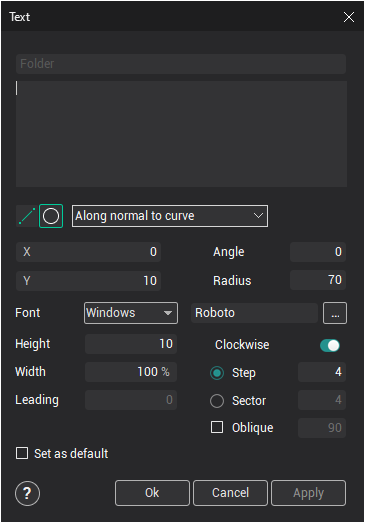
Text can be typed along a line  (default), or along a circle
 .
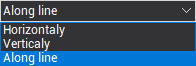 define letter orientation.
 - Text alignment is define text placement from the start point.
To change text font it is necessary use the font open dialog button or font type combo box.
X,Y - define start point position.
Angle - define angle between horizon and text direction line for placement text along line or define the start angle for place text along circle.
Radius - define circle radius.
Height - define letters height.
Width - allow to change letter width in %.
Leading - define vertical space between text rows.
Kerning - allow to use kerning tables from the selected font for calculate distance between letters.
Step - define distance between letters ignore kerning information.
Length - define common width of text.
Oblique - define slope angle of the letters in degrees.
Set as default - store parameters as default for a new text.
To preview the results press the Apply button. If all parameters assigned were correct, the text will be displayed in the graphic window. If required, the text parameters can be corrected.
Having assigned the text parameters presses the Ok button. At folder with the name defined in the Folder field will be created in the model tree.