Line

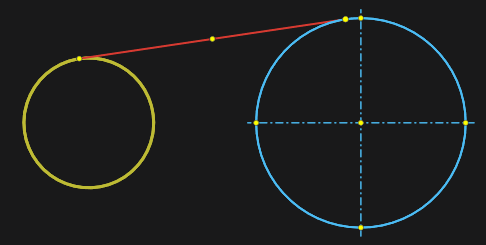
Line is built on two points and has a point lying on the line and divides it in half. The line is constructed by specifying the coordinates of the end points of the line in the Property inspector. Also, using the mouse, you can move the line beyond its midpoint without changing its length and rotation angle. When the cursor captures the end points of a line, it is possible to dynamically change its length and rotation angle. If you press the [Shift] key, the line is moved without changing its length and angle. Double-click on a circle or arc will create axis lines for that arc or circle.
Line parameters in the Property inspector window:
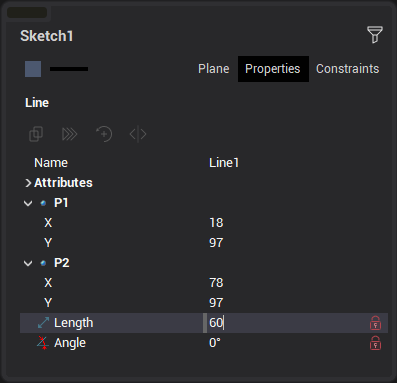
When editing a line, all these parameters can be fixed by clicking the "lock" symbol in the inspector, or the appropriate icon on the line itself.
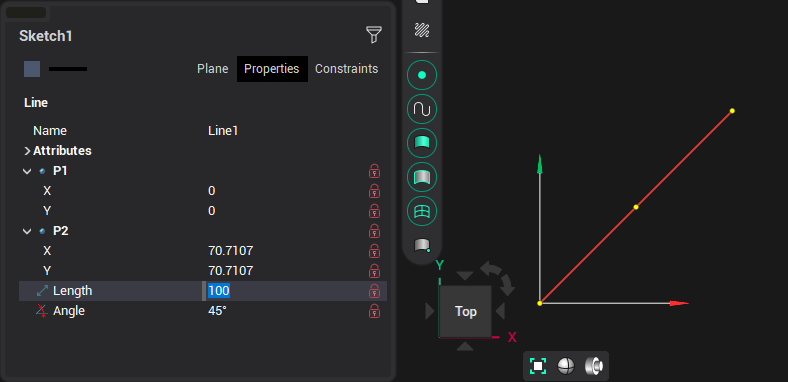
When building and editing a line, it is possible to use the help of guide lines. By default, guides are offered at 0°, 45°, 90° and the angle at which the segment was previously created in edit mode.
In addition, you can create guides by hovering over a point on a previously created object:
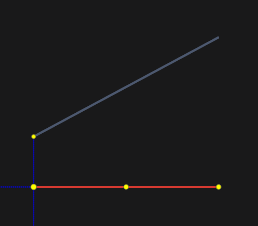
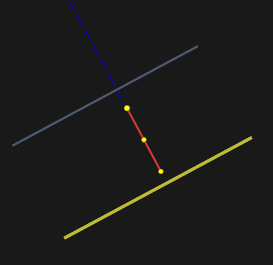
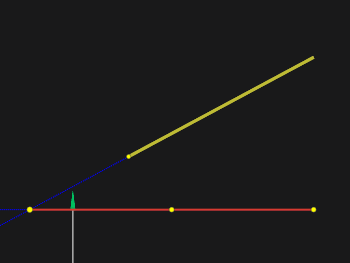
If you press the [Ctrl] key while drawing a line and hold the cursor over a previously created line, then perpendicular and parallel guides to this line, as well as a line that is a continuation, will be additionally proposed.
If an arc or circle was specified with the [Ctrl] key pressed, then a line tangent to the given arc/circle will be constructed. This applies to both the first and second points of the line.