Running a macro

Application area:
This chapter explains how to play a saved macro: starting a run, supplying any required inputs, following progress, pausing, stopping at breakpoints, and overriding values for a single run.
Running a macro
Locate the macro in the list (for a lengthy list, Search is used).
If necessary, expand the macro and adjust the values for the current run.
Press Run. The macro plays its steps in order against the current project.
Required inputs before a run
If the macro has empty fields marked as inputs (required), the run is not performed. The macro is expanded automatically, and the first empty input field is outlined in red. Once the field is filled in — a value is typed or the geometry is re-selected — the Run button is pressed.
Following progress
During the run of a macro:
The current step is marked with an green dot.
Completed steps are marked with a green check; steps not yet reached are dimmed.
A counter next to the macro name displays progress in the format current / total — for example, 9/17.
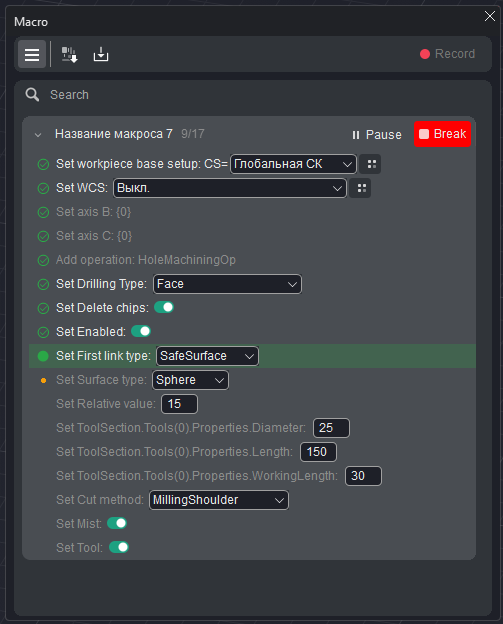
Pausing and continuing
During playback, the Run button changes function: pressing it places the run into the Pause state after the current step; in the paused state the button displays Continue to resume the run. You can also stop the macro by clicking the Break button.
Stopping at a breakpoint
To stop a macro at a particular step, a breakpoint is set on that step:
Click the status dot on the left of the step (clicking again clears the breakpoint). A breakpoint cannot be set on the step currently running.
When the breakpoint is reached, playback is paused, and the run button displays Continue.
After the result is inspected, pressing Continue resumes the run. Alternatively, you can Break execution.
Breakpoints are used for a step-by-step check of a macro on its first run.
Overriding values for one run
The behavior of a macro may be changed for a single run without editing the saved macro: the macro is expanded in the list, its fields are adjusted, after which Run is pressed. The supplied values apply to that run only. For a permanent change, the macro is edited.
A macro cannot be deleted while it is running