Direct cladding
Application area:
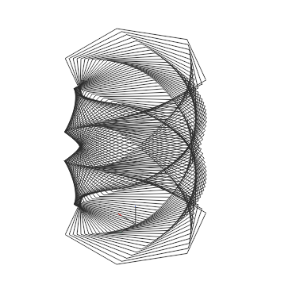
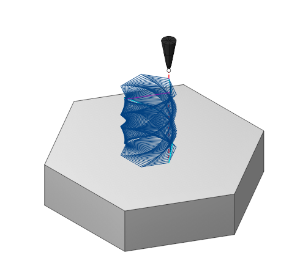
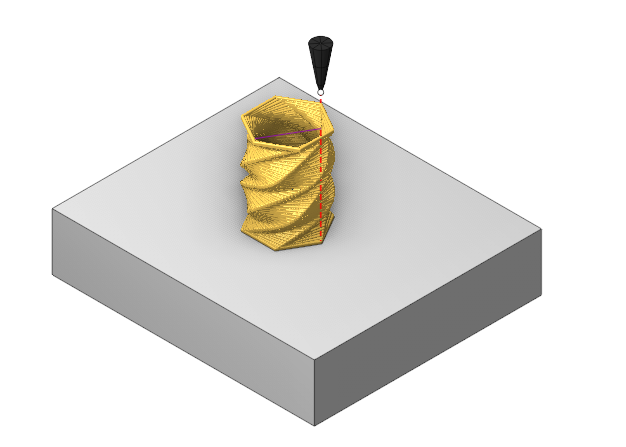
The operation lets you do surfacing along curves you've set up beforehand. You can prepare the curves using any tool — for example, a third‑party CAD program. Basically, the operation turns a bunch of curves into a path for the tool to follow. It also automatically sorts and divides the work area into regions. You can choose between layer‑by‑layer and spiral processing modes.
Setup:
The Setup tab is used to configure the primary parameters of the project. This can involve the positioning of the part on the equipment, the coordinate system of the part, and more. Details
Job assignment:
Curve. Set the toolpath along the selected curve. Details.
Properties. Displays the properties of an element. It is possible to add the stock. You can also call this menu by double clicking on an item in the list.
Delete. Removes an item from the list
Strategy:
Printing strategy.
The choice of strategy affects the availability of parameters in the Sorting group.
Click here to expand..
Planar. Allows you to use layer-based printing options
Helical. Allows you to use spiral printing options
Sorting.
Toolpath sorting and linking parameters.
Click here to expand..
Sort by.
Allows to set printing order of layers and features.
Layers. Allows to print all features layer by layer.
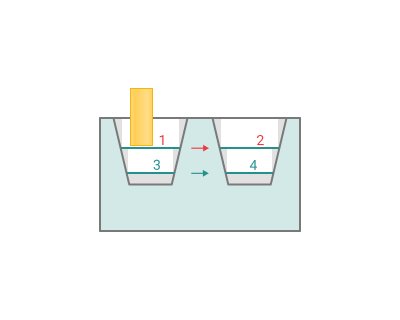
Features. Allows to print all features one by one.
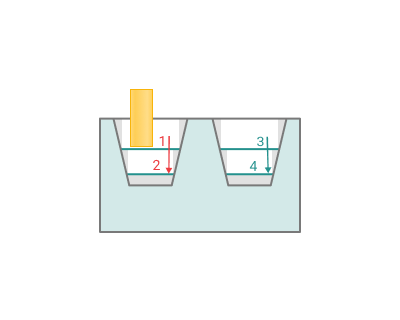
Split by layers. This parameter allows you to split your features into a desired number of layers. It is available only when the Sort by parameter is set to Features option.
Allow reverse direction. Changes the processing direction of a single curve.
Start point. Allows to set custom rules for deciding starting point on print layers.
Do not change. The starting point is selected automatically.
Nearest. Selects the nearest point to the instrument
Manually. The user selects the starting point interactively
Optimize order. If disabled: the curves are selected from the add list.
If enabled: the curves are selected by the shortest distance
Transformations:
Parameter's kit of operation, which allow to execute converting of coordinates for calculated within operation the trajectory of the tool. Details
Part:
A Part is a group of geometrical elements that defines the space to check for gouges. Details
Workpiece:
A workpiece model of an operation defines the material to be machined. Details
Fixtures:
As the Fixtures the fixing aids such as chucks, grips, clamps, etc., and the restriction areas of any other nature are usually specified. Details
Installation:
The operation is supplied as the DirectCladding operation extensions extension. To install it:
- On the Home page, open the Extension Store tab and go to the Store page.
- Find DirectCladding operation extensions and click Install.
- The operation appears in the Additive group of the new operation window. If it does not, restart the CAM system.
You can also install the extension from the web storefront apps.encycam.com. Details