Macro
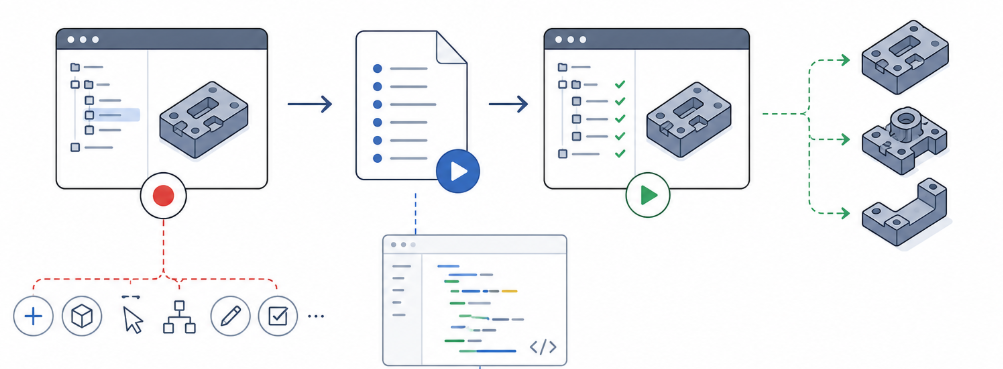
Application area:
A macro is intended for recording a sequence of actions performed on a project and replaying it on demand. A sequence recorded once — creating operations, assigning geometry, selecting items in the model tree, editing properties — is converted by the system into a small, runnable extension that reproduces those actions whenever required. A macro is also the fastest way to create a custom extension: a working source code is generated from the recorded macro and serves as a template for further development.
Macros are launched from the Utilities button on the main panel.
Macros are used wherever the same work is performed repeatedly:
applying a standard sequence of operations to similar parts;
re-creating a typical machine, workpiece, and strategy setup at the start of a project;
assigning the same geometry — faces, zones, curves, holes — in a uniform manner;
sharing a repeatable procedure with other members of the team.
The Macro panel:
The Macro panel contains the saved macros and the tools for recording new ones. The panel is divided into three zones (top to bottom): a toolbar with the recording controls, a Search field, and the list of saved macros.
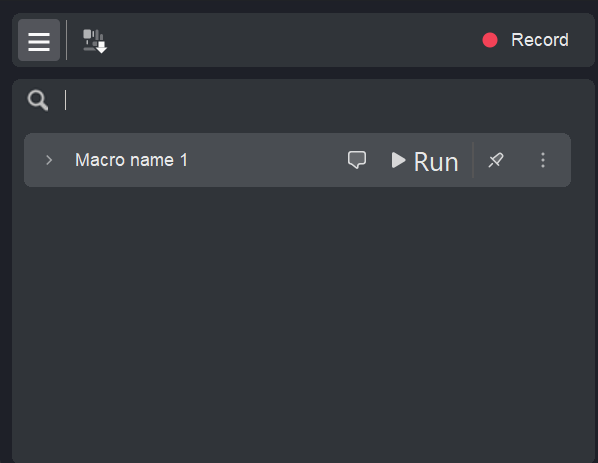
Toolbar buttons.
List toggle (≡). Shows or hides the list of saved macros.
Project state. Determines which parts of the current project — machine setup, workpiece and stock, strategy parameters — are captured by the macro at the start of recording.
Record. Starts recording a new macro; pressing it again stops the recording. Details
Search field. It allows you to find a macro in the list.
The macro list.
Name. The macro name.
Comment icon. Displays the macro description on hover.
Run. Plays the macro. Details
Pin. Keeps the macro at the top of the list.
"…" menu. Per-macro actions:
Open in editor. Opens the generated source code of the macro for reading or manual extension. Details
Edit. Re-opens the macro steps with the full set of editing controls; saving the changes rebuilds the macro. Details
Export.
Pin to top. Pins the macro to the top of the list, above the separator line; selecting it again unpins the macro.
Delete. Removes the macro and its files. Unavailable while any macro is running.
→. Reveals the individual steps of the macro.
Macro storage
Each macro is placed in its own folder inside the personal CAM system folder, under
macros. The folder contains the generated source code and a human-readable list of the macro steps, which allows the macro to be copied together with that folder.