MachineMaker
  • MachineMaker
v3.1.1
Search Results for

    Show / Hide Table of Contents
    • MachineMaker
    • Introduction to MachineMaker
    • Interface
      • Main window
      • 3D navigation
      • Toolbar
      • Application Settings
    • Getting Started
      • Creating a project
      • Adding a mechanism
      • Prepare and import 3D objects
      • Grouping elements into nodes
      • Coloring
      • Mechanism Simulation and Validation
      • Assemblies
      • Mechanisms Library
      • Machine equipment configuration
    • Milling Machines
      • Building a kinematic scheme
      • Assembly options
      • Additional options
      • Examples: Machines
        • 3-Axes Milling Machine
        • 5-Axes Milling Machine
    • Robots
      • Building a kinematic scheme
        • Industrial Robots
        • Cobot
        • Heavy-Duty Robots
        • Flexible Heavy-Duty Robot
        • Tables and Positioners
        • Rails and Portals
        • Composite End effectors
      • Assembly Simulation and Validation
      • Table calibration
      • Receiving assemblies from CAM system
      • Assembly options
      • Additional options
      • Collision
      • Links/Leads
      • End effectors and TCP calibration
      • Examples: Robot cell
        • Simple robot
        • Heavy-Duty robot
        • Flexible Heavy-Duty Robot
        • Cobot
        • End Effectors
        • External Tools
        • Composite End Effector
        • Composite EndEffector: Spot Welding
        • Tables and User CS
        • Rail
        • H-bot (Portal)
        • SCARA Robot
        • Column-type robot
    • Turn-Milling Machines
      • Building a kinematic scheme
        • Chuck connector
        • Tool block
        • Turret head node
        • Dual-row tool turret
      • Multi Tool Head
      • Examples: Lathe milling machine
        • Lathe milling machine
        • Lathe milling machine with a dual-row turret
        • Swiss type machine
    • Simplifier

    Collision

    If you are using inaccurate 3D models, CAM system can detect false-positive collisions between nodes. You can add these nodes to the ignore-list to prevent CAM system from detecting false-positive collisions.

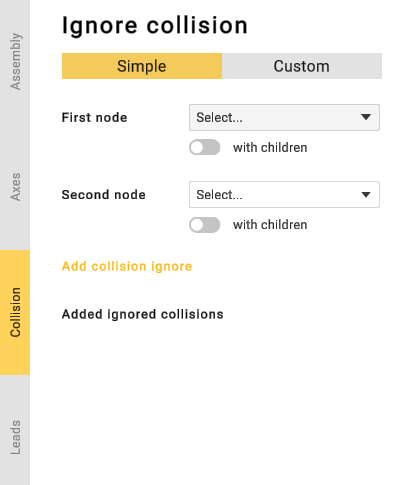
    Click Collision button to open the parameters panel. Then go to the Collisions tab.
    Collision

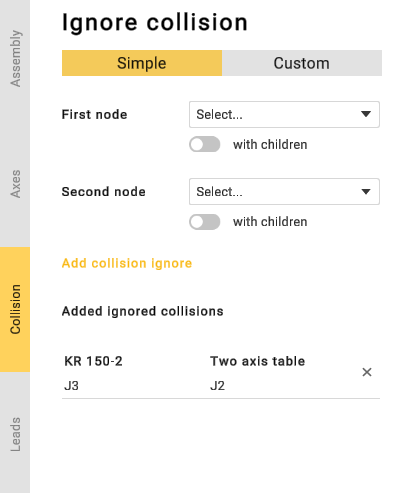
    Select first and second nodes and click Add collisions button. Use with children toggle to add node's children to the ignore-list. Use Collision button to delete a previously added collision from the ignore list.
    Collision

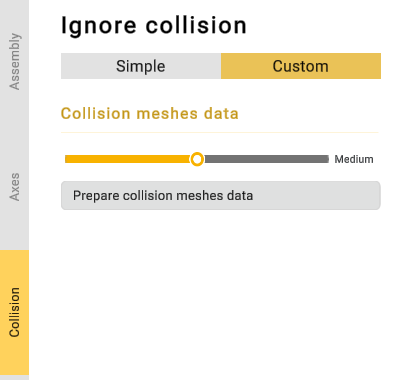
    In the custom collision tab, you can manually compute collisions using user-defined parameters. This section allows you to specify the mesh resolution for each mechanism node used by the collision-detection algorithm.
    Collision

    If you click “Prepare collision meshes data”, the application will calculate the number of mechanism positions required for collision detection.
    Collision

    After calculating the number of mechanism positions, you will be able to sort them by nodes and visually inspect collisions on the mechanisms.
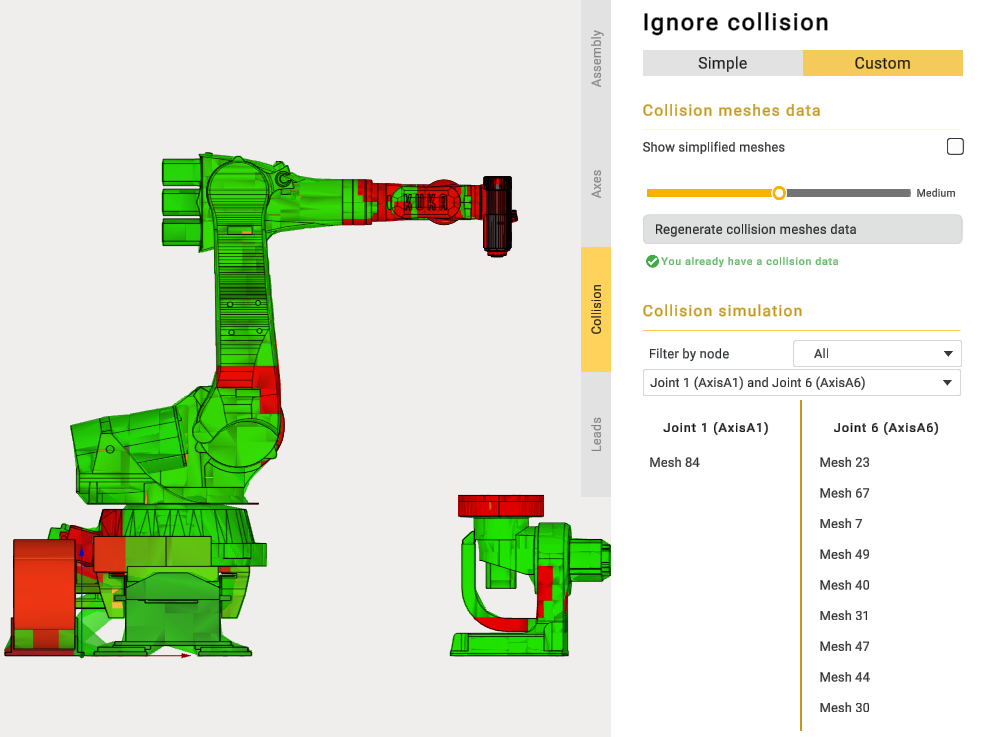
    Collision

    CAM system always ignores collisions between sibling nodes. So it is not necessary to add them to the ignore list.

    In this article
    Back to top MachineMaker