MachineMaker
  • MachineMaker
v3.1.1
Search Results for

    Show / Hide Table of Contents
    • MachineMaker
    • Introduction to MachineMaker
    • Interface
      • Main window
      • 3D navigation
      • Toolbar
      • Application Settings
    • Getting Started
      • Creating a project
      • Adding a mechanism
      • Prepare and import 3D objects
      • Grouping elements into nodes
      • Coloring
      • Mechanism Simulation and Validation
      • Assemblies
      • Mechanisms Library
      • Machine equipment configuration
    • Milling Machines
      • Building a kinematic scheme
      • Assembly options
      • Additional options
      • Examples: Machines
        • 3-Axes Milling Machine
        • 5-Axes Milling Machine
    • Robots
      • Building a kinematic scheme
        • Industrial Robots
        • Cobot
        • Heavy-Duty Robots
        • Flexible Heavy-Duty Robot
        • Tables and Positioners
        • Rails and Portals
        • Composite End effectors
      • Assembly Simulation and Validation
      • Table calibration
      • Receiving assemblies from CAM system
      • Assembly options
      • Additional options
      • Collision
      • Links/Leads
      • End effectors and TCP calibration
      • Examples: Robot cell
        • Simple robot
        • Heavy-Duty robot
        • Flexible Heavy-Duty Robot
        • Cobot
        • End Effectors
        • External Tools
        • Composite End Effector
        • Composite EndEffector: Spot Welding
        • Tables and User CS
        • Rail
        • H-bot (Portal)
        • SCARA Robot
        • Column-type robot
    • Turn-Milling Machines
      • Building a kinematic scheme
        • Chuck connector
        • Tool block
        • Turret head node
        • Dual-row tool turret
      • Multi Tool Head
      • Examples: Lathe milling machine
        • Lathe milling machine
        • Lathe milling machine with a dual-row turret
        • Swiss type machine
    • Simplifier

    3D navigation

    It is recommended to use a 3-buttons mouse with a scroll wheel for a full experience in MachineMaker and 3D navigation.

    Interactive rotate

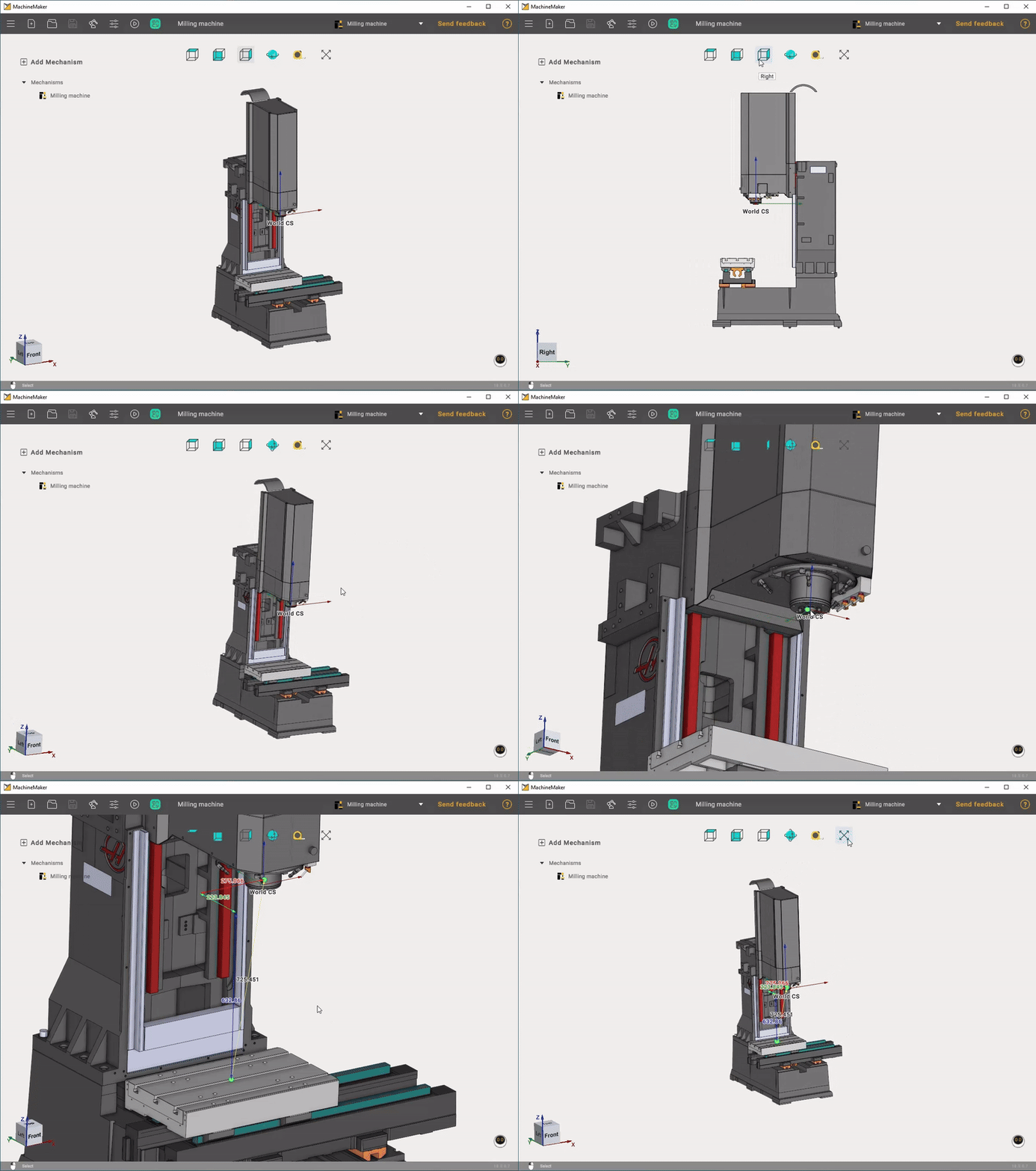
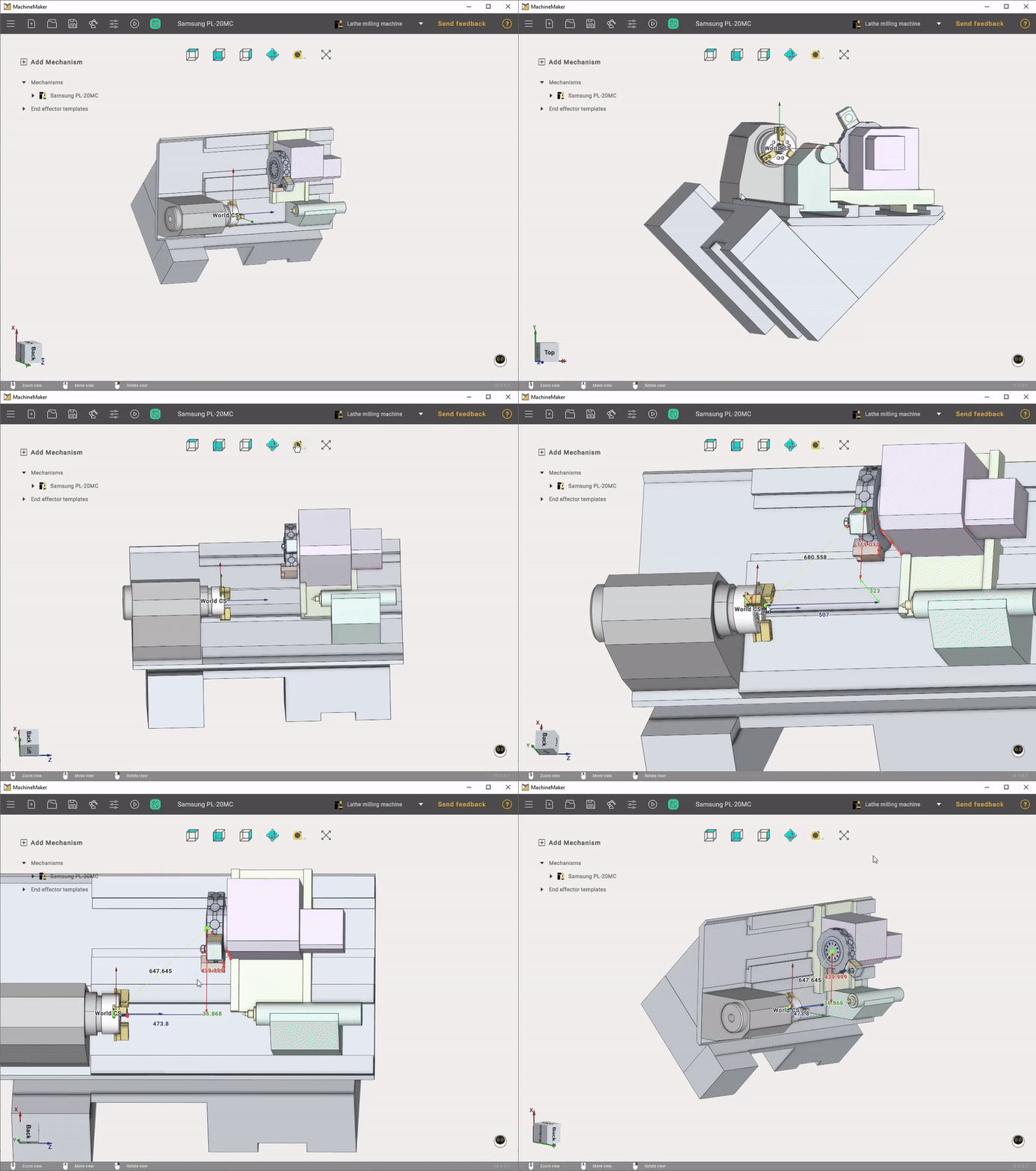
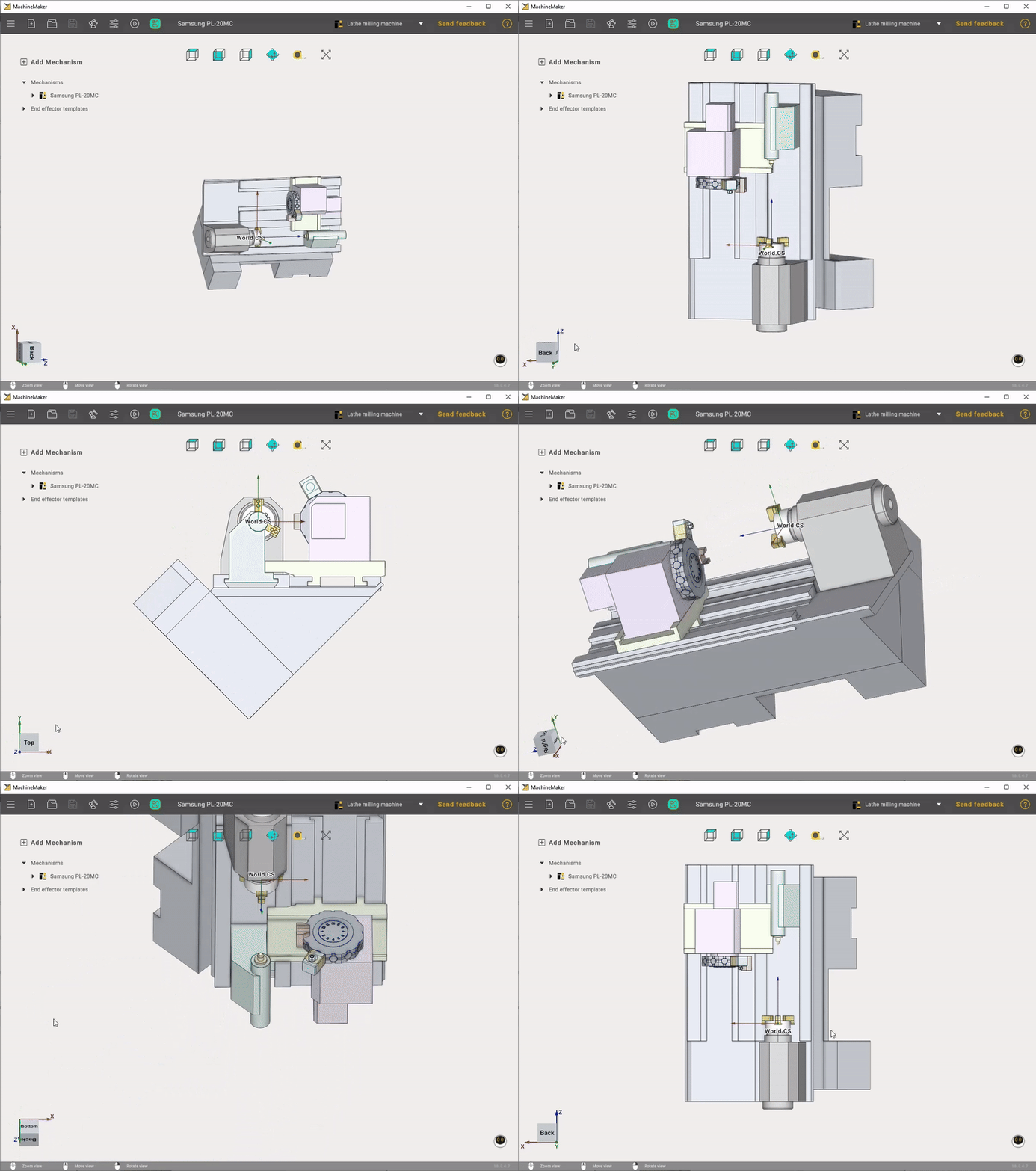
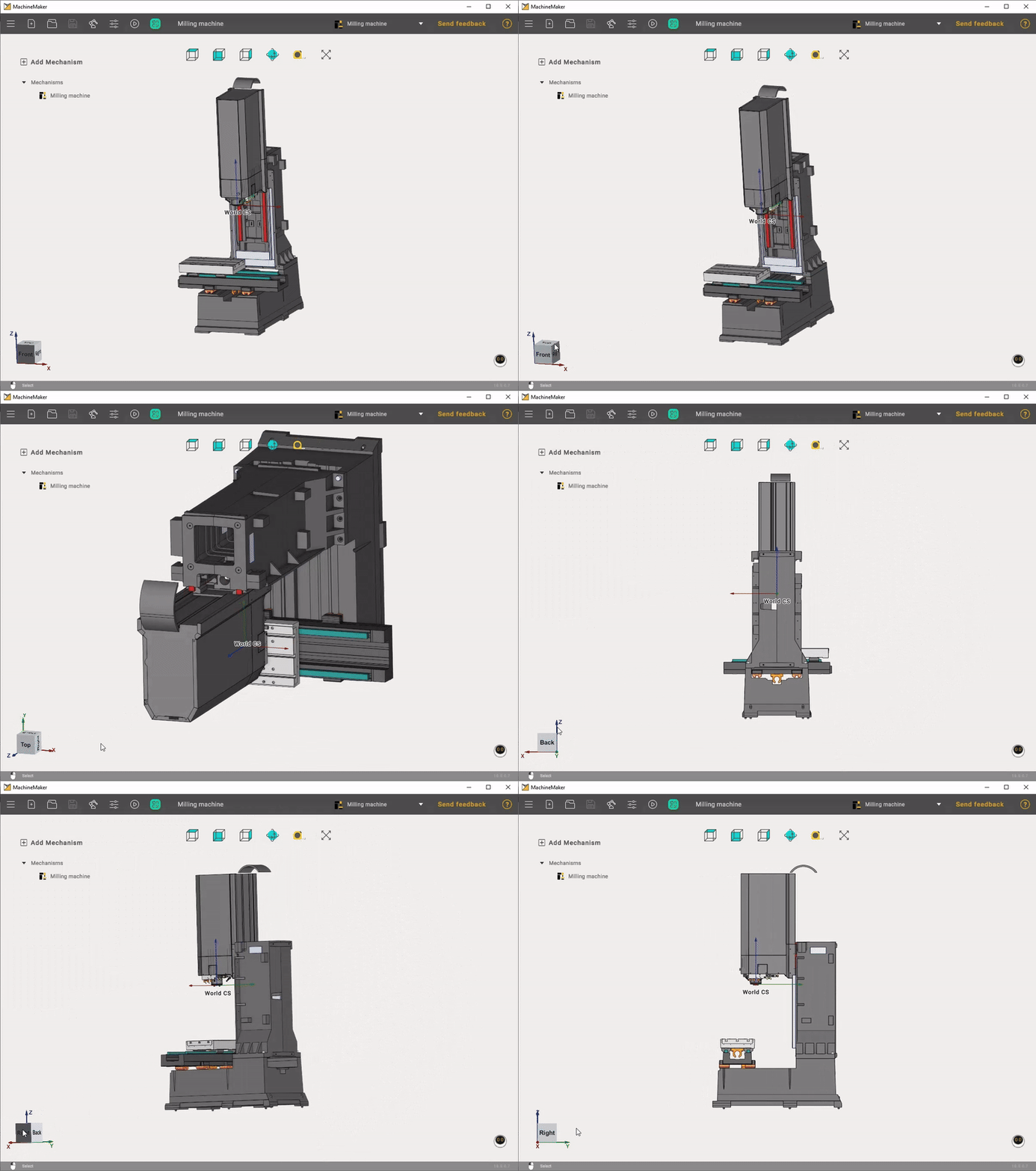
    Press and hold the right mouse button and drag the cursor around for the view rotation in the main visualization screen. Drag the cursor up and down to rotate around the horizontal screen axis. Drag it left and right to rotate around the vertical screen axis.

    Use images/download/attachments/128546599/image2021-5-7_14-29-59.png button to switch between free and Z-Fixed rotation modes.

    Use images/download/thumbnails/128546599/image2023-10-27_15-55-42.png the measure tool to measure the distance.

    In robot cells, use 3D navigation to turn off floor visibility.

    • Milling Machines
    • Robots
    • Turn-Milling Machines

    images/download/attachments/128546599/MillingMachineView.gif

    3D navigation

    Lathemillingmachine

    Changing the viewpoint can also be done by the Standard views buttons.

    images/download/attachments/128546599/image2021-5-7_14-20-38.png

    You can also use interactive Global CS located in the lower left corner of the main window.
    • Milling Machines
    • Robots
    • Turn-Milling Machines

    images/download/attachments/128546599/GlobalCSMillingMachine.gif

    3D navigation

    LatheMillingMachineGlobalCS

    Clicking on the Middle Mouse Button (wheel) in the graphics window rotates the current view to the nearest standard plane.

    Interactive pan

    Press and hold the Middle Mouse Button (wheel) and drag the cursor in the main visualization screen to move the view vector.

    Interactive zoom in and out

    Use Mouse Wheel Scroll to zoom. The zoom area is where your mouse cursor is located.

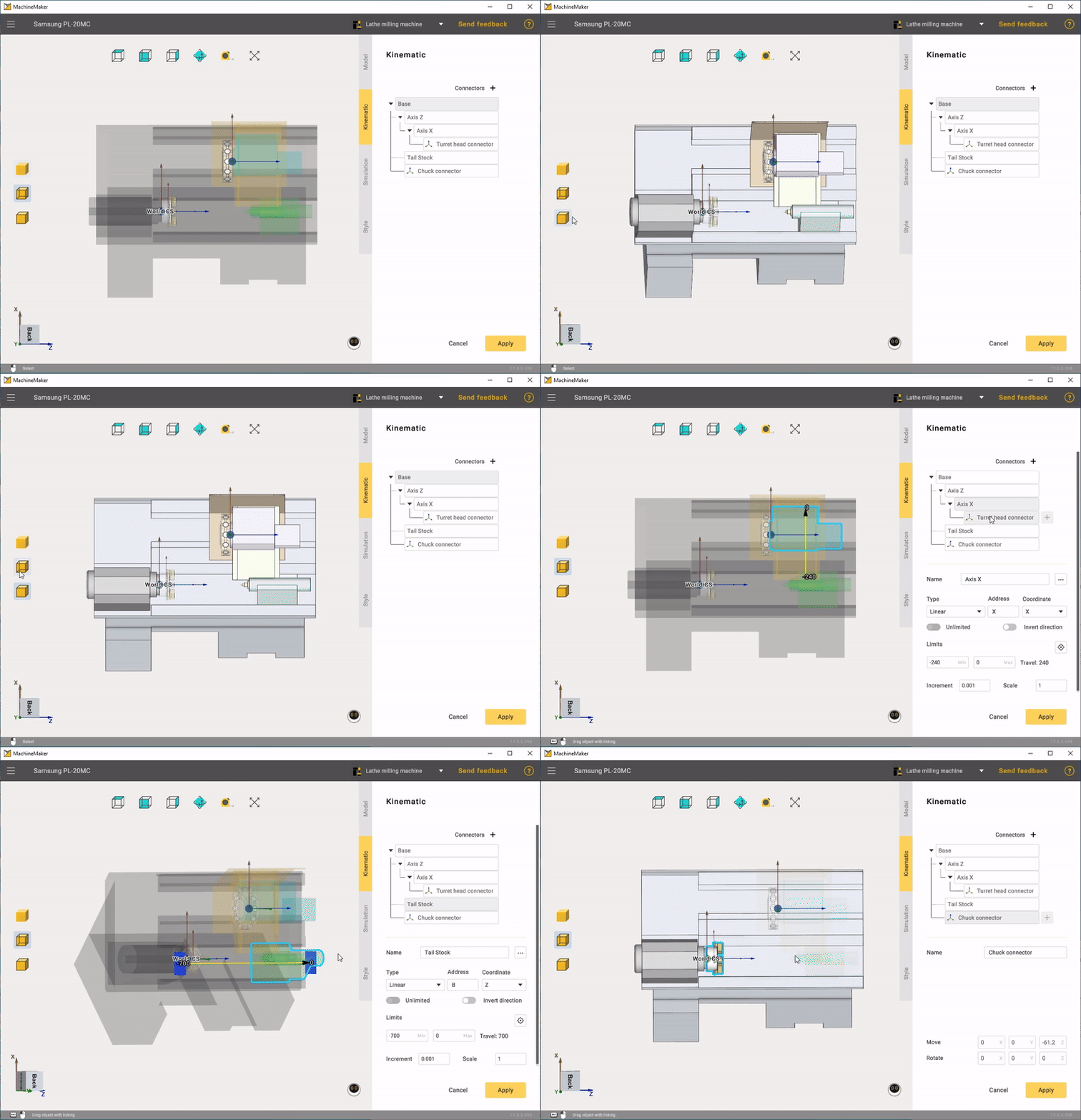
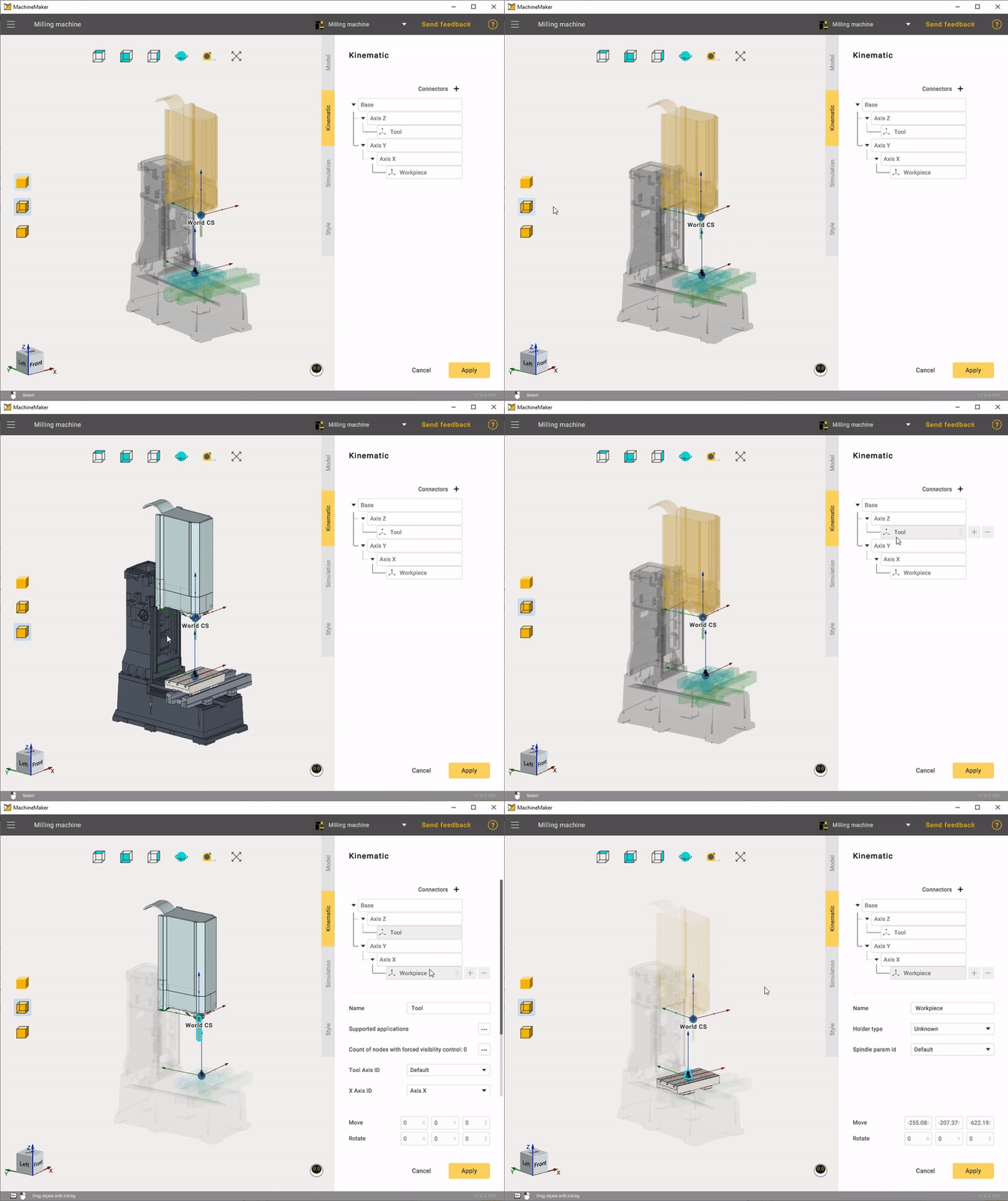
    Visualization mode

    It is possible to change visualization mode in the Mechanism edit mode.
    • Milling Machines
    • Robots
    • Turn-Milling Machines

    images/download/attachments/128546599/ezgif.com-video-to-gif-converted_%281%29.gif

    3D navigation

    визуализациятокфрез

    In this article
    Back to top MachineMaker