MachineMaker
  • MachineMaker
v3.1.1
Search Results for

    Show / Hide Table of Contents
    • MachineMaker
    • Introduction to MachineMaker
    • Interface
      • Main window
      • 3D navigation
      • Toolbar
      • Application Settings
    • Getting Started
      • Creating a project
      • Adding a mechanism
      • Prepare and import 3D objects
      • Grouping elements into nodes
      • Coloring
      • Mechanism Simulation and Validation
      • Assemblies
      • Mechanisms Library
      • Machine equipment configuration
    • Milling Machines
      • Building a kinematic scheme
      • Assembly options
      • Additional options
      • Examples: Machines
        • 3-Axes Milling Machine
        • 5-Axes Milling Machine
    • Robots
      • Building a kinematic scheme
        • Industrial Robots
        • Cobot
        • Heavy-Duty Robots
        • Flexible Heavy-Duty Robot
        • Tables and Positioners
        • Rails and Portals
        • Composite End effectors
      • Assembly Simulation and Validation
      • Table calibration
      • Receiving assemblies from CAM system
      • Assembly options
      • Additional options
      • Collision
      • Links/Leads
      • End effectors and TCP calibration
      • Examples: Robot cell
        • Simple robot
        • Heavy-Duty robot
        • Flexible Heavy-Duty Robot
        • Cobot
        • End Effectors
        • External Tools
        • Composite End Effector
        • Composite EndEffector: Spot Welding
        • Tables and User CS
        • Rail
        • H-bot (Portal)
        • SCARA Robot
        • Column-type robot
    • Turn-Milling Machines
      • Building a kinematic scheme
        • Chuck connector
        • Tool block
        • Turret head node
        • Dual-row tool turret
      • Multi Tool Head
      • Examples: Lathe milling machine
        • Lathe milling machine
        • Lathe milling machine with a dual-row turret
        • Swiss type machine
    • Simplifier

    Toolbar

    Application toolbar is located in the top panel of the main window.

    images/download/attachments/128546624/image2024-8-12_12-0-26.png

    Main menu (1)

    Main Menu (1) contains the following items:
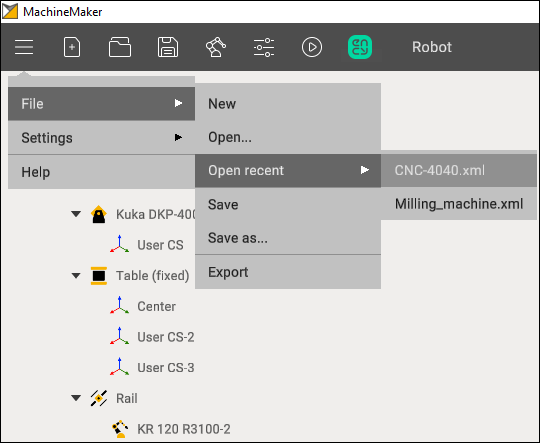
    images/download/attachments/128546624/image2024-8-12_12-1-9.png

    File opens a submenu for project operations:

    • New - create a new project. It is also possible to use New (1) button in the toolbar.

    • Open - open an existing project. It is also possible to use Open (3) button in toolbar.

    • Open recent - show latest projects. Keep mouse over Open (3) button to show recent projects.

    • Save - save current project. MachineMaker will ask for project destination folder when saving the file for the first time. It is also possible to use Save (4) button located in the toolbar.

    • Save as - save current project to another folder

    • Export - open CAM system with the current Machine. It is also possible to use CAM system button located in the toolbar

      It is necessary to add a mechanism (a robot or a machine) to the assembly to save the project

    Mechanisms Library (5)

    Opens a library of mechanisms. The library is divided into categories for robots, milling machines and lathe-milling machines. See Mechanisms Library.

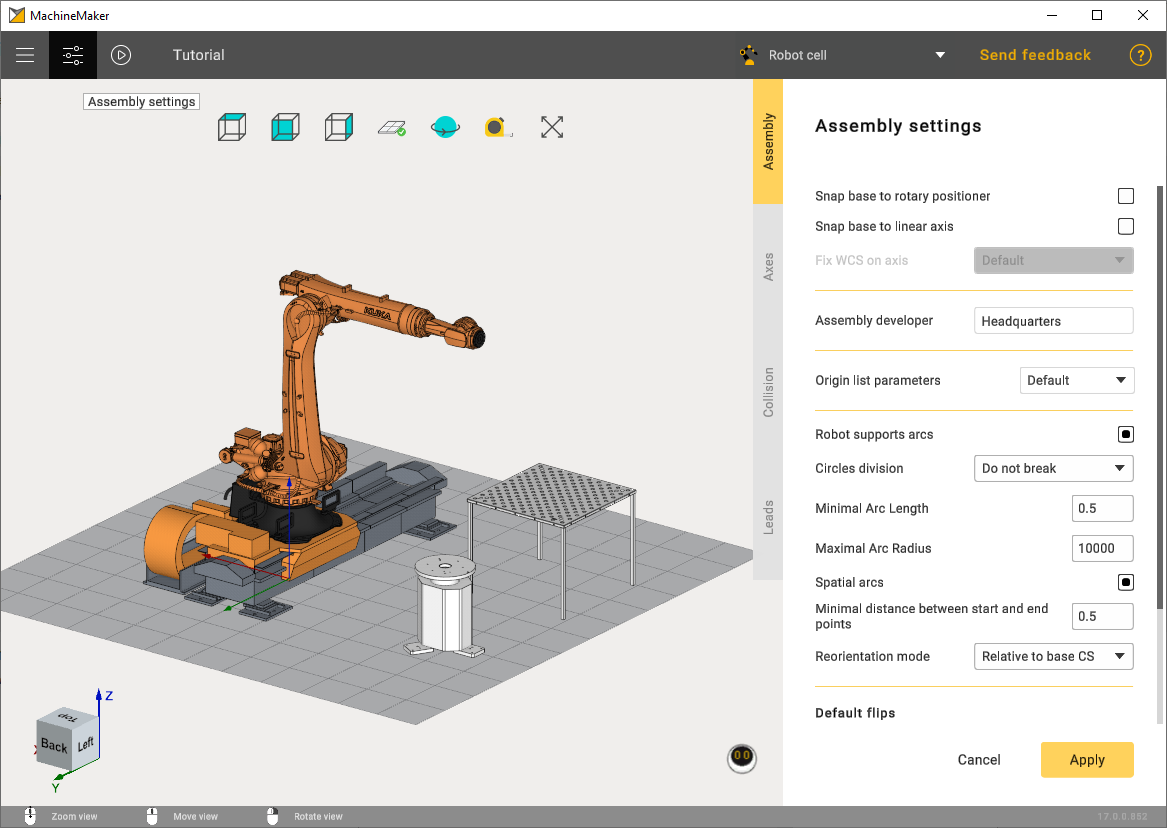
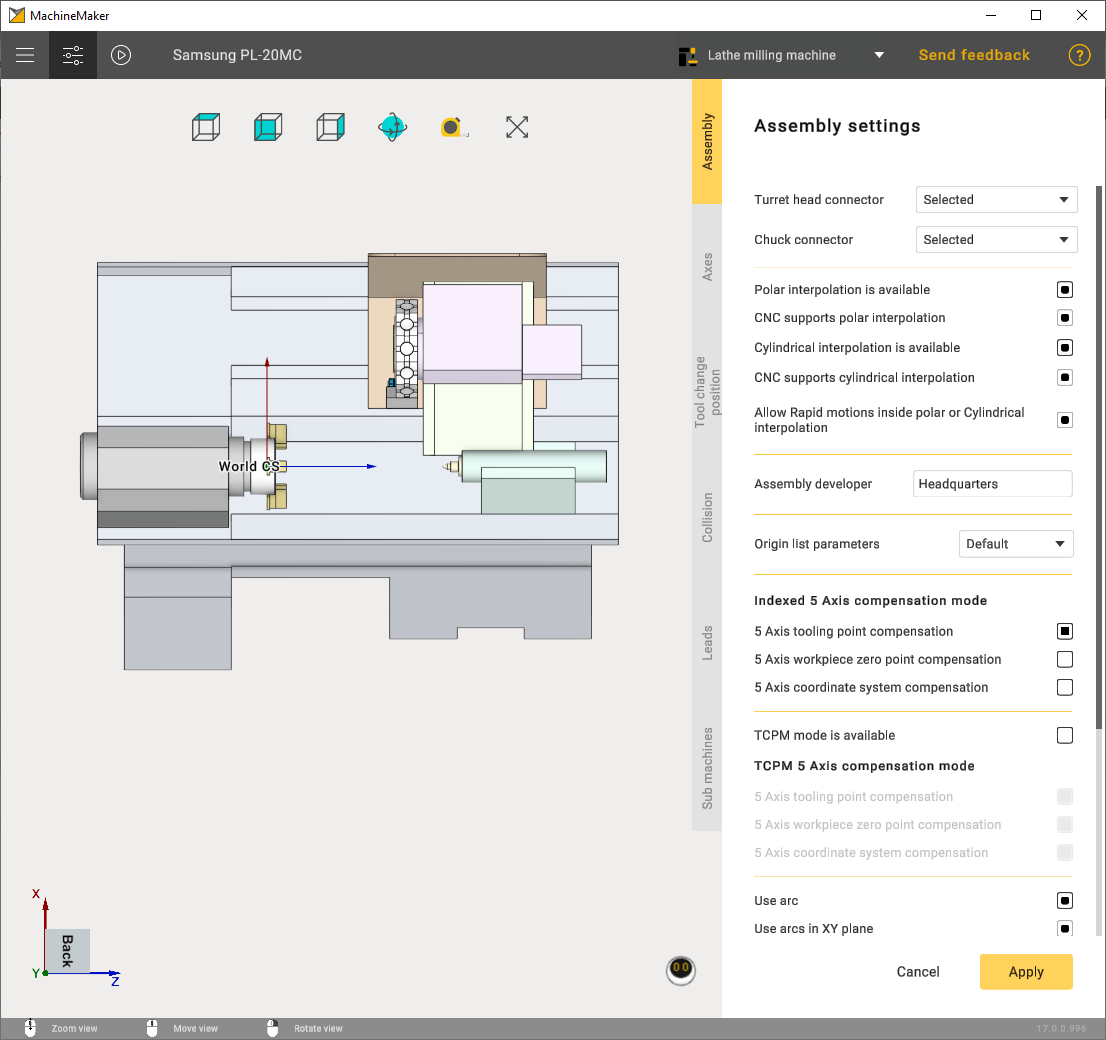
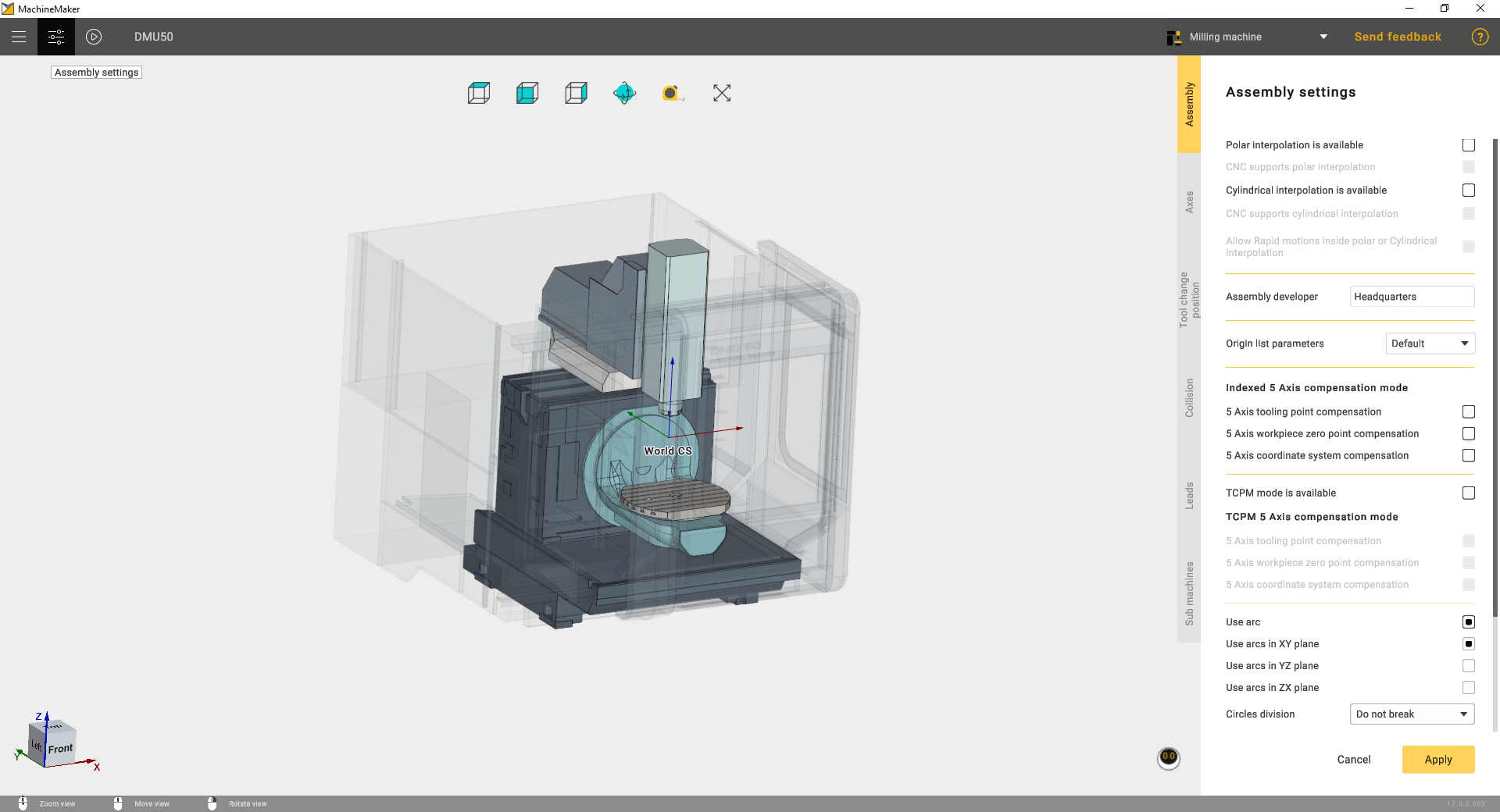
    Assembly settings (6)

    Use Assembly settings (6) button to open assembly settings panel.
    • Milling Machines
    • Robots
    • Turn-Milling Machines

    images/download/attachments/128546624/image2024-8-12_12-9-47.png

    Toolbar

    image2024-8-12_12-10-50

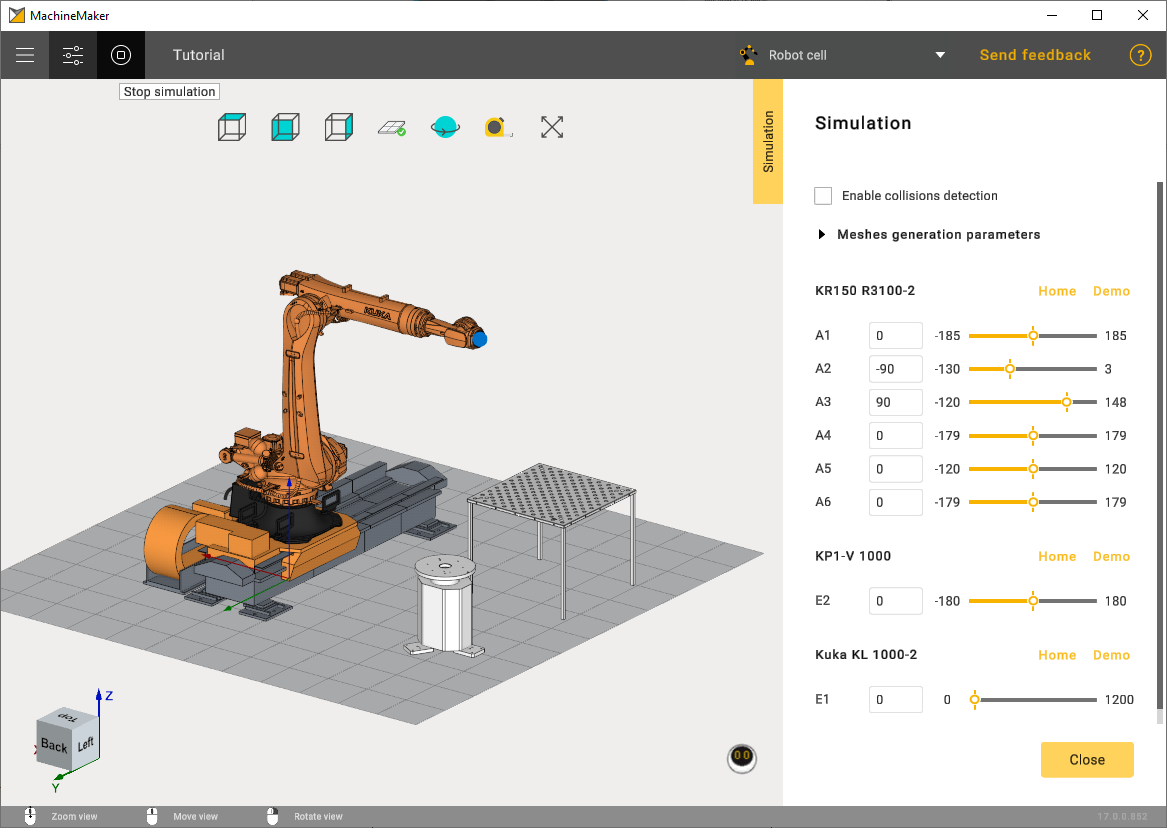
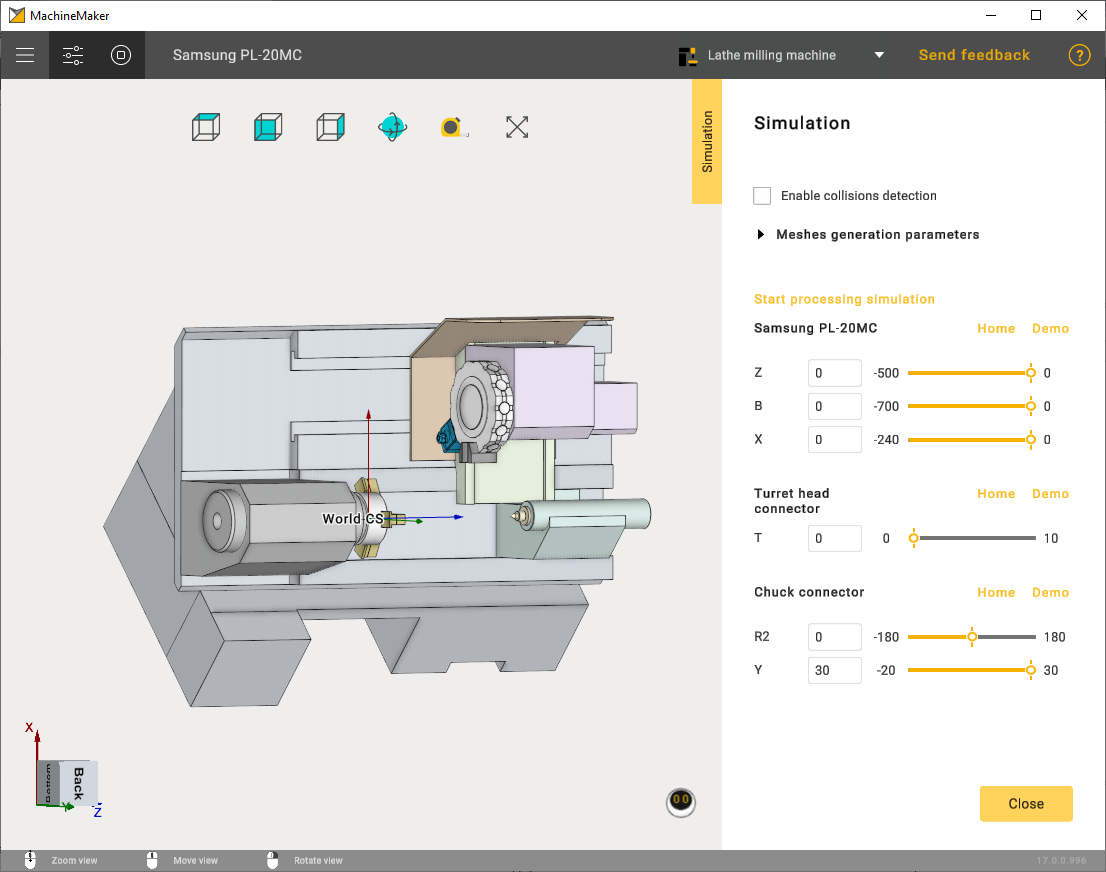
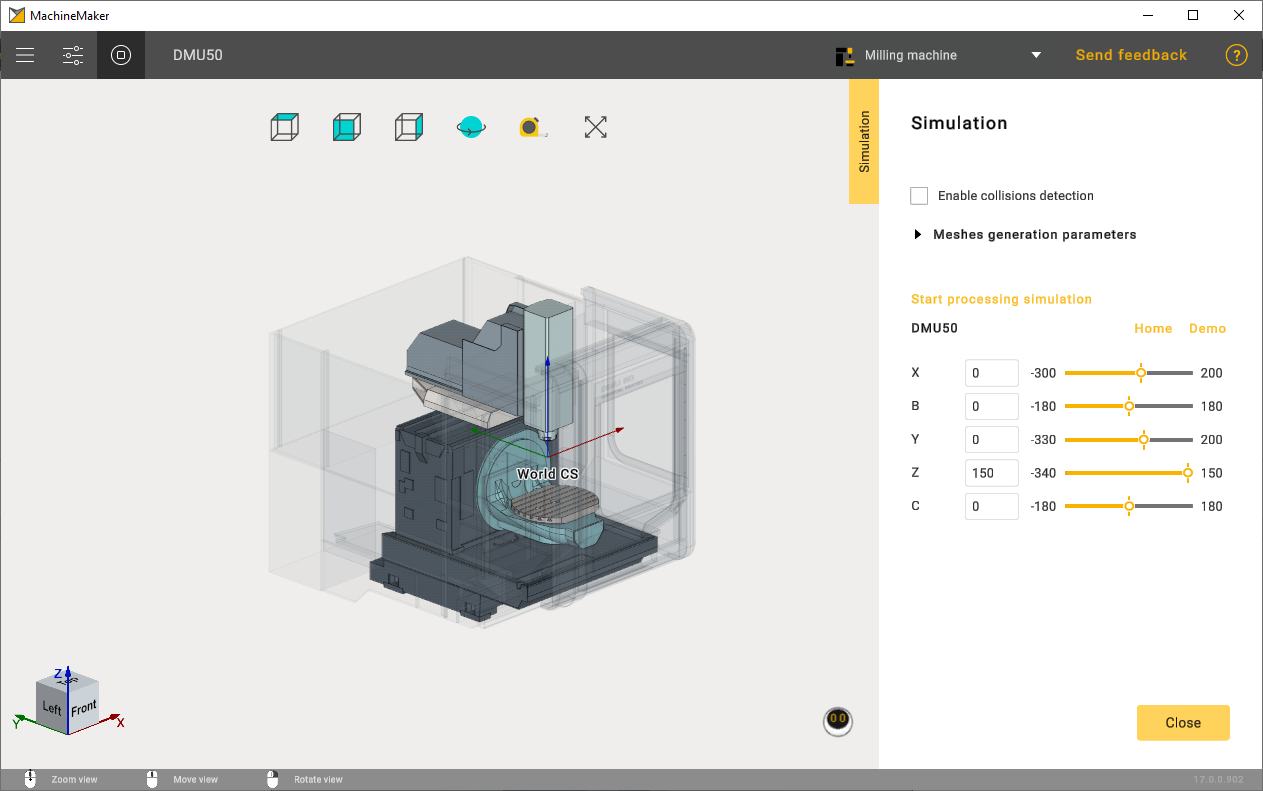
    Simulation (7)

    Use Simulation (7) button to validate all mechanisms kinematics.
    • Milling Machines
    • Robots
    • Turn-Milling Machines

    images/download/attachments/128546624/image2023-12-7_15-21-41.png

    Toolbar

    image2024-4-16_15-42-50

    Project name (9)

    Use double click on project name to change it. Entered project name will be used by CAM system. It is also possible to change project name in settings panel.


    • Milling Machines
    • Robots
    • Turn-Milling Machines

    images/download/attachments/128546624/mpjctname.gif

    Toolbar

    images/download/attachments/128546624/mpjctname.gif

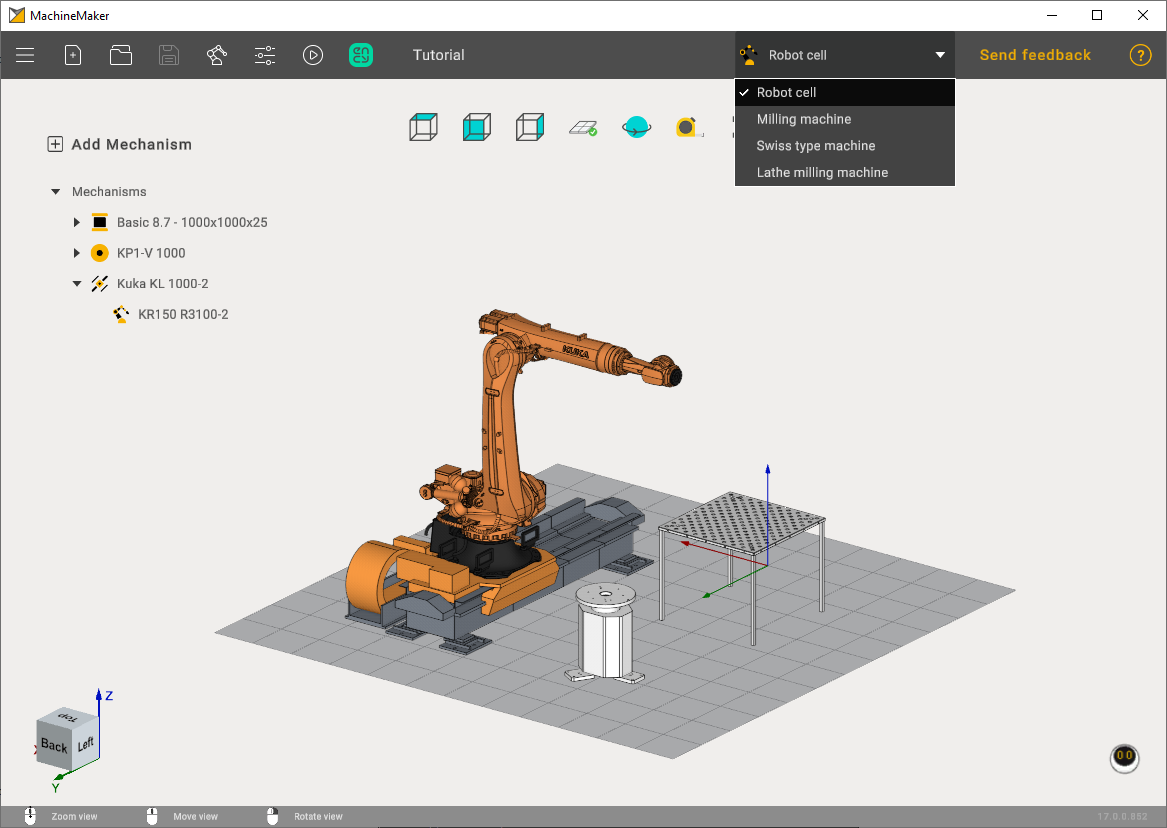
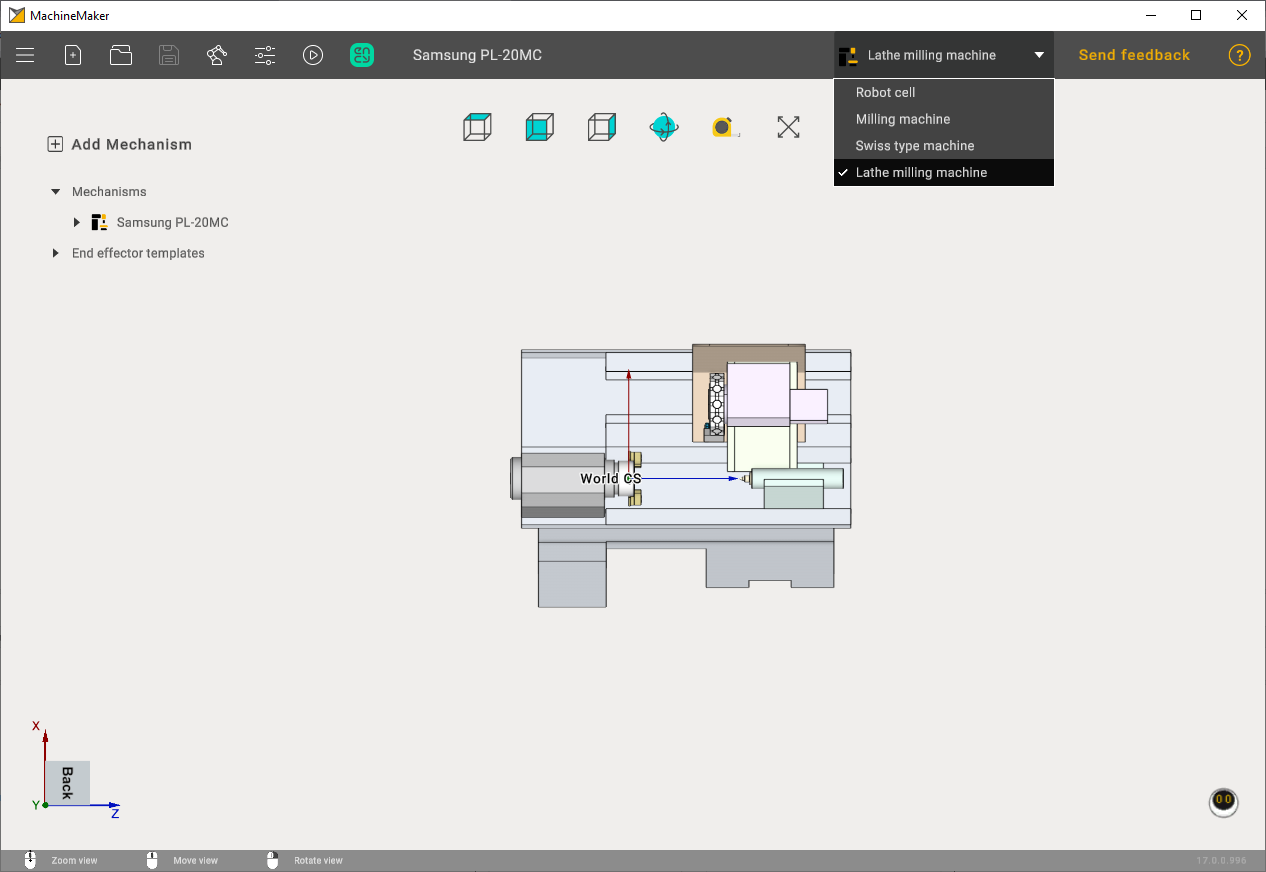
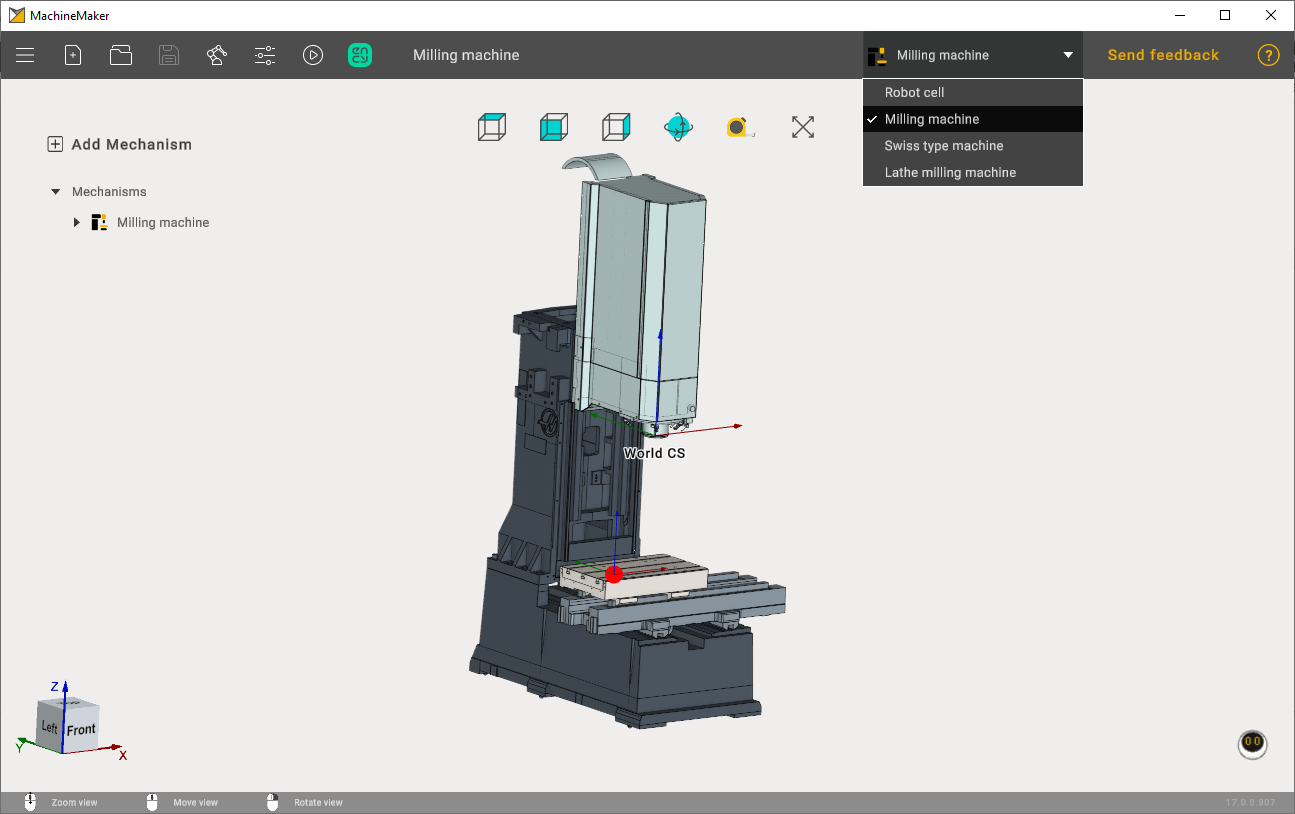
    Context switcher (10)

    Select the context depending on your tasks.
    • Milling Machines
    • Robots
    • Turn-Milling Machines

    images/download/attachments/128546624/image2024-8-12_12-20-20.png

    Toolbar

    image2024-8-12_12-21-9

    Feedback and help

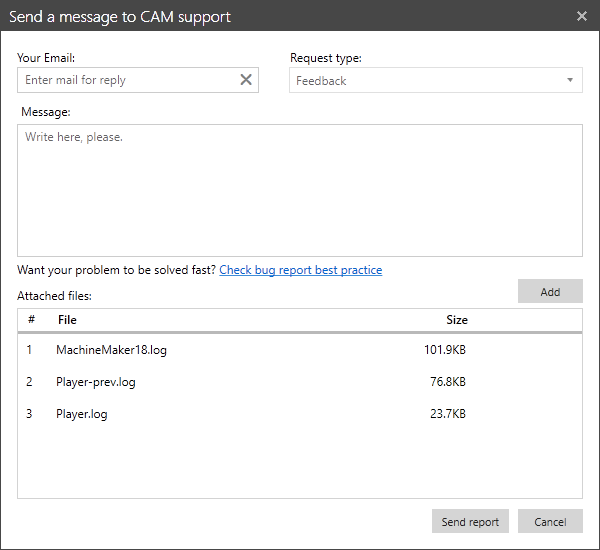
    Use Feedback (11) button to provide your feedback or ask for assistance.
    images/download/attachments/128546624/image2024-8-12_12-21-44.png

    MachineMaker will automatically attach log files and current project to your request, It is possible to remove any attachment and attach any new file to your request.

    Use Help (12) button to open this help and tutorial.

    In this article
    Back to top MachineMaker