Installing extensions using the command line
Extensions can be installed using a command line utility. This is convenient for batch installations, when you need to quickly repeat the process on multiple computers.
To install extensions using the command line, follow these steps:
Find the ExtensionManagerCLI.exe utility in the CAM system installation folder.
Note: The ExtensionManagerCLI.exe utility is used to register and remove CAM system extensions from the command line.
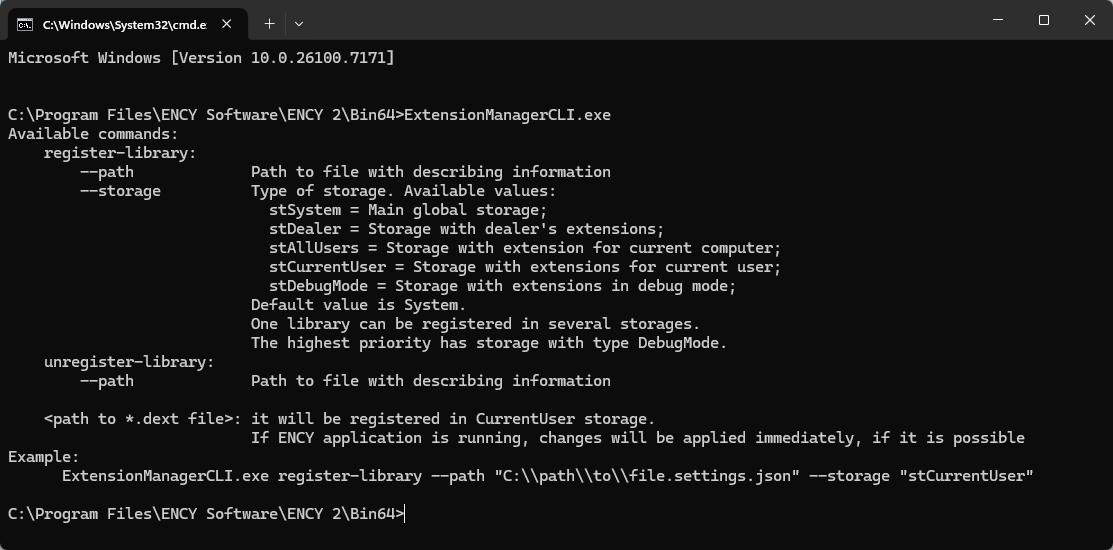
Run the command line from the CAM system installation folder. Running the utility without parameters will do nothing, it will simply display help information on valid command line arguments.
Run the command:
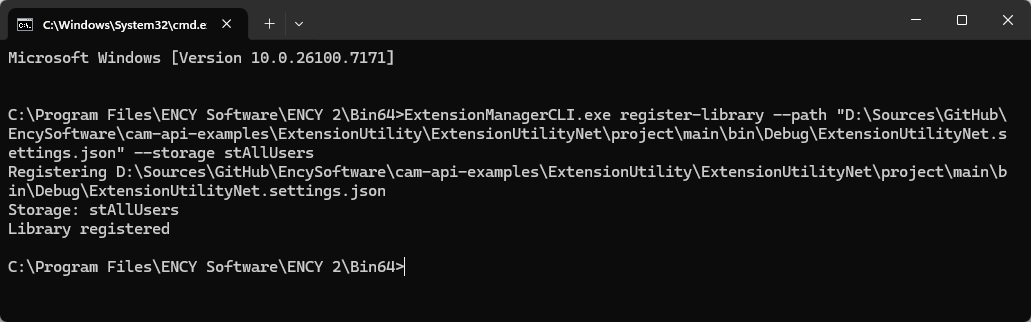
ExtensionManagerCLI.exe register-library --path "ExtensionFolder\ExtensionSettings.json" --storage stAllUsers
Instead of "ExtensionFolder\ExtensionSettings.json", specify the path to the extension's JSON file.
Instead of the --path parameter, you can also specify the path to the extension's dext file.
Using the --storage parameter (possible values: stAllUsers, stCurrentUser), you can specify whether the extension will be available to all users or only the current user.
Below is an example of the command execution.
Note: Depending on the extension type, changes may only be applied after restarting the CAM system.